
Meta Purchases Not Matching Shopify Orders? How to Fix It (2026)
Meta purchases not matching Shopify orders? Find out which problem you have in 10 minutes, then fix it step by step: lost events, duplicates or attribution.
 Tagioo teamUpdated 26 min read
On this page
- Meta purchases not matching Shopify: which problem do you have?
- How do you fix Meta showing fewer purchases than Shopify?
- How does server-side tracking fix Meta purchases not matching Shopify?
- How do you set up server-side tracking on Shopify with Tagioo?
- How do you fix Meta showing more purchases than Shopify?
- How do you make Shopify credit your Meta ads correctly?
- Why do the dates never line up?
- How much difference between Shopify and Meta is normal?
- Why doesn't Meta revenue match Shopify sales?
- Which number should you trust?
- Sources and further reading
- Related questions
Shopify shows 86 orders last week. Meta Ads Manager shows 61.
Then you look at Monday, and it flips. Facebook says 3 sales. Shopify says zero.
Is your pixel broken? Is Meta making sales up? And, most important, what do you actually change to fix it?
Let's find the problem first, then fix it.
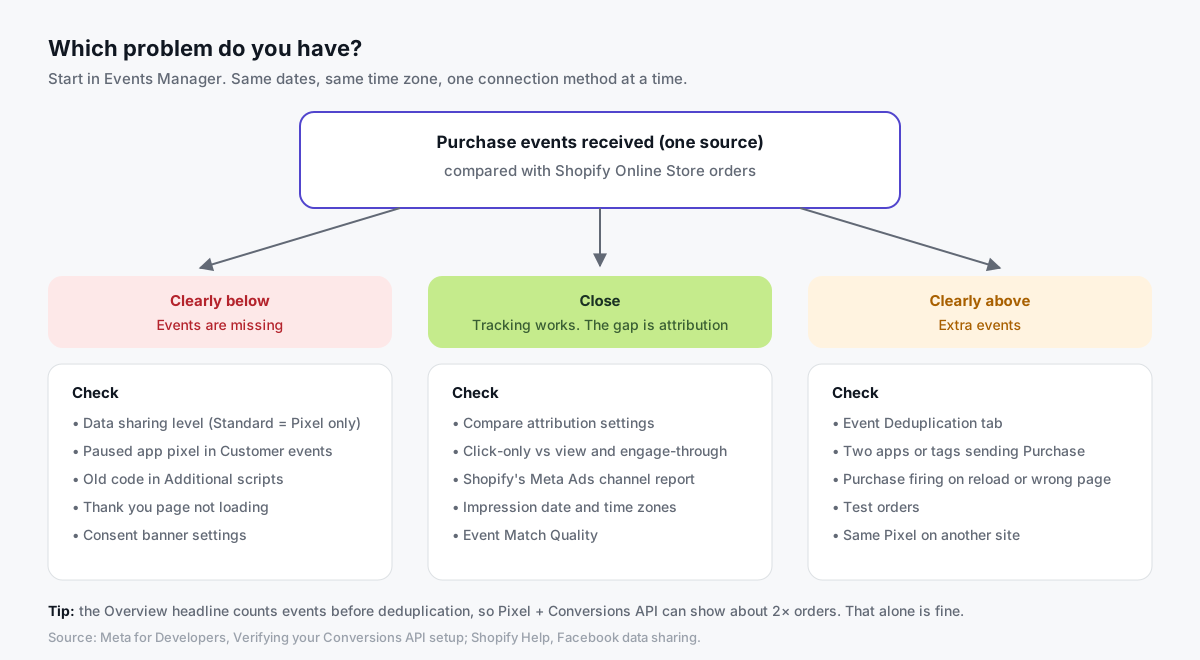
How do you fix Meta purchases not matching Shopify orders? First compare Purchase events in Meta Events Manager with Shopify Online Store orders for the same week. Fewer events means purchases are getting lost, and more means duplicates or fake events. Close means tracking works, and the rest of the gap is attribution.
Each of those three problems has its own fix. Most take a few minutes in your Shopify or Meta settings.
For lost purchases, the lasting fix is server-side tracking: your purchases reach Meta from a server on your own domain, not only from the shopper's browser.
In this guide, you'll run a 10-minute test, then follow the fixes for your result, with exact click paths in Shopify and Meta. Then you'll see how server-side tracking stops most of these problems from coming back, and how to set it up with Tagioo.
So, why the wait? Let's begin.
Meta purchases not matching Shopify: which problem do you have?
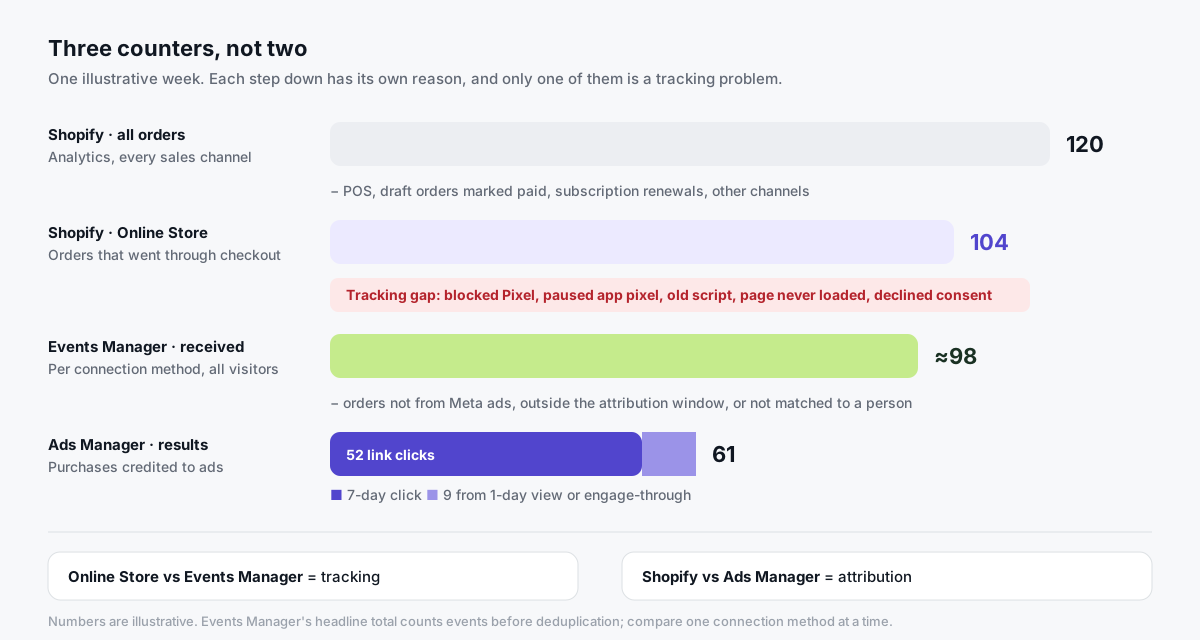
Before you change any setting, find out what kind of gap you're looking at. There are three numbers in play, not two:
| Number | Where you find it | What it counts |
|---|---|---|
| Orders | Shopify Analytics | Every order from every sales channel, unless you filter |
| Purchase events received | Meta Events Manager | Every Purchase event your store sent to Meta, ad clicks or not |
| Purchases (results) | Meta Ads Manager | Purchases Meta credits to an ad, under your attribution setting |
The first two should be close. If they aren't, that's a tracking problem, and you can fix it.
The first and third are almost never close. That's an attribution question: which sales Meta says its ads caused.
The 10-minute test
- Pick a closed week. Use 7 full days that ended at least a few days ago.
- Get your Shopify number. In Shopify Analytics, open a sales report and filter it to the Online Store sales channel. Count orders, not sales.
- Get your Meta number from Events Manager. Open your dataset, then the Purchase event on the Overview. Look at the connection method breakdown, browser and server, and write down each one.
- Compare each source with your orders on its own. Don't use the total. Meta counts events on the Overview before deduplication (Meta's verification guide), so with the Pixel and the Conversions API both on, one order shows up twice.
Now read the result:
| What you see | What it means | Go to |
|---|---|---|
| Your best source is clearly below your orders | Purchases are getting lost on the way to Meta | Fixes for fewer purchases |
| A single source is clearly above your orders | Duplicate or fake Purchase events | Fixes for more purchases |
| Events are close to orders, Ads Manager isn't | Tracking works. The gap is attribution | Make Shopify credit Meta |
What counts as "clearly"? There's no official threshold. As a rough rule, a server source that's more than about 10% below your Online Store orders is worth checking, once you take out orders that never go through checkout.
How do you fix Meta showing fewer purchases than Shopify?
Work through these in order. They're sorted from most common to least common in Shopify stores.
After each change, place a test order and watch it arrive. That's the only way to know the fix worked.
How to test a fix
In Events Manager, open your dataset and go to Test events. Enter your store's URL, open it from there, and buy a cheap product.
A healthy setup shows two Purchase events, one from the browser and one from the server, with the same event ID and the right value. Meta then merges them into one.
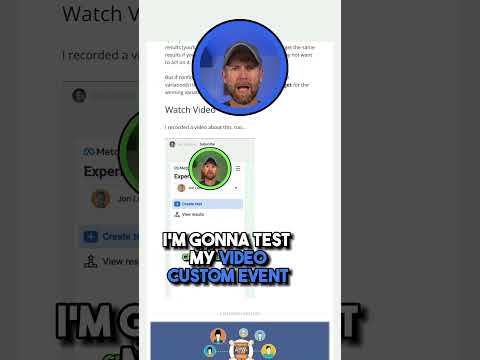
Jon Loomer shows where Test Events lives and what a working event looks like:
Fix 1: Turn on the Conversions API with Maximum data sharing
The sign: The Purchase event's connection method shows only Browser, with no server row.
Why it happens: At Shopify's Standard level, the Facebook & Instagram app sends purchases through the browser Pixel only. Ad blockers can stop it. Enhanced and Maximum add the Conversions API, which sends the purchase from Shopify's servers to Meta's (Shopify's data-sharing help).
The fix:
- In Shopify admin, go to Sales channels → Facebook & Instagram.
- Click Settings, then Data sharing settings.
- Turn on Customer data sharing.
- Under Choose level, select Maximum.
- Check that the Pixel shown is the one your ads use. Fix 5 explains why that matters.
How to check it worked: Your test order shows a server Purchase next to the browser one. Over the next days, the Purchase event shows a Server row in its connection method breakdown.
Maximum also shares the customer's email, phone, name and location, which helps Meta match purchases to the people who saw your ads. Mention this in your privacy policy.
With server-side tracking: The browser sends the purchase to your own subdomain, such as track.yourstore.com, instead of straight to Meta. Most blockers work from lists of known tracking domains, and your own subdomain isn't on them. Your server then sends the purchase to Meta's Conversions API (more on this below).
Fix 2: Reconnect the Facebook & Instagram app if it disconnected
The sign: Server events dropped to zero from one day to the next. Or Events Manager says "No recent activity", while Shopify keeps taking orders.
Why it happens: The app connects to Meta through someone's Facebook login. A password change, a security checkpoint or that person losing access to your Business portfolio can break the connection without any obvious error in your store.
The fix: In Shopify admin, open Settings → Apps and sales channels → Facebook & Instagram. If you see a reconnect or re-authentication message, follow it, signing in with an account that has admin access to both the Business portfolio and the dataset.
Two warnings:
Don't reconnect "just in case" when events are flowing. A messy reconnect can leave two connections sending purchases.
Reconnecting doesn't resend the purchases Meta missed. Write down the dates of the gap, so you don't misread those weeks later.
With Tagioo: You see your purchases arrive in your own event log, and the dashboard shows a purchase gap alert when today's tracked purchases drop well below your 7-day average. A silent break shows up quickly, not weeks later.
Fix 3: Move purchase code off the old Thank you page
The sign: Browser purchases fell sharply on one date, while server purchases held steady. Many non-Plus stores saw this around August 26, 2026.
Why it happens: Shopify made the Additional scripts box view-only on August 28, 2025. Non-Plus stores had to move to the new Thank you and Order status pages by August 26, 2026 (Shopify's upgrade page). Purchase code pasted into that box no longer runs.
The same goes for a Purchase tag in theme.liquid or a storefront GTM container. It loads on your store pages, but not inside checkout.
The fix:
- Use the official Facebook & Instagram app for Meta. It sends purchases through Customer events, not through Additional scripts.
- If you need custom tracking, go to Settings → Customer events → Add custom pixel and send Purchase from Shopify's
checkout_completedevent. - Use your upgrade guide in Shopify to switch off the old scripts, so nothing is left half-working.
How to check it worked: Settings → Customer events lists the Facebook & Instagram pixel as connected, and a test order shows the browser Purchase again.
With Tagioo: The Shopify setup runs as a Custom Pixel under Customer events, Shopify's supported place for checkout tracking. The Thank you page upgrade doesn't touch it.
Fix 4: Set the Meta pixel to Always on
The sign: Purchases dip for a few days, then come back, and nobody changed anything.
Why it happens: Since January 13, 2026, app pixels default to Optimized data sharing. Shopify can pause sharing for a pixel when it sees no signals from it over days or weeks (Shopify changelog).
The fix: Go to Settings → Customer events → App pixels. Click the value in the Data column for Facebook & Instagram, and choose Always on. Do the same for any other pixel your ads depend on.
Fix 5: Make sure your ads use the dataset your store sends to
The sign: Events Manager shows plenty of purchases, but Ads Manager shows zero, or far fewer than you'd expect.
Why it happens: Many businesses have more than one Pixel: an old one, one an agency made, one from a previous store. Shopify sends purchases to one of them, and the ads track another.
The fix: Compare three IDs. They should all be the same dataset.
- In Shopify: the Pixel shown under Facebook & Instagram → Settings → Data sharing settings.
- In the ad set: the Dataset under the Conversion section.
- In the ad: the dataset under Tracking → Website events.
Expect a new learning phase on any ad set where you change the conversion dataset.
Fix 6: Connect your cookie banner to Shopify
The sign: Purchases went missing after you added a cookie banner, or the gap is much bigger in the EU and UK than elsewhere.
Why it happens: Shopify's pixels follow the consent stored through Shopify's Customer Privacy API. A banner app that doesn't connect to it never passes on the visitor's "yes", so the pixel stays quiet even for people who accepted.
The fix: Use Shopify's own banner, under Settings → Customer privacy, or a banner app that says it supports Shopify's Customer Privacy API. Then test it: connect through a VPN in an EU country, accept the banner, buy something cheap, and watch Test Events.
What not to fix: Purchases from people who decline should stay missing. That's the law working, and no tracking setup should get around it. Server-side tracking doesn't change this: Tagioo's Custom Pixel runs under the Customer events permissions you choose in Shopify.
Fix 7: Account for orders that never go through checkout
The sign: The gap is about the same size as your orders from COD forms, draft orders, subscription renewals or POS.
Why it happens: Shopify's purchase event fires in the online checkout. Orders created any other way never fire it:
- COD form apps create the order from their own form, outside the normal checkout.
- Draft orders paid through an invoice, or marked as paid by you, have no browser session.
- Subscription renewals are charged in the background.
- POS sales happen in a physical store.
The fix: First, filter Shopify orders by sales channel for your test week, and take these orders out of the comparison. They were never part of the tracking problem.
Then decide what you want Meta to see. If you use a COD form app, check its own pixel settings: many send their own Purchase when the form is submitted, which you'll want once, not twice.
For renewals, you usually don't want Meta to see them, because you want it to find new customers.
With server-side tracking: Orders with no browser session can only reach Meta from the server, built from the order itself. Tagioo's backend order recovery for Shopify comes with the Tagioo Shopify app, which is coming soon.
What you can't fix (and shouldn't try)
Some of the gap stays even when tracking works well:
| Cause | Why it stays |
|---|---|
| Orders that didn't come from Meta ads | Email, Google, direct and returning customers all create orders. Ads Manager only shows sales it credits to an ad |
| Sales outside the attribution window | Meta's default credits a purchase within 7 days of a link click, or 1 day after a view or engagement (Jon Loomer) |
| Purchases Meta can't tie to a person | Different device, or not enough customer details. Maximum data sharing and server-side tracking with customer details help, but never close this fully |
| Declined consent | Correct behavior. Leave it alone |
| Recent days | Meta files purchases under the ad impression date, so last week keeps filling in (Jon Loomer) |
How does server-side tracking fix Meta purchases not matching Shopify?
The fixes above repair one break at a time. Server-side tracking changes the path your purchases take, so most of those breaks can't stop them reaching Meta in the first place.
It's the long-term fix for the most common problem in this guide: Meta showing fewer purchases than Shopify.
What is server-side tracking?
Normally, tracking code in the shopper's browser sends each event straight to Meta, Google and TikTok. Each platform gets its own copy, from a browser you don't control.
Server-side tracking puts a server in the middle, on your own subdomain, such as track.yourstore.com. The browser sends each event once, to your server. Your server then sends it to each platform: Meta's Conversions API, GA4, Google Ads and TikTok's Events API.
Most stores run this with server-side Google Tag Manager, also called a tagging server.
This short video shows the idea for Shopify stores:

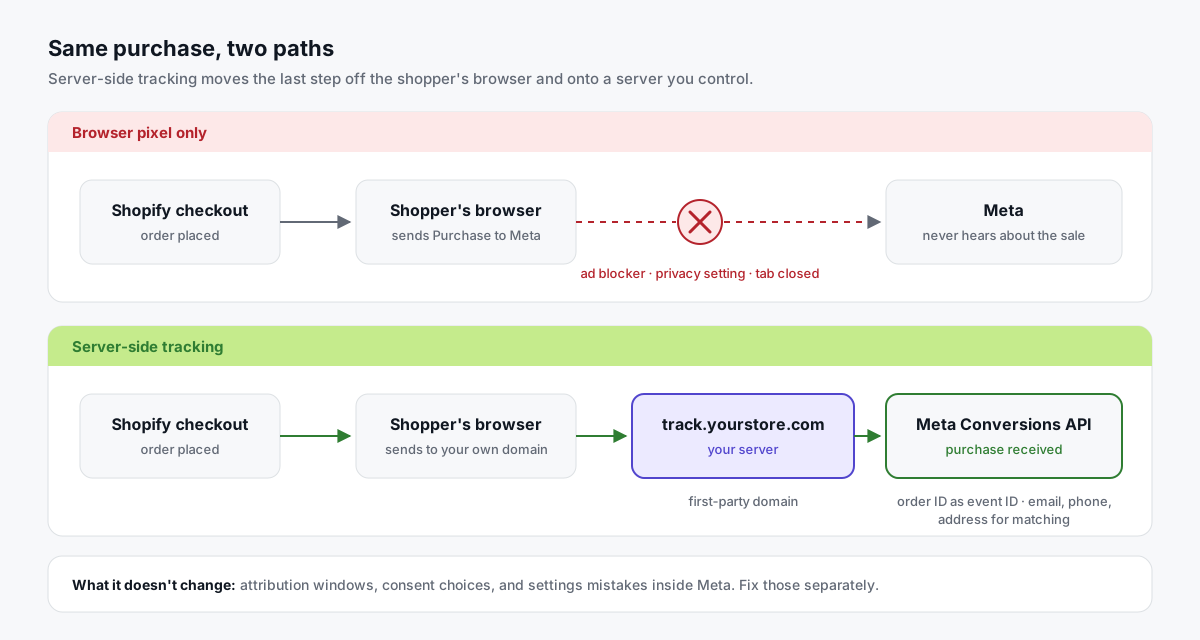
What happens to a Shopify purchase with server-side tracking?
- The order is placed. Shopify fires its
checkout_completedevent in checkout. - Your Custom Pixel picks it up. It reads the order ID, value, currency, products and the customer's email, phone and address.
- The event goes to your own subdomain. One request to
track.yourstore.com, not to Meta's domain. - Your server sends it on. Meta gets the purchase through the Conversions API, with the order ID as event ID. GA4, Google Ads and TikTok get theirs from the same event.
- Meta merges the copies. If the browser Pixel also got through, both copies share the order ID, so Meta counts one purchase. In Events Manager, Purchase now shows a Server row.
Why does it recover purchases the browser Pixel misses?
Here's how that path maps to the problems in this guide:
| Problem | Browser Pixel only | With server-side tracking |
|---|---|---|
| Ad blockers and browser privacy | Requests to Meta's domain are on most blocklists | The browser talks to your own subdomain, and the server-to-Meta step can't be blocked by a browser |
| Shopify pausing a pixel | Marketing app pixels default to Optimized and can be paused | Shopify describes Optimized as a setting for app pixels. A Custom Pixel isn't described as covered (Shopify's app pixels help) |
| Weak match quality | Meta gets only what the browser can send | The server sends the customer's email, phone and address with the purchase |
| Duplicate purchases | Each tool sends its own Purchase with its own ID | One owner. Browser and server copies share the order ID as event ID, and Meta merges them |
| Silent breaks | Nobody notices until ROAS drops | You see purchases arrive in your own event log and can compare them with Shopify every day |
| Orders that skip checkout | Never sent | Can be sent from the order record on the server |
Why does it matter for your ads, not just your reports?
Missing purchases don't only make Ads Manager look worse. They change what Meta's ad delivery learns from.
Meta's Conversions API best practices say only events it can match to a Meta account can be used for attribution and ad delivery optimization (Meta's best practices). A purchase that never arrives, or arrives without customer details, can't teach Meta who your buyers are.
Server-side tracking helps on both counts. More purchases arrive, and each one carries the customer details Meta uses for matching. You can watch this in the Event Match Quality score for Purchase in Events Manager.
No setup can promise a specific ROAS change. But it means Meta optimizes on your real sales, not only the share a browser let through.
How do you know server-side tracking is working?
| Check | Where | What good looks like |
|---|---|---|
| Server events arrive | Events Manager → Purchase → connection method | A Server row close to your Online Store orders |
| Copies merge | Event Details → Event Deduplication | Meta reports browser and server events being deduplicated |
| Match quality | Events Manager → Purchase → Event Match Quality | The score holds or improves after the switch |
| Nothing lost on the way | Your server's event log. In Tagioo: Event Logs and Purchase Inspector | One purchase per Shopify order, with the same order ID and value |
What breaks a server-side setup?
Most problems come from adding a server setup on top of what's already there:
- Two server senders. The Facebook & Instagram app's Conversions API and your tagging server both send Purchase. Pick one.
- No shared event ID. Browser and server copies with different IDs count twice.
- No customer details. Purchases arrive, but match quality drops and Meta matches fewer of them.
- Consent not passed through. The server has to follow the same choice as the Pixel.
- A tagging server nobody watches. A DNS change or a stopped server ends the events quietly. Monitoring catches it.
What server-side tracking doesn't change
It fixes how purchases reach Meta. It doesn't change the rules Meta and Shopify use to credit them.
- Attribution stays the same. Windows, view-through credit and Shopify's attribution models don't move. Ads Manager still won't equal your order count.
- Consent stays the same. Server events follow the same consent choice as the Pixel. Server-side tracking never bypasses it.
- Meta settings stay yours to fix. A wrong dataset, an Event Setup Tool rule or your Pixel on another site has to be fixed in Meta.
- The browser step still counts on Shopify. The purchase starts in the shopper's browser, so a blocker that stops the tracking script on the page can still stop it. Only events built on the server from the order itself skip the browser completely. That's what backend order recovery does, and it comes with the Tagioo Shopify app, which is coming soon.
Isn't Shopify's own Conversions API enough?
For some stores, yes. At Maximum, the Facebook & Instagram app already sends the purchase from Shopify's servers. If you only advertise on Meta and your coverage is close to 1, you may not need more.
A server-side tagging setup adds four things the Shopify app doesn't:
| Facebook & Instagram app | Server-side tagging (Tagioo) | |
|---|---|---|
| Where the browser sends events | Meta's domain | Your own subdomain |
| Platforms covered | Meta only | Meta, GA4, Google Ads and TikTok from one setup |
| Seeing what was sent | Only inside Events Manager | Your own event log, with order ID, value and currency |
| Alerts when tracking breaks | No | Purchase gap alert against your 7-day average |
How do you set up server-side tracking on Shopify with Tagioo?
Tagioo runs a dedicated server-side Google Tag Manager container for your store, on your own tracking subdomain, such as track.yourstore.com. You don't need a server or GTM experience.
Here's the setup, start to finish:
- Check what's on your store first. The free Website Tracking Checker scans your storefront for tags, Pixel IDs, consent setup and first-party routing. It's a quick way to spot a second Pixel before you add anything.
- Create a free Tagioo account. Add a container and choose your tracking subdomain.
- Import the ready-made containers. The Setup Assistant gives you web and server container files to import into GTM. Then preview and publish.
- Paste the Custom Pixel. In Shopify admin, go to Settings → Customer events → Add custom pixel, and paste the code from the Setup Assistant. No theme edits needed.
- Make Tagioo the Purchase owner for Meta. Lower the Facebook & Instagram channel's data sharing for those events and keep the channel for your catalog and Shops, so purchases aren't sent twice.
- Test one order. Watch it arrive in Meta's Test Events and in your Tagioo event log, with the same order ID.
This video walks through the whole Shopify setup:
Once it's live, you have your own coverage number. Tagioo's Event Logs and Purchase Inspector show which orders reached your server container, with transaction ID, amount and currency. Compare that with Shopify before you even open Events Manager.
One honest limit: on Shopify, the Custom Pixel covers browser and checkout events. Backend order recovery will come with the Tagioo Shopify app, which is coming soon. Until then, a purchase still needs checkout_completed to fire.
The Free plan includes 15,000 events per 30 days, with no card. See Tagioo for Shopify and pricing, or create an account.
How do you fix Meta showing more purchases than Shopify?
First, check that it's really extra events, not attribution.
If a single connection method in Events Manager is close to your orders, but Ads Manager shows more, nothing is broken. Meta's default also credits purchases within 1 day of someone seeing your ad, or engaging with it without a link click. Since March 2026, that engagement credit has its own "engage-through" window (Jon Loomer).
Jon Loomer explains how that change to click attribution affects what you see in Ads Manager:

If a single source in Events Manager is clearly above your orders, you have extra events. Here's how to find and remove them.
Fix 1: Remove the second Purchase sender
The sign: One connection method shows about twice your orders. Or a test order shows two browser Purchase events.
Why it happens: Two tools send Purchase. Usually it's the Facebook & Instagram app plus something left over: a manually added Pixel, a GTM tag, a tracking app, a COD form app or an upsell app.
Where to look:
- Shopify: Settings → Customer events. Check every app pixel and custom pixel. Does any of them, besides Facebook & Instagram, send to Meta?
- Your theme: Online Store → Themes → Edit code. Search
theme.liquidand the snippets forfbq(orconnect.facebook.net. - GTM: look for Meta Pixel tags in your web container.
- Meta: check the Event Setup Tool. That's Fix 2.
The fix: Pick one owner for Purchase. That's either the Facebook & Instagram app at Maximum, or a server-side setup like Tagioo. Turn Purchase off everywhere else.
If Tagioo owns Purchase, lower the Facebook & Instagram channel's data sharing for those events and keep the channel for your catalog and Shops. Tagioo's browser and server copies share the order ID as event ID, so Meta counts each purchase once.
How to check it worked: A test order shows one browser and one server Purchase, with the same event ID. In Event Details, the Event Deduplication tab shows Meta merging them.
Fix 2: Delete Event Setup Tool rules that create fake purchases
The sign: Meta shows purchases on days with zero orders, often with no purchase value.
Why it happens: Meta's Event Setup Tool lets anyone create a Purchase from a page visit or a button click, without code. A loose rule, like "URL contains /products", turns ordinary page views into purchases.
In one Shopify Community thread from October 2026, a merchant saw hundreds of Ads Manager purchases and zero orders. Deleting a rule like this stopped the fake purchases the same day (the thread).
The fix: In Events Manager, open your dataset's Settings, find Event setup, and open the Event Setup Tool. Remove any Purchase event created there. The Facebook & Instagram app already sends Purchase from checkout.
How to check it worked: Browse your product pages with Test Events open, without buying. No Purchase should appear.
Fix 3: Lock your Pixel to your own domains
The sign: Purchases arrive from a website that isn't your store.
Why it happens: The same Pixel can sit on an old store, a staging copy, a landing page tool, or a copy of your theme someone else installed. Its purchases all land in your dataset.
The fix: In Events Manager, open your dataset's Settings and find Traffic permissions. It shows which domains send events. Create an allow list with your store's domains (Jon Loomer's guide).
Careful: Meta drops events from any domain that isn't on the allow list, without warning. Add every domain your store and checkout use before you save.
You can also open the Meta Pixel Helper on each site you own and look for your Pixel ID.
Fix 4: Account for test orders and draft orders
Test orders: They go through checkout and can send a Purchase to Meta, but Shopify's reports leave them out (Shopify's marketing reports). Keep a note of when you placed them.
Draft orders: Merchants in the Shopify Community report the Facebook & Instagram app sending draft orders to Meta as purchases through the Conversions API (the thread). Shopify's help pages don't mention this either way.
If you create many draft orders, for phone, WhatsApp or wholesale sales, compare Meta's extra purchases with your draft order count for the same days. If the numbers line up, you've found the cause. Keep it in mind when you read ROAS, because Meta can credit those orders to an ad when it matches the customer's email or phone.
How do you make Shopify credit your Meta ads correctly?
Sometimes tracking is fine, but Shopify files your Meta sales under "Direct" or "Email". Two fixes help here.
Fix 1: Add UTM parameters to every ad
Shopify uses UTM parameters to work out where a visit came from when it can't tell otherwise (Shopify's marketing reports). Without them, some clicks from inside the Facebook and Instagram apps can show up as direct visits.
In Ads Manager, open each ad, go to Tracking → URL parameters, and paste this:
utm_source=facebook&utm_medium=paid_social&utm_campaign={{campaign.name}}&utm_term={{adset.name}}&utm_content={{ad.name}}Meta fills in the names in curly brackets when someone clicks. Use the same string on every ad, and never put UTMs on links between your own pages.
How to check it worked: Click one of your ads and place a test order. In Shopify, open the order, find Conversion summary, and click View conversion details. You should see facebook as the source (Shopify's conversion summary help).
Fix 2: Compare under the same kind of attribution
Shopify and Meta credit sales by different rules. To compare them fairly, bring them closer together.
| Tool | Where | What to pick |
|---|---|---|
| Meta Ads Manager | Columns → Compare attribution settings | The 7-day click column. It leaves out view-through and engage-through |
| Shopify | The Attribution menu in a marketing report | Pick more than one model to compare them: Last non-direct click, Last click, First click, Any click or Linear |
Shopify's Any click model credits a sale to every channel the buyer clicked through from. Next to Meta's 7-day click column, it's the fairest comparison you'll get.
They still won't match exactly. Shopify never sees ad views, and Meta can link a click on one device to a purchase on another.
Why do the dates never line up?
Meta reports a purchase on the day of the ad impression. Shopify reports the order on the day it was placed.
So a shopper who sees your ad on Monday and buys on Thursday is a Monday purchase in Ads Manager and a Thursday order in Shopify.
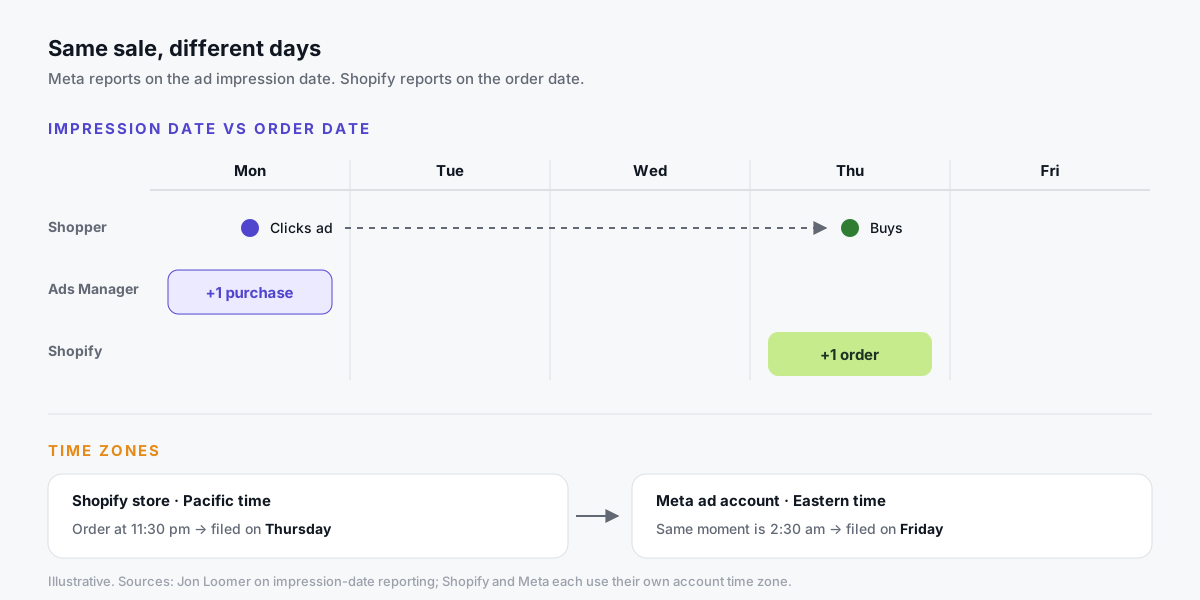
The fix: Check both time zones. In Shopify, it's under Settings → General. In Meta, it's in your ad account settings.
If they match, compare day by day. If they differ, compare whole weeks. Don't convert both to UTC: neither tool reports in UTC, so that only moves the mismatch somewhere harder to see.
This also explains most "3 sales in Meta, zero in Shopify" days. If the whole week still shows sales in Meta and none in Shopify, go back to the fixes for extra events.
How much difference between Shopify and Meta is normal?
Honestly? There's no official number.
Forum answers and vendor blogs quote all sorts of ranges. None of them come from Meta or Shopify. Your gap also depends on how much of your business comes from Meta ads.
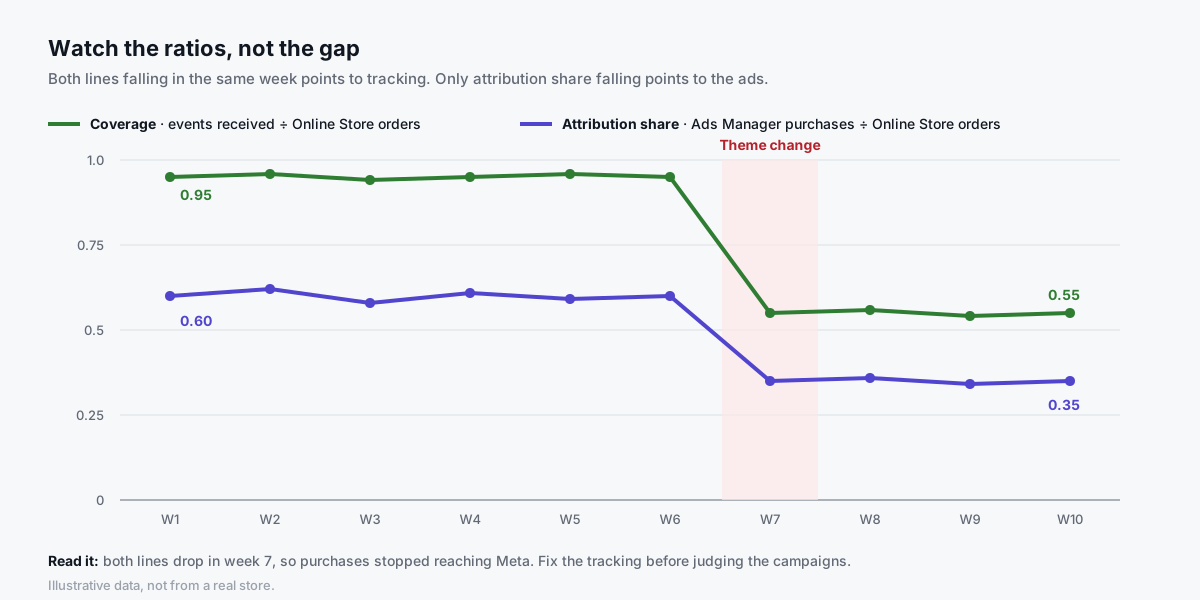
A better test is two ratios, written down every week:
| Ratio | How to work it out | What healthy looks like |
|---|---|---|
| Coverage | Purchase events from one connection method ÷ Shopify Online Store orders | Close to 1 for a server source. Lower for the browser Pixel, because of blockers and declined consent |
| Attribution share | Ads Manager purchases ÷ Shopify Online Store orders | Any number, as long as it's steady and fits your channel mix |
| What you see | What it usually means |
|---|---|
| Both ratios steady | Normal. This is your gap |
| Both ratios drop in the same week | Tracking broke. Check what changed: a theme, an app, checkout settings |
| Coverage steady, attribution share drops | Tracking is fine. Ads get less credit: weaker campaigns, a new attribution setting, or more sales from other channels |
| Attribution share above 1 | Meta credits more purchases than you had online orders. Check for extra events first |
What should you do while tracking is broken?
Don't cut budgets based on Meta's ROAS during the gap. Your orders are still coming in. Only the measurement dropped.
Instead, divide your Meta ad spend by the Shopify orders that carry your Meta UTM tags, day by day. Compare it with the weeks before the problem. If that number holds steady, your ads are fine.
Why doesn't Meta revenue match Shopify sales?
Even when purchase counts agree, the money often doesn't. Here's how to line it up:
| Cause | How to compare fairly |
|---|---|
| Different definitions | The Facebook & Instagram app sends the order's total price, including duties, taxes and discounts (Shopify's data-sharing help). Compare it with Shopify's gross sales, not net sales |
| Refunds | Meta keeps the value it got at checkout. Compare weeks before refunds come in, or accept a small gap |
| Attribution | Meta revenue only covers sales it credits to ads. Compare Events Manager values, not Ads Manager values |
| Currency | If your store and ad account use different currencies, Meta converts the value. Small differences add up |
Fix purchase counts first. Revenue usually lines up once they do.
Which number should you trust?
All three. Each one, for its own job.
| Use this | For |
|---|---|
| Shopify | Orders and revenue. It's your ledger |
| Events Manager | Tracking health: did your orders reach Meta? |
| Ads Manager | Comparing campaigns and ads with each other, under one consistent attribution setting |
What you shouldn't do is treat Ads Manager as your order count, or Shopify's last-click report as the full value of your Meta ads. Both ignore part of the picture.
Sources and further reading
- Shopify Help: Facebook data sharing: what Standard, Enhanced and Maximum send, where to change the level, and the purchase value definition
- Shopify Help: Checkout upgrade: Additional scripts and the Thank you page deadlines
- Shopify changelog: New default for pixel data sharing: Optimized vs Always on
- Shopify Help: Marketing reports: attribution models, UTM parameters, which orders count
- Shopify Help: Order conversion summary: checking the source and UTM tags of a single order
- Meta for Developers: Verifying your Conversions API setup: the Events Manager Overview, Event Deduplication tab and Event Match Quality
- Meta for Developers: Conversions API best practices: why matched events matter for attribution and ad delivery optimization
- Shopify Help: App pixels: which pixels Optimized data sharing applies to
- Meta for Developers: Deduplicate Pixel and server events: how event names and IDs merge browser and server events
- Jon Loomer: Meta ads attribution in 2026: default windows, engage-through and conversion counts
- Jon Loomer: Pixel traffic permissions: allow lists and block lists
- Shopify Community: Meta reporting fewer purchases after the August 2026 checkout upgrade: how merchants and agencies diagnosed the gap
Related questions
Why does Facebook show purchases but Shopify shows no orders?
On a single day, it's usually the date. Meta reports a purchase on the day of the ad impression, so someone who saw your ad on Monday and bought on Thursday is a Monday purchase in Meta.
If Shopify has no orders for the whole week, look for an Event Setup Tool rule, a Purchase tag firing on the wrong page, or your Pixel on another website.
Why does Events Manager show twice as many purchases as my orders?
Events Manager's Overview counts events before deduplication. If the Pixel and the Conversions API both send each purchase, one order shows up twice there. That's expected.
Compare each connection method separately. If a single method shows double, you have two senders: see the fix for duplicates above.
Does Shopify's Maximum data sharing fix the mismatch?
It fixes part of it. Maximum adds the Conversions API, so purchases still reach Meta when a browser blocks the Pixel.
It doesn't change attribution. Meta and Shopify will still credit sales differently, so Ads Manager won't match your order count.
Does server-side tracking fix Meta purchases not matching Shopify?
It fixes the tracking side: purchases lost to ad blockers, browser privacy and failed pages, plus duplicates, once one setup owns Purchase. Purchases go to Meta from your own subdomain, deduplicated by order ID.
It doesn't change attribution or consent, so some gap between Ads Manager and Shopify always stays. Tools like Tagioo set it up on Shopify with a Custom Pixel, no theme edits.
Why does Shopify show my Meta sales as Direct?
Usually because the ad links carry no UTM parameters, so Shopify can't tell where the visit came from. Clicks from inside the Facebook and Instagram apps can arrive without a clear referrer.
Add UTM parameters under Tracking → URL parameters in each ad, then check a test order's conversion details.
How much difference between Shopify and Meta purchases is normal?
There's no official number from Meta or Shopify. It depends on how much of your business comes from Meta ads.
Track two ratios every week instead: Purchase events ÷ Online Store orders, and Ads Manager purchases ÷ Online Store orders. A steady gap is normal. A sudden drop means something changed.
Should I use Ads Manager or Shopify to calculate ROAS?
Use Shopify for revenue you actually earned, and Ads Manager to compare campaigns with each other. Ads Manager revenue includes view-through credit and ignores refunds.
Many stores track both: Ads Manager ROAS for day-to-day decisions, and total revenue divided by total ad spend as a business check.
See your own events, server-side.
Tagioo hosts your server-side GTM container on your own domain and generates the GA4, Google Ads, Meta and TikTok setup for you. Free for 15,000 events a month, no card needed.
Keep reading
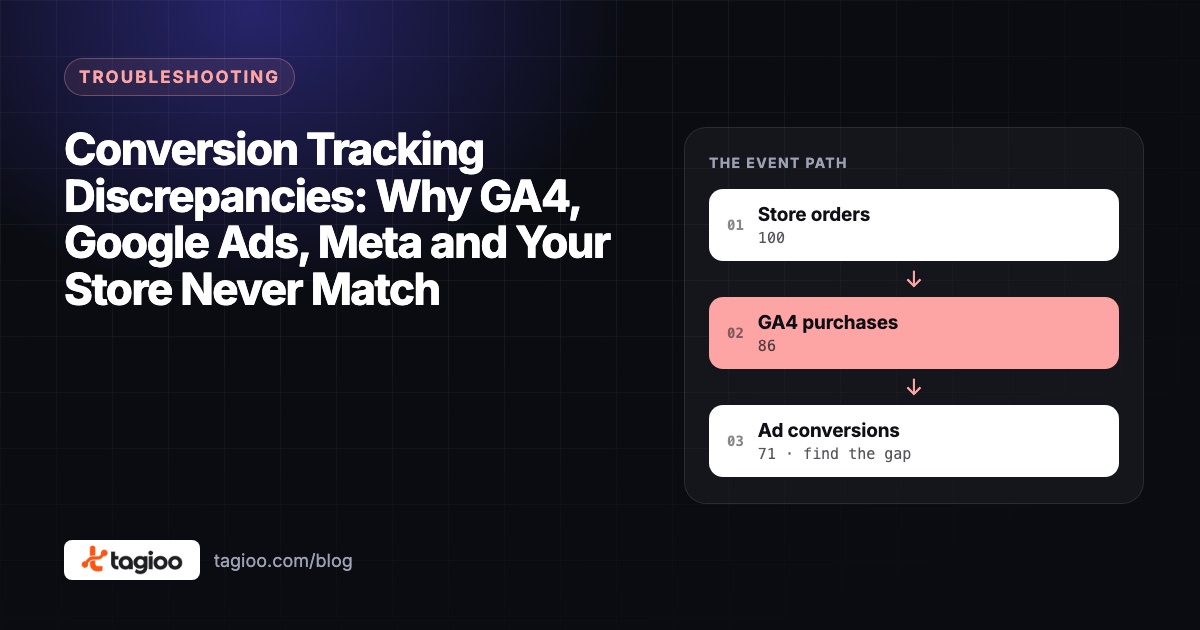
Conversion Tracking Discrepancies: Why GA4, Google Ads, Meta and Your Store Never Match
Not every reporting gap is a broken tag. How to tell normal attribution differences from missing or duplicate conversions.
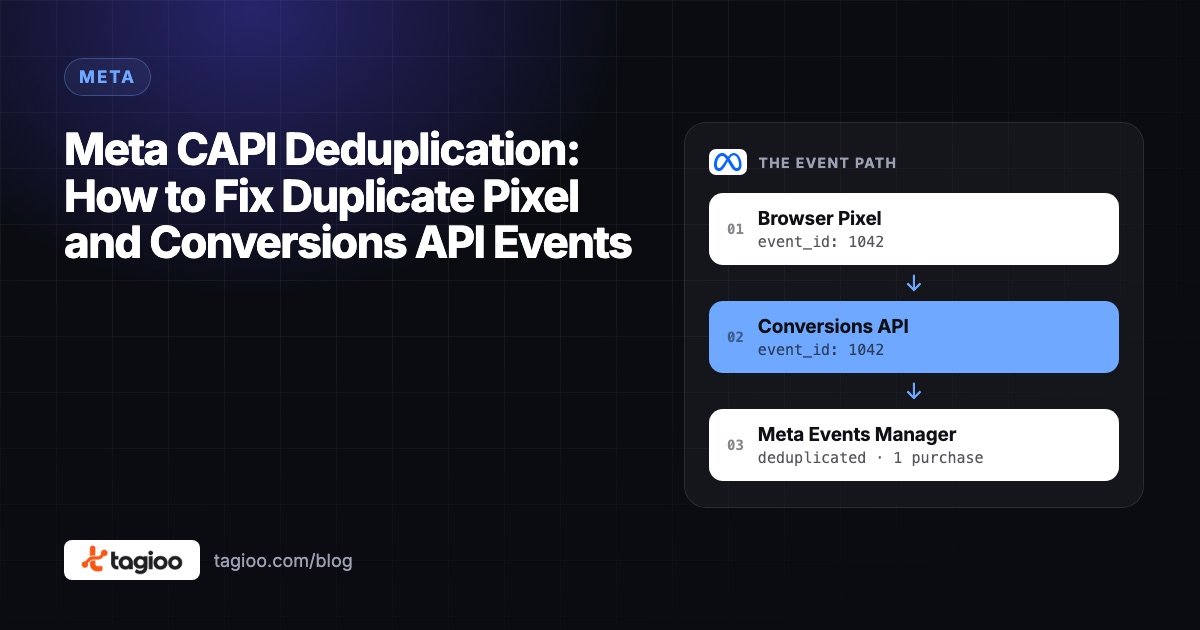
Meta CAPI Deduplication: How to Fix Duplicate Pixel and Conversions API Events
Why Pixel + CAPI can double count purchases, how Meta's event_id matching works, and a 7-step checklist to prove each sale counts once.
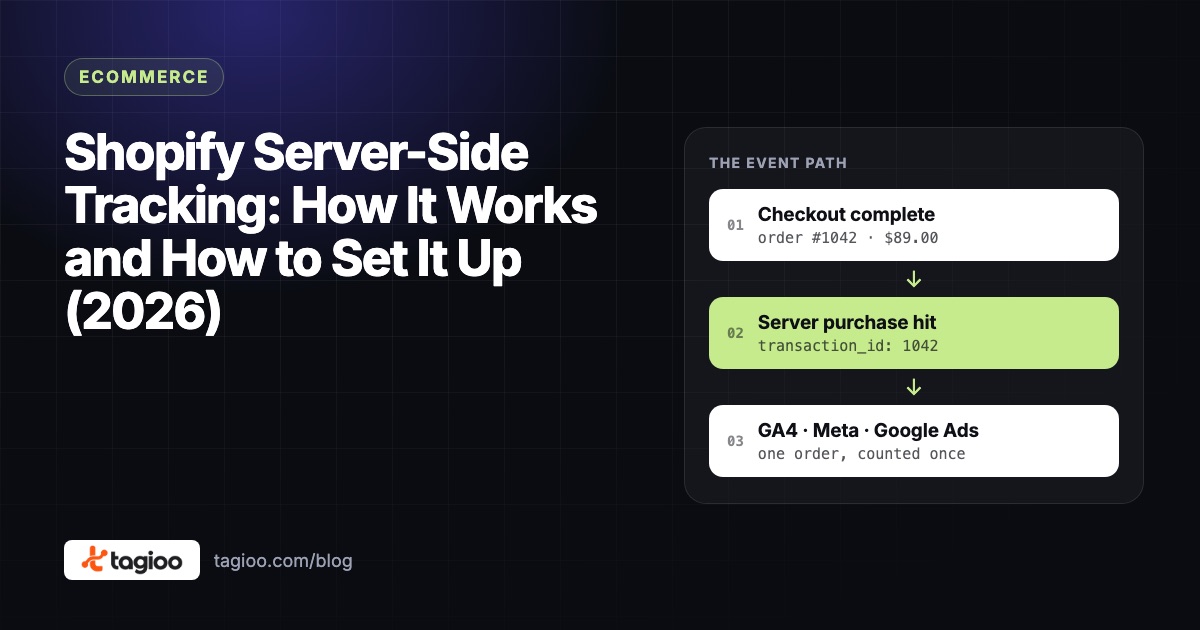
Shopify Server-Side Tracking: How It Works and How to Set It Up (2026)
How Customer events, the pixel sandbox and Optimized sharing changed Shopify tracking, and how to go server-side without double counting.