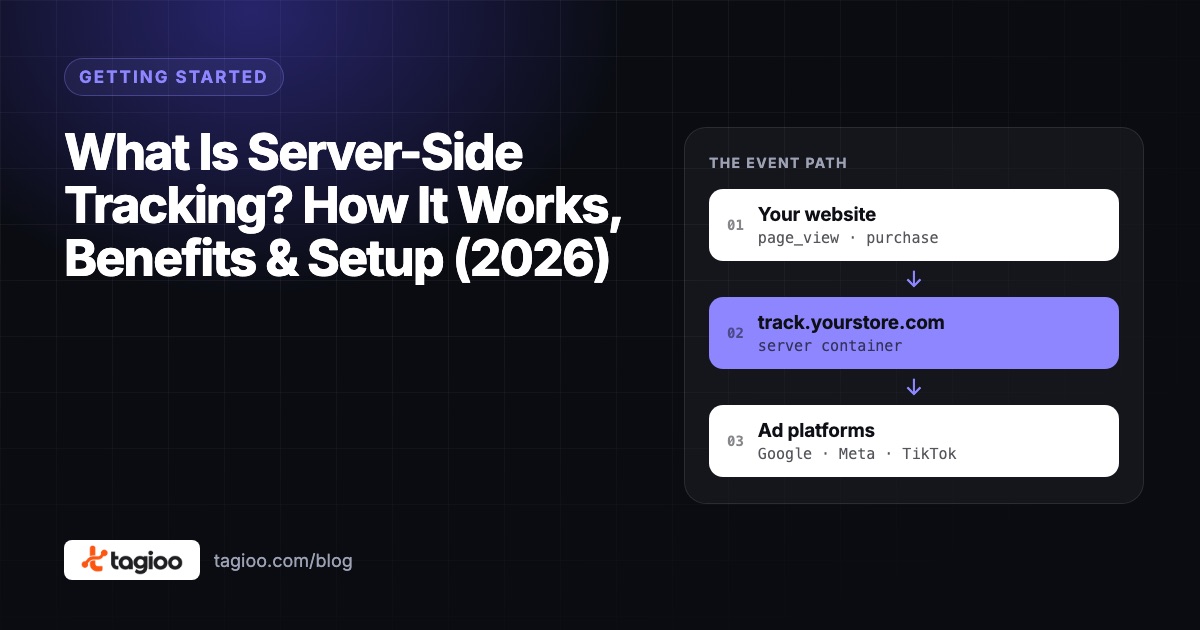
Tagioo Setup Guide: Server-Side Tracking, Step by Step
The full Tagioo setup: GTM server container, tracking subdomain and SSL, Setup Assistant templates, WooCommerce or Shopify connection, testing and publishing.
 Tagioo teamUpdated 12 min read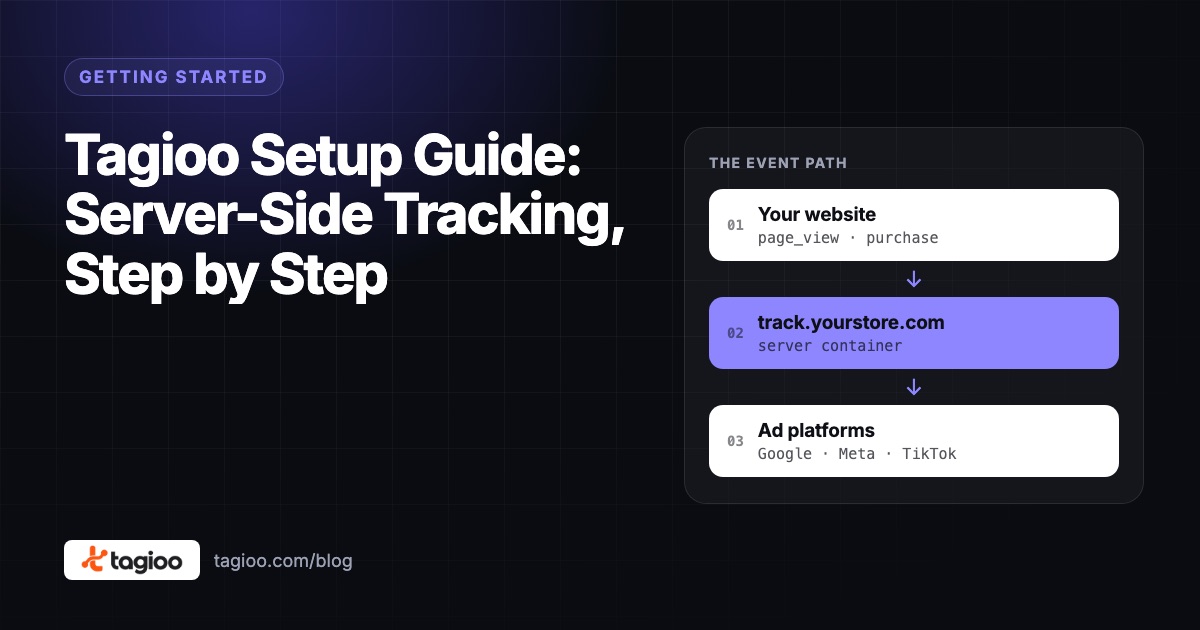
On this page
- What do you need before you start?
- Step 1: Create your Tagioo account
- Step 2: Create a GTM server container and copy the Container Config
- Step 3: Create your container in Tagioo
- Step 4: Point your subdomain at Tagioo (one CNAME record)
- Step 5: Generate your GTM files with Setup Assistant
- Step 6: Import the files into GTM (don't publish yet)
- Step 7: Connect your website
- Step 8: Preview, test an order and publish
- What should you check after launch?
- What if your Tagioo setup doesn't work?
- Sources and further reading
- Related questions
You've just created your Tagioo account. The dashboard is open, and it's asking for a "Container Config".
Where do you get that? What's a CNAME? And how do you know it's actually working at the end?
Grab a coffee and keep this guide open in another tab. We'll go one step at a time.
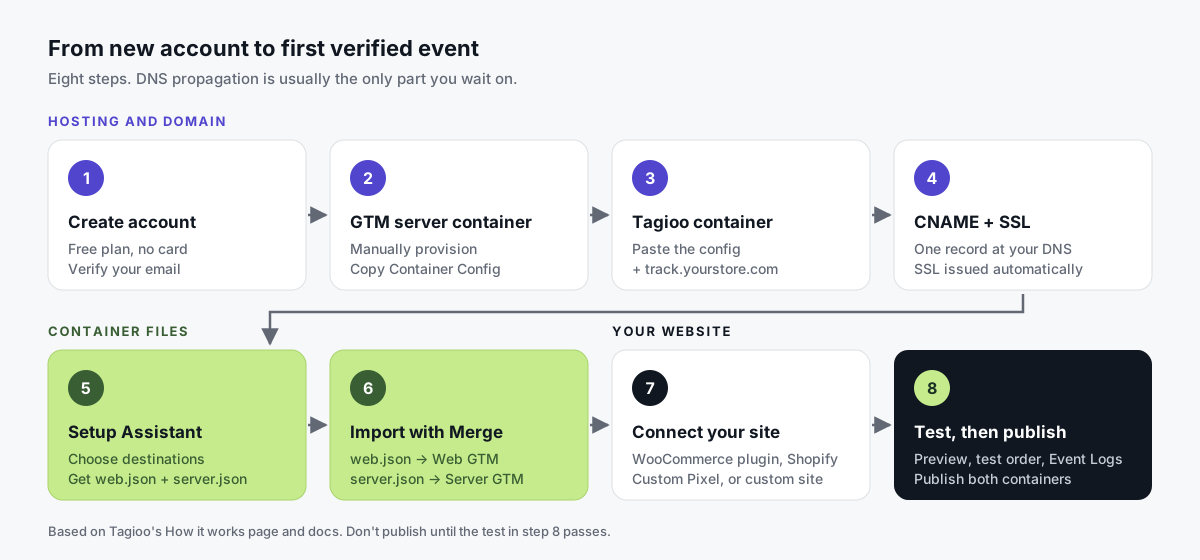
What is the Tagioo setup? The Tagioo setup connects your website to a dedicated server-side Google Tag Manager container that Tagioo hosts on your own tracking subdomain, like track.yourstore.com. You create a GTM server container, point one DNS record at Tagioo, generate ready-to-import Web and Server GTM files with Setup Assistant, connect your store, then test an order and publish.
The hands-on part isn't long. The main wait is usually for DNS to resolve.
In this guide, you'll find every step from a new account to a published setup, what goes in each field, how to test a purchase end to end, and fixes for the problems we see most.
So, why the wait? Let's begin.
What do you need before you start?
Five minutes of prep here saves a lot of back-and-forth later.
| You'll need | Why | Where to find it |
|---|---|---|
| Admin access to Google Tag Manager | To create a Server container and import files | tagmanager.google.com |
| A Web GTM container | It runs on your site and sends events to your server | GTM, container ID GTM-XXXXXXX |
| DNS access for your domain | To add one CNAME record | Your registrar, Cloudflare or DNS host |
| Website access | To install the plugin or pixel | WordPress admin, Shopify Admin, or your code |
| Destination IDs | So the templates are pre-filled | GA4 measurement ID, Meta Pixel ID and CAPI access token, and so on |
| One test order | To check everything end to end | A cheap product you can buy and refund |
Two habits we strongly recommend:
- Keep tokens private. Paste access tokens only into the setup fields. Don't put them in screenshots, support emails or shared docs.
- Write it down. Note which Web container, Server container and tracking domain belong together, especially if you manage several sites.
Step 1: Create your Tagioo account
Sign up and verify your email.
Every account starts on the Free plan: 15,000 events per 30-day cycle, with no card required. That's enough to set everything up and test it.
Need more volume later? Paid plans have a 3-day free trial. See pricing for each plan's limits.
Step 2: Create a GTM server container and copy the Container Config
- Open Google Tag Manager and go to your account.
- Click Create Container. Name it clearly, for example "yourstore.com – Server".
- Choose Server as the target platform.
- Choose Manually provision tagging server. Tagioo is your tagging server, so you don't need Google Cloud.
- Copy the Container Config string.
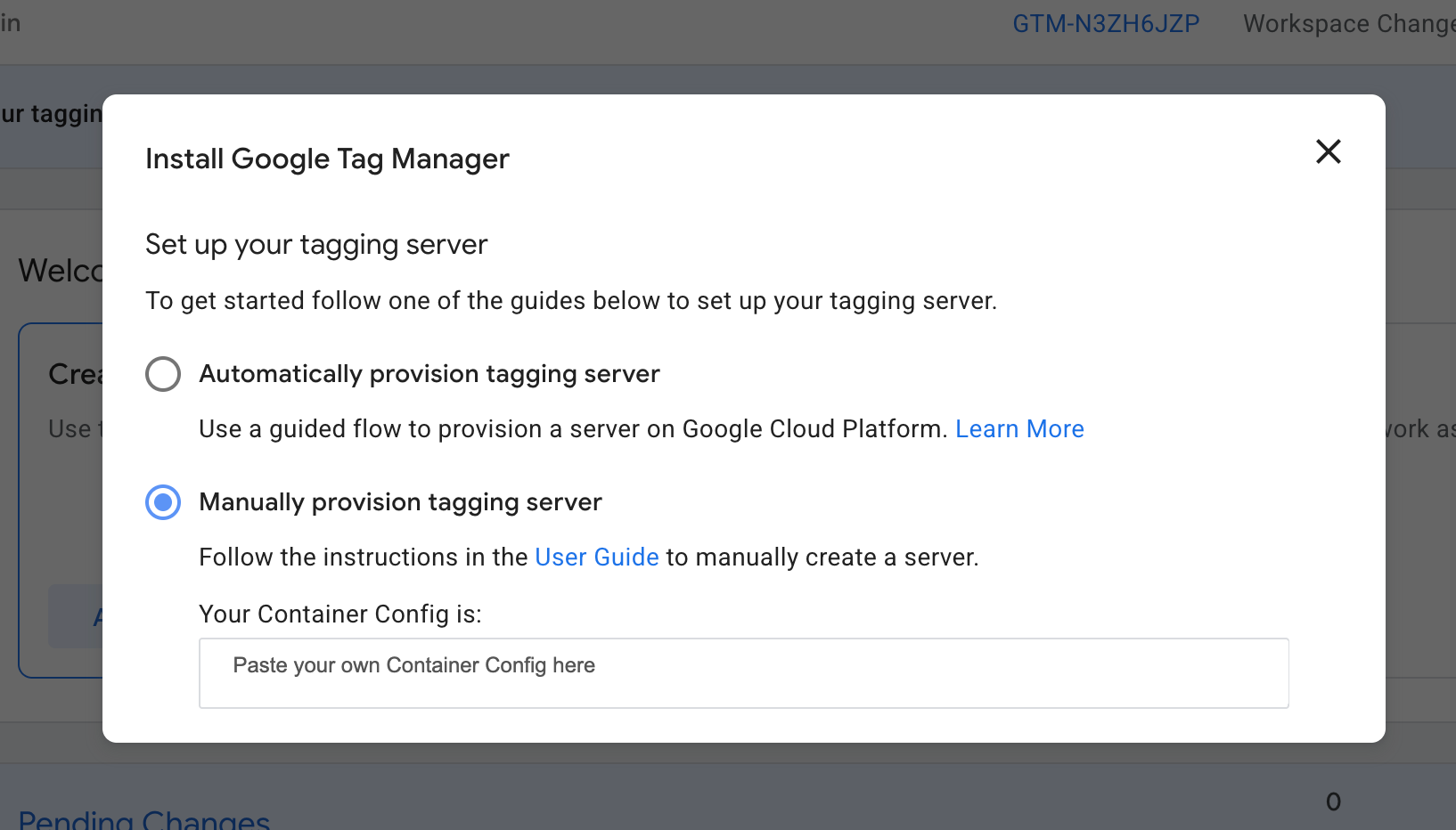
Lost the dialog? Open the Server container, click its container ID, and choose Manually provision tagging server again.
Step 3: Create your container in Tagioo
Back in the Tagioo dashboard:
- Create a container.
- Paste the Container Config you copied.
- Enter your tracking domain, for example
track.yourstore.com.
Tagioo then provisions a dedicated, isolated sGTM container for you, with preview and debug mode. It's your own container, not a shared proxy.
Check the container's status before you continue. You want to see it running.
Which subdomain should you pick? Something neutral on your main domain, like track, data or metrics. Use the same root domain your shoppers browse, so the subdomain is first-party to your store.
Step 4: Point your subdomain at Tagioo (one CNAME record)
Your dashboard shows the exact DNS target for your container. Use that value, not one from a screenshot or another site.
At your DNS provider, add:
| Field | Value |
|---|---|
| Type | CNAME |
| Name | track (for track.yourstore.com) |
| Target | The target shown in your Tagioo dashboard |
| Proxy status (Cloudflare) | DNS only |
| TTL | Auto |
Then wait. DNS usually propagates in minutes, sometimes up to a few hours.
Once it resolves, Tagioo automatically issues an SSL certificate through Let's Encrypt and renews it for you. No action needed.
You'll know it's ready when https://track.yourstore.com shows a valid padlock in your browser.
Step 5: Generate your GTM files with Setup Assistant
Setup Assistant is a 4-step wizard in your dashboard. It builds two ready-to-import files, already wired up with your IDs, so you don't have to configure tags by hand.
1. Choose type. Pick your business type, your platform (for example WooCommerce or Shopify), your default currency and your tracking domain.
2. Select destinations. Tick only the platforms you actually use:
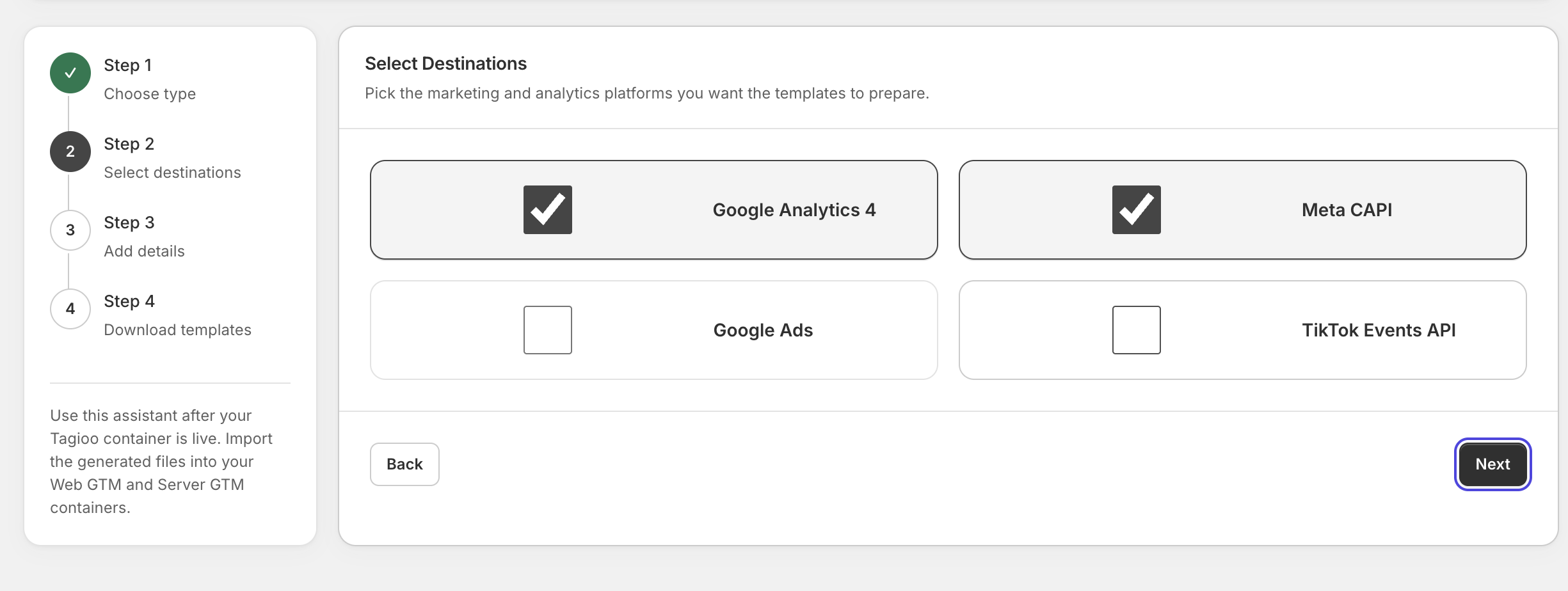
3. Add details. Enter the IDs and credentials for each destination you picked:
| Field | What it's for |
|---|---|
GA4 Measurement ID (G-…) | Sends events to your GA4 property |
| GA4 API Secret | Enables server-side purchase recovery |
Web GTM Container ID (GTM-…) | Required for the Shopify manual pixel |
| Meta Pixel ID | Your Meta dataset |
| Meta CAPI Access Token | Lets the server container send events to Meta |
| Meta Test Event Code | Shows your test events in Meta's Test Events tool |
Not ready with one of them? Leave it blank. Tagioo creates placeholders you can fill in inside GTM later.
4. Download templates. You get web.json and server.json.
Here's what each file contains, and where it goes:
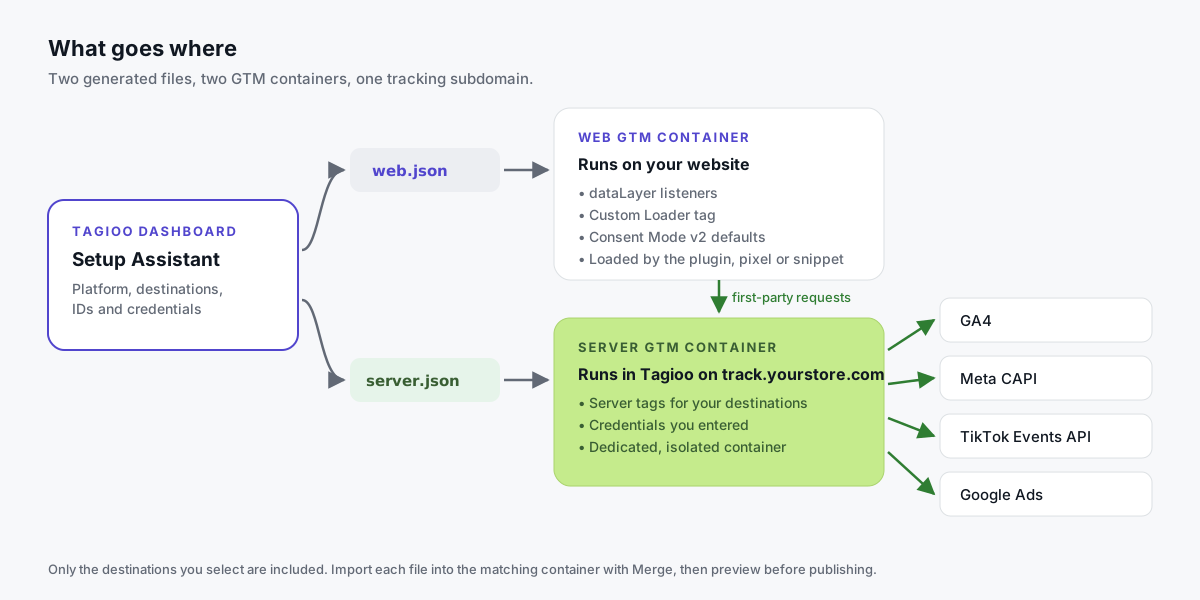
| File | Import into | What's inside |
|---|---|---|
web.json | Your Web GTM container | Data layer listeners, the Custom Loader tag, Consent Mode v2 defaults |
server.json | Your Server GTM container | Server tags and credentials for the destinations you selected |
What about Meta deduplication? The templates send the full funnel (ViewContent, AddToCart, InitiateCheckout, Purchase) server-side, with hashed match keys, fbp/fbc, and an event_id that matches the browser Pixel. For purchases, the event ID is the order ID.
Plan features differ: full-funnel Meta CAPI with dedup and server-side purchase recovery are listed on paid plans. Check pricing for what your plan includes.
Step 6: Import the files into GTM (don't publish yet)
Do this for each container:
- Open the container in GTM and go to Admin → Import Container.
- Choose the file.
web.jsonfor the Web container,server.jsonfor the Server container. - Pick a workspace. Your default workspace is fine.
- Choose Merge. For a first import, plain Merge. When updating an existing Tagioo setup, choose Merge → Overwrite conflicting tags, triggers, and variables.
- Review the changes GTM shows before you confirm.
Google explains the options in its container import help.
Don't publish yet. You'll preview both containers first, in step 8.
Already have tags for the same events? Make a list now: a platform plugin, an old Pixel, a native integration. Decide which one stays responsible for each event. Adding a second sender without that decision turns a missing-event problem into a duplicate-event problem.
Step 7: Connect your website
This is where your store starts sending real events. Pick the path for your platform:
| Platform | How it connects | Backend purchase hit |
|---|---|---|
| WooCommerce | Tagioo WordPress plugin, downloaded from Setup Assistant | Yes, deduplicated on transaction_id |
| Shopify | Custom Pixel under Settings → Customer events | Not with the manual pixel |
| Laravel or custom | Self-service Laravel Bridge, or your own data layer | Laravel Bridge, after field mapping |
WooCommerce
- Download the plugin from Setup Assistant.
- Upload it in WordPress under Plugins → Add New → Upload Plugin, then activate it.
- Paste your container's tracking ID when prompted.
That's it. No GTM4WP and no manual data layer coding.
Once active, the plugin injects GTM and pushes GA4 ecommerce events, including page_view, view_item_list, search, view_item, add_to_cart, remove_from_cart, view_cart, begin_checkout, add_shipping_info, add_payment_info and purchase. Purchases include hashed user data (email, phone) where available.
On plans that include server-side purchase recovery, it also fires a server-side purchase hit to your container. So the order can still be recorded if the thank-you page tag never fires, and the duplicate is removed by transaction_id.
Optionally, the Custom Loader serves gtm.js and gtag.js from your own domain, so browsers and extensions that block googletagmanager.com (Brave, for example) still load your tags. Consent choices still apply.
Shopify
- Copy the pixel code. In Setup Assistant, click Copy custom pixel code.
- Add a custom pixel. In Shopify Admin, go to Settings → Customer events → Add custom pixel, name it "Tagioo" and paste the code.
- Set permissions to require Analytics and Marketing consent where applicable.
- Save, then Connect.
The pixel loads your Web GTM container inside Shopify's pixel sandbox and sends the standard funnel events through purchase. The Shopify order ID is used as both transaction_id and event_id, so Meta can deduplicate browser and server copies.
One warning: don't run this pixel alongside another pixel that sends the same events to the same GTM container, or purchases will count twice.
Laravel and custom sites
For Laravel stores, Tagioo has a self-service Laravel Bridge that runs from your cPanel account, maps your order fields, and then generates the GTM files. It's a longer process, so follow the step-by-step Laravel section in our docs.
For any other custom site, make sure it pushes a GA4-style ecommerce data layer. A template can't know a purchase or lead succeeded if your site never exposes that signal.
Step 8: Preview, test an order and publish
Now the important part. Open Preview in both GTM containers, then walk your own funnel: view a product, add it to the cart, check out, and place your test order.
Then work through these five checks, in order:
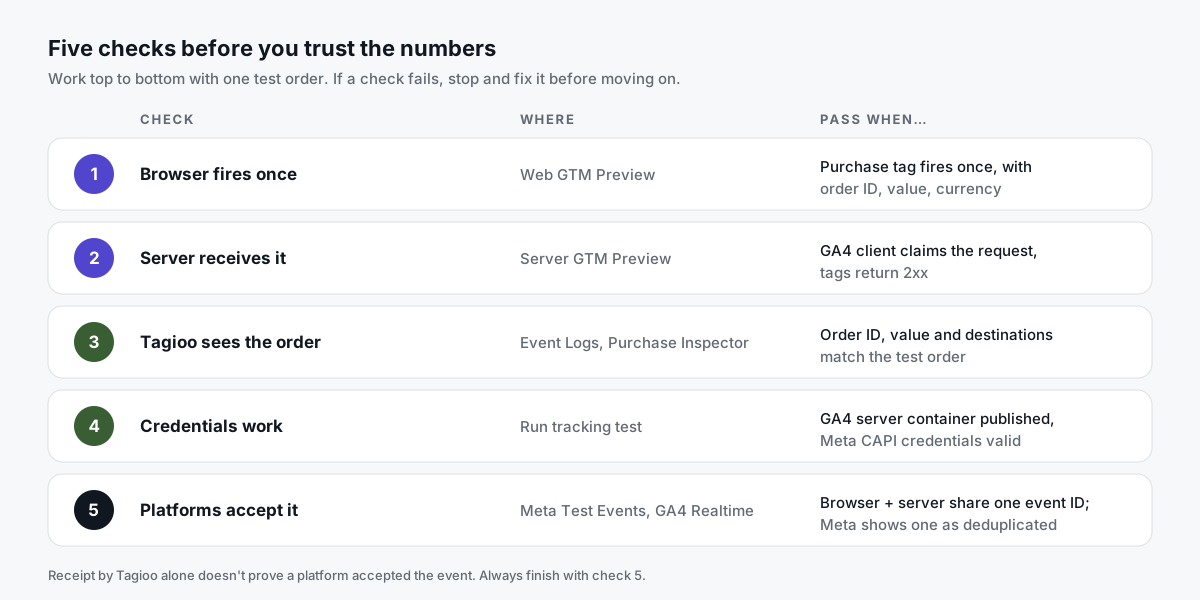
- Web GTM Preview. The purchase tag fires once, with the right order ID, value and currency.
- Server GTM Preview. The GA4 client claims the request, and each tag returns a 2xx response. Google's server debugging guide explains the tabs.
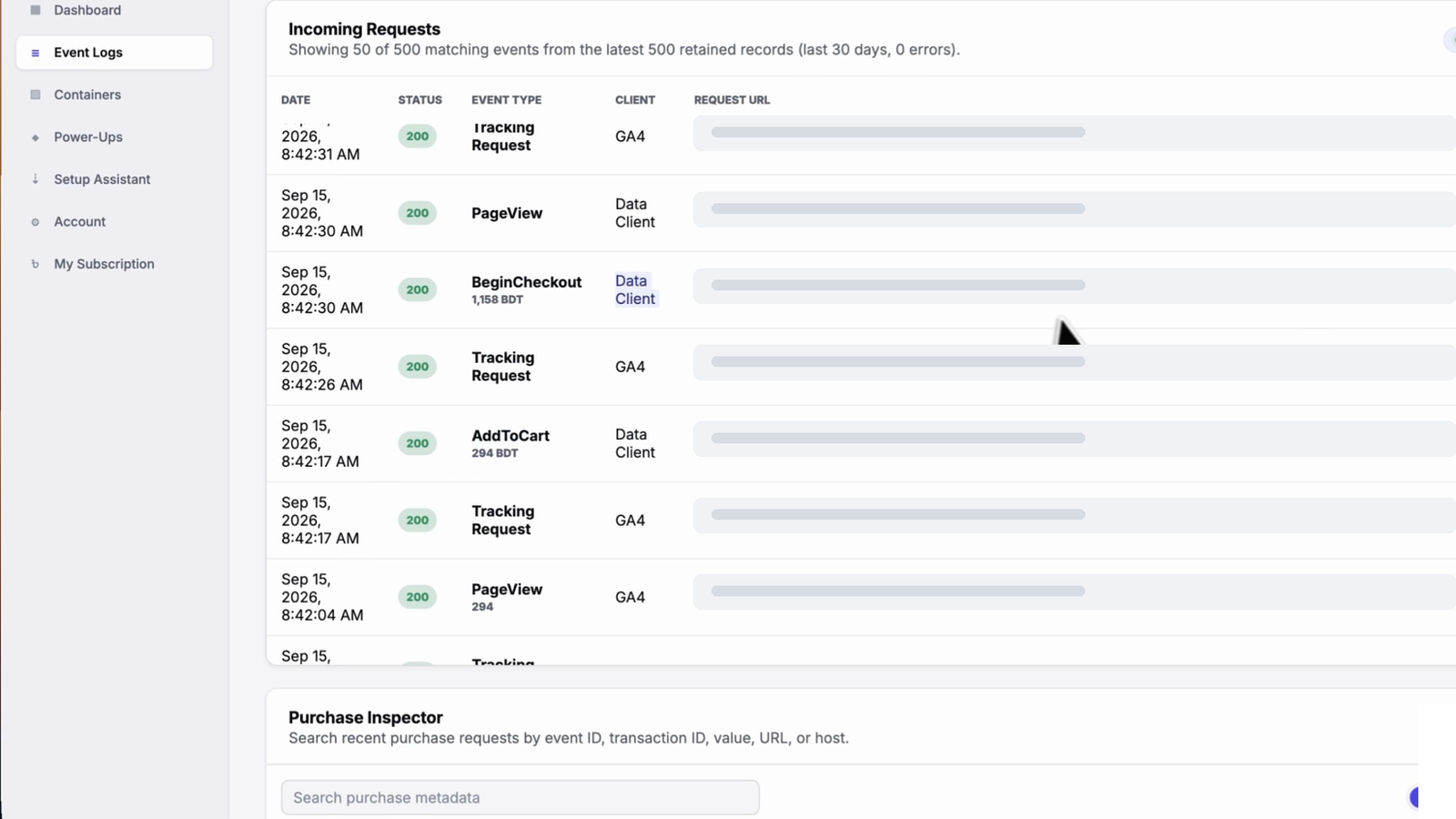
- Tagioo Event Logs and Purchase Inspector. Search by order ID. You should see the order, its value, and which destinations received it.
- Run tracking test. This dashboard button checks that your GA4 server container is published and your Meta CAPI credentials work.
- Meta Test Events and GA4 Realtime. In Meta, use the test event code you entered. You'll usually see a Browser row and a Server row with the same event name and event ID, and Meta marks one as deduplicated (Meta's deduplication guide). Then check the purchase appears in GA4 Realtime.
Here's the thing to remember: receipt by Tagioo alone doesn't prove an ad platform accepted the event. Always finish with check 5.
All five pass? Publish both containers, server and web. Then place one more controlled order against the published versions, and note the time, order ID and expected result.
Prefer to watch first? Here's our own walkthrough of the setup:

What should you check after launch?
Setup isn't quite done on the day you publish. A few habits keep it healthy:
- Compare against your baseline. After 2–4 weeks, compare store orders, GA4 purchases and ad platform conversions. Expect some differences from attribution; look for large, consistent gaps.
- Watch the Purchase Gap Alert. Tagioo compares today's purchases with your trailing 7-day average, adjusted for time of day. If today runs more than 50% below that baseline, a red banner shows in your dashboard the same day.
- Keep an eye on usage. On the Free plan, you get notices as you approach 15,000 events. At the limit, the container pauses until the cycle resets or you upgrade. No data is deleted.
- Recheck after changes. Plugin updates, a new checkout, a theme change or a new form can all break tracking. Run one test order after each.
Optional extras, depending on your plan:
- Cookie life extension sets the lifetime of the server-side first-party cookie. Browser policies and consent still apply.
- Offline conversions (Pro and Enterprise) let you upload phone, COD or in-store orders to Meta CAPI as a CSV, hashed before upload.
Check pricing for which features each plan includes.
What if your Tagioo setup doesn't work?
| What you see | What it usually means | Try this |
|---|---|---|
| No events in Meta Test Events | Server container not published, or SSL not ready | Publish (not just save) the server container, check status is Running, check the padlock on your subdomain |
Padlock missing on track.yourstore.com | DNS hasn't resolved, or Cloudflare proxy is on | Recheck the CNAME target; set Cloudflare to DNS only; wait a little longer |
| WooCommerce order missing | Plugin inactive, or wrong tracking ID | Check the plugin is active and its tracking ID matches your dashboard; search Purchase Inspector by order ID |
| Purchases doubled in Meta | Two senders for the same event | Disable the old Pixel, plugin or second custom pixel; check browser and server share one event ID |
| GA4 pages show your homepage | Page context missing on server events | Make sure page_location and page_title are sent; see our GA4 guide |
| Purchases suddenly drop | A site change broke tracking, or a real sales dip | Check the Purchase Gap Alert and the dashboard's daily error counts |
Numbers still don't line up? Read why your store, GA4 and ad reports show different sales numbers, and the WooCommerce purchase tracking checklist.
Stuck? Email hello@tagioo.com and we'll help you with your setup.
Sources and further reading
- Tagioo: How it works and reference docs
- Google: An introduction to server-side tagging
- Google: Custom domain for your tagging server
- Google: Preview and debug server containers
- Google Tag Manager Help: Container export and import
- Meta: Deduplicate Pixel and server events
- Let's Encrypt: About the certificate authority
Related questions
How long does the Tagioo setup take?
The hands-on steps aren't long. DNS propagation is the main wait: usually minutes, sometimes up to a few hours.
Leave extra time for testing a real order and checking each platform. Don't rush the five checks.
Do I need Google Cloud to use Tagioo?
No. Tagioo hosts the tagging server for you. In GTM, you choose Manually provision tagging server, copy the Container Config and paste it into Tagioo.
You still own and manage your GTM containers.
Do I need to know Google Tag Manager?
Not much. Setup Assistant generates the Web and Server container files with your IDs already in place. You import them with Merge, preview and publish.
It helps to know how to open GTM's Preview mode and read which tags fired. Our server-side GTM setup guide explains the basics.
Can I use Tagioo with an existing GTM setup?
Yes. Import with Merge so your existing tags stay. Then review any tags that send the same events, like an older Meta Pixel or a platform plugin, and decide which one stays responsible.
Does Tagioo work with Shopify?
Yes, through a Shopify Custom Pixel. You add it under Settings → Customer events, and it sends events to GA4 and Meta from your own tracking domain. See our Shopify guide.
Does server-side tracking with Tagioo replace my consent banner?
No. Server-side tracking never bypasses consent. Keep your consent banner. The web template includes Consent Mode v2 defaults, and the Shopify pixel can require Analytics and Marketing consent.
Is the Tagioo Free plan enough to test?
Yes. The Free plan includes 15,000 events per 30-day cycle with no card, which is enough to set up and verify your tracking. Busy stores usually need a paid plan for production. See pricing.
See your own events, server-side.
Tagioo hosts your server-side GTM container on your own domain and generates the GA4, Google Ads, Meta and TikTok setup for you. Free for 15,000 events a month, no card needed.