
WooCommerce Orders Not Tracking? The 12-Point Purchase Tracking Checklist
WooCommerce purchase tracking broken? Follow one order through 12 checks: thank-you page, gateways, caching, consent, transaction_id, GA4 and Meta.
 Tagioo teamUpdated 13 min read
On this page
- How does WooCommerce purchase tracking work?
- First, how big is your gap?
- The 12-point WooCommerce purchase tracking checklist
- Symptom, cause, fix: the quick table
- How do you stop losing orders when the thank-you page never loads?
- Keep a repeatable test log
- How can Tagioo help?
- Sources and further reading
- Related questions
WooCommerce says you sold 52 orders this week. GA4 says 38. Meta says 31.
Your first instinct? Reinstall the plugin. Maybe swap it for a different one.
Please don't. Not yet.
Because until you know where the order stopped, a new plugin is just a new guess.
Why are WooCommerce orders not tracking? WooCommerce orders usually go missing from GA4 or Meta because WooCommerce purchase tracking fires only once, in the browser, on the thank-you page. If the shopper never reaches that page, a script is blocked or delayed, the page is cached, or two plugins clash, the purchase is never sent or is sent wrong, even though WooCommerce recorded the order.
The good news: every one of those causes leaves a trace. You just have to follow one order through the chain.
In this guide you'll find a quick way to read your gap, the 12-point checklist itself, a symptom-to-fix table, and answers to questions like "Why are PayPal orders missing?" and "Why don't my WooCommerce orders match GA4 revenue?"
So, why the wait? Let's begin.
How does WooCommerce purchase tracking work?
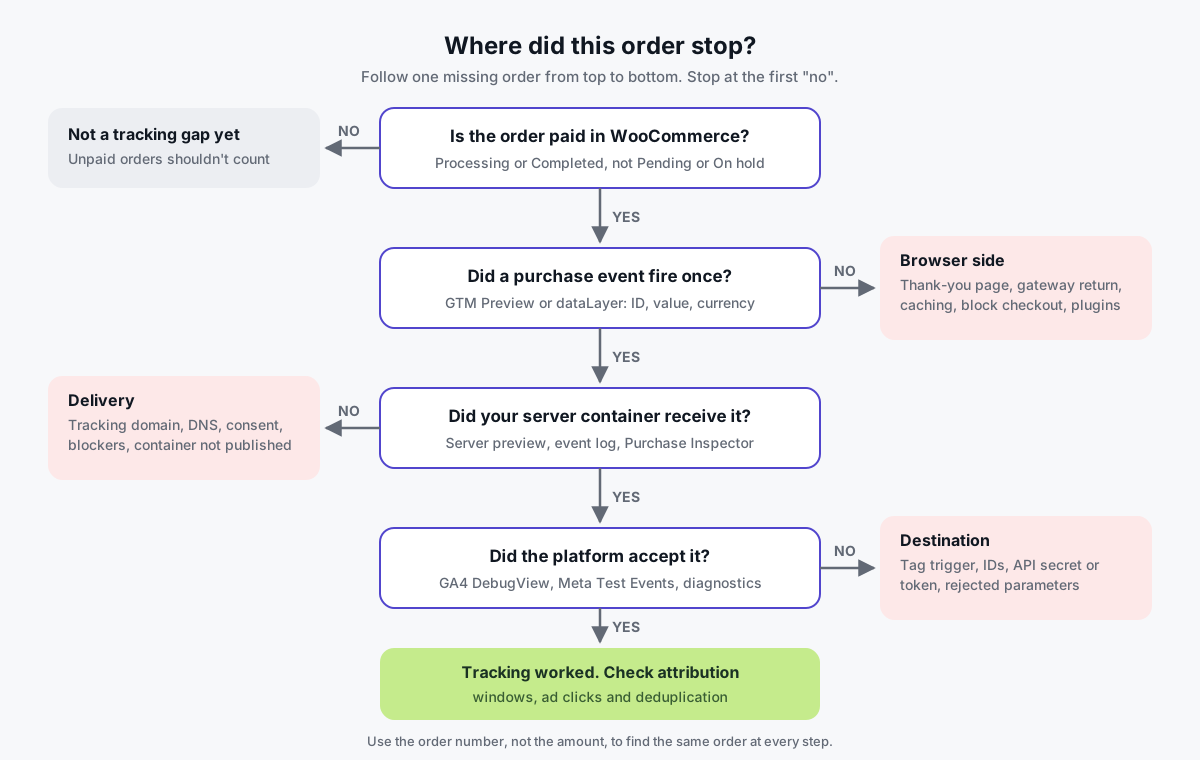
Here's the chain every tracked order has to pass through:
- The order is created and paid. WooCommerce stores it on your server.
- The shopper lands on the order-received page. Often called the thank-you page.
- A plugin pushes a
purchaseevent to the data layer with the order details. - Your tags fire. GTM (or the plugin itself) sends the purchase to GA4, the Meta Pixel and others.
- The platform accepts it and, later, attributes it.
WooCommerce only owns step 1. Steps 2 to 4 all happen in the shopper's browser, and step 5 happens on each platform's side.
So when an order is "missing," it went missing at one of those steps. The checklist below tests them in order.
First, how big is your gap?
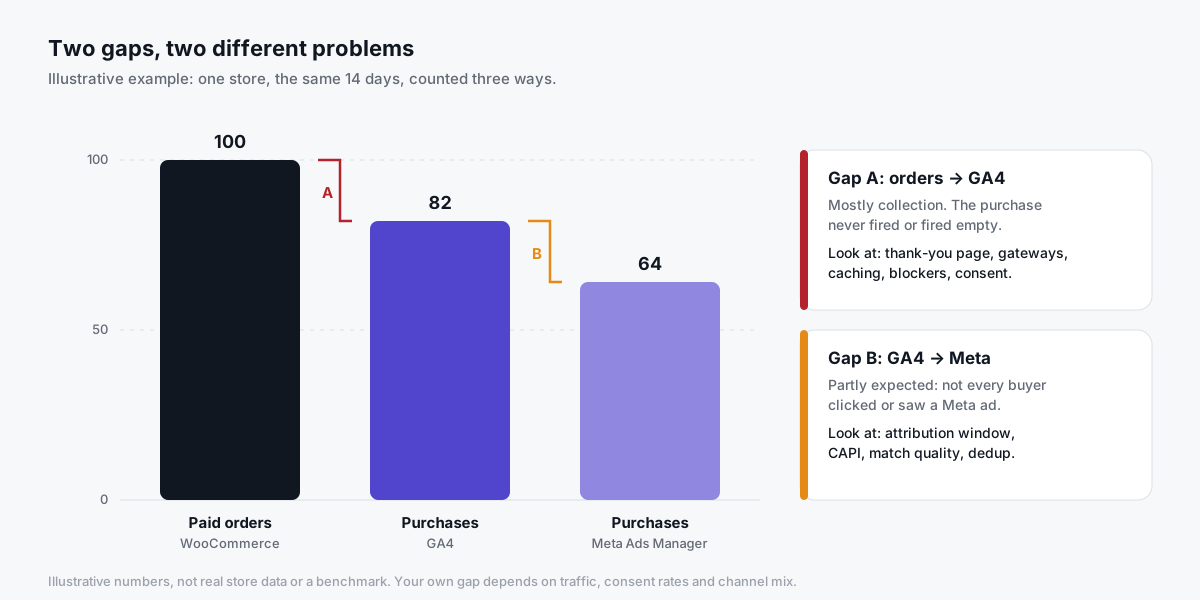
Before you fix anything, take a 10-minute baseline. You'll need it to know whether your fix worked.
- Pick a date range of 7-14 days, ending a few days ago (so reports have finished processing).
- Count paid orders in WooCommerce: Processing plus Completed. Leave out Pending, Failed and Cancelled.
- Count GA4 purchases for the same dates, ideally with the
transaction_iddimension in an Exploration. - Count Meta purchases in Ads Manager or Events Manager.
Then compare them:
| What you see | What it usually means | Start with |
|---|---|---|
| GA4 and Meta both far below WooCommerce | Collection problem: the purchase never fires | Checks 4-9 |
| GA4 close to WooCommerce, Meta much lower | Attribution, consent or Meta setup | Checks 7, 11, 12 |
| GA4 or Meta above WooCommerce | Double counting | Checks 2 and 12 |
| Right count, wrong revenue | Value definition, currency or cached data | Check 8 |
| Only some payment methods missing | Gateway redirect | Check 4 |
The 12-point WooCommerce purchase tracking checklist
Here's the whole thing at a glance. Then we'll go through each check.
| # | Check | Where to look | Pass looks like |
|---|---|---|---|
| 1 | Pick one order to follow | WooCommerce → Orders | Order number, time, value, method noted |
| 2 | List every purchase sender | Plugins, theme, GTM | One owner per platform |
| 3 | Confirm the order status | Order screen | Processing or Completed |
| 4 | Thank-you page loads | Test checkout per gateway | Lands on order-received URL |
| 5 | Checkout type matches the plugin | Checkout page editor | Plugin supports block or classic checkout |
| 6 | Caching excluded | Cache plugin, CDN | Checkout and thank-you not cached |
| 7 | Consent behaves as designed | Consent banner + Tag Assistant | Tags fire after accept |
| 8 | Purchase payload complete | GTM Preview | ID, value, currency, items |
| 9 | Purchase fires once | Reload the thank-you page | No second purchase |
| 10 | Server receives it | Server preview / event log | Request arrives with the order ID |
| 11 | Platform accepts it | DebugView, Test Events | Event shows, no errors |
| 12 | No duplicates | GA4 Exploration, Meta | One purchase per order |
1. Pick one order to follow
Use a test order you're allowed to inspect, or a real order that's missing from your reports.
Write down its order number, completion time, payment method, currency and total. You'll search for that order number at every step.
Don't copy customer details into a shared sheet. You need enough to find the event, not the customer's profile.
2. List every purchase sender
Open Plugins and list everything that might send a purchase: GTM plugins (such as GTM4WP), pixel plugins (PixelYourSite, Meta for WooCommerce), Google's own plugins (Google Analytics for WooCommerce, Site Kit), and any tracking app.
Then check your theme's header and footer for hard-coded tags, and your GTM container for purchase tags.
The rule: one owner per event, per platform. If two plugins send Purchase to Meta with different IDs, Meta counts two sales.
3. Confirm the order status
Not every order should count as a purchase.
WooCommerce's order status guide defines Processing as payment received, and On hold as awaiting payment confirmation (bank transfer is the classic example).
- Card and PayPal orders usually move to Processing straight away.
- Bank transfer orders sit on hold until you confirm the payment.
- Pending and Failed orders shouldn't be tracked as purchases at all.
Make sure your tracking and your comparison use the same definition.
4. Check the thank-you page actually loads
Run a test checkout with each payment method you offer.
Watch the URL at the end. You should land on your store's order-received page, usually /checkout/order-received/ followed by the order ID and a key.
Watch out for:
- Gateways that don't redirect back, or only do so after a "Return to merchant" click.
- Shoppers closing the tab on the gateway's success screen.
- Plugins that redirect the thank-you page to a custom URL your trigger doesn't know.
If one gateway accounts for most missing orders, this is your culprit.
5. Check your checkout type
Since WooCommerce 8.3, new stores use the Cart and Checkout blocks by default (WooCommerce's blocks status page).
Older tracking code that hooks into the classic checkout may not fire on the block checkout. The same goes for page-builder thank-you templates that skip WooCommerce's standard thank-you hook.
Check your tracking plugin's documentation for block checkout support, and test after every checkout change.
6. Exclude checkout pages from caching
WooCommerce's caching guide says to exclude Cart, Checkout and My Account from page caching. That usually covers the thank-you page too, since it lives under the checkout URL.
Also check:
- "Delay JavaScript" or "load JS on interaction" settings, which can stop tags firing.
- Script combining or minifying, which can break the inline purchase push.
- CDN or host-level caching that ignores your plugin's rules.
A cached thank-you page is nasty. It can fire the previous customer's order, or an empty one.
7. Check consent behaves the way you designed it
Open your store in a private window and test both choices.
- Accept all: purchase tags should fire.
- Decline: tags should respect that choice.
If tags don't fire even after accepting, the banner may be blocking them by mistake. If they fire after declining, that's a compliance problem, not a tracking win.
With Google's advanced Consent Mode, tags send cookieless pings while consent is denied, which Google can use for conversion modeling (Google's consent mode help).
8. Inspect the purchase payload
Open GTM Preview (Google's preview guide), place the test order, and click the purchase event on the thank-you page.
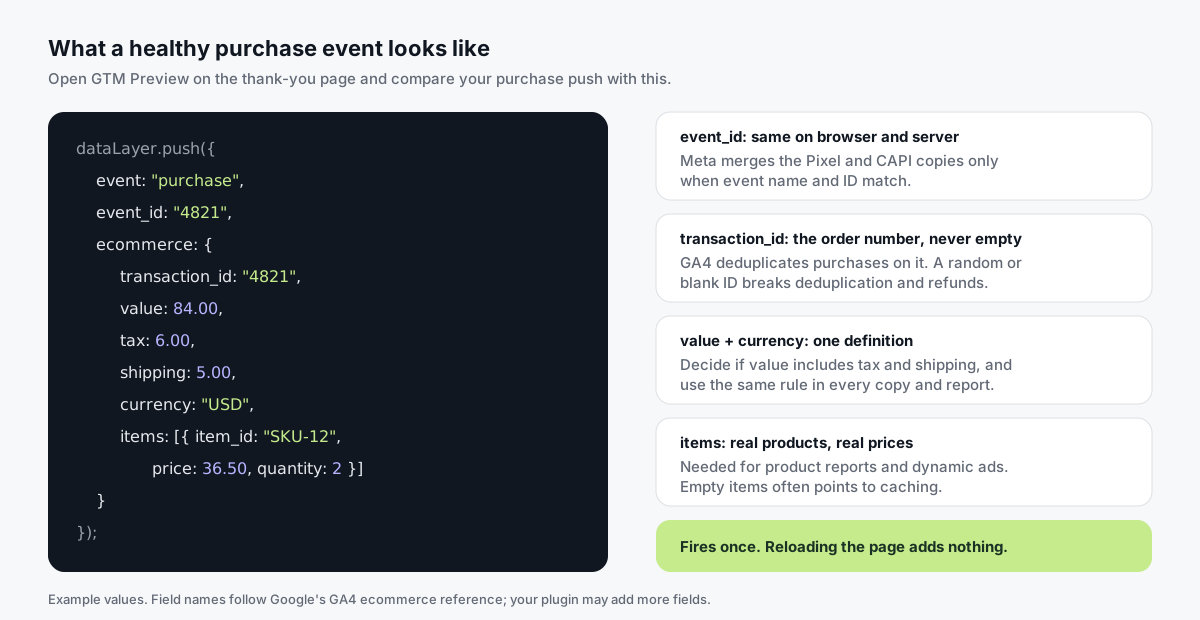
Check each field against Google's GA4 ecommerce reference:
transaction_idmatches the order number, and is never empty.valuematches your chosen definition (with or without tax and shipping).currencyis a valid three-letter code, such asUSD.itemslists real products with prices and quantities.
Empty value or items on the thank-you page often points to caching, or a script running before the data exists.
9. Make sure it fires once
Reload the thank-you page. Then open it again from the order email link, if your store has one.
Neither should create a new purchase.
If it does, the tag is probably triggered on page view instead of the purchase event, or the plugin doesn't remember that this order was already tracked.
10. Confirm your server received it
Using server-side GTM? Open the server container's Preview at the same time and check the purchase request arrived with the right order ID.
On Tagioo, search for the order in Purchase Inspector. Use the transaction ID, not the amount, because two customers can spend the same amount in the same minute.
A repeated request for the same transaction ID can be a retry, not a new sale.
If the order isn't there, check the tracking domain, DNS and whether the server container is published before you touch any tags.
11. Confirm the platform accepted it
A request leaving your server is one checkpoint. It doesn't prove the platform accepted it.
- GA4: use DebugView for your test order (Google's DebugView help).
- Meta: use Test Events in Events Manager, then check the Diagnostics tab.
- Google Ads and TikTok: use each platform's tag diagnostics.
Remember the timing:
| Where | When the test order should appear | Source |
|---|---|---|
| GTM Preview (web and server) | Right away | — |
| GA4 DebugView and Realtime | Within minutes | Google's data freshness help |
| GA4 standard reports | Processing can take 24-48 hours | Google's data freshness help |
| Meta Test Events | Within minutes, while testing | Events Manager |
| Ad platform attribution | Depends on the attribution window | Each platform |
So don't panic if yesterday's orders aren't in the GA4 standard reports yet.
12. Check for duplicates
Now look the other way: is anything counted twice?
- GA4: Google says it deduplicates purchases that share the same transaction ID (Google's help article). Still, build an Exploration with
transaction_idand purchase count and look for any ID above 1. - Meta: browser and server copies merge only when the event name and
event_idmatch within 48 hours (Meta's deduplication docs). - Watch for blank IDs. Google warns that purchases with an empty
transaction_idall get deduplicated together, which can quietly hide sales.
PixelYourSite has a short video on the most common purchase tracking problems:

Symptom, cause, fix: the quick table
Bookmark this one.
| Symptom | Likely cause | Fix |
|---|---|---|
| Orders missing for one payment method | Gateway doesn't redirect back | Test the return URL; add a backend purchase hit |
| Orders missing on mobile mostly | Shoppers leave on the gateway screen | Backend purchase hit |
| Purchases fire with old or empty data | Cached thank-you page | Exclude checkout from cache |
| Purchases stopped after a theme or checkout change | Block checkout or custom thank-you page | Use a plugin that supports your checkout |
| Purchases stopped after a speed plugin update | Delayed or combined JavaScript | Exclude tracking scripts |
| Every reload adds a sale | Tag fires on page view | Trigger on the purchase event |
| Meta shows double the sales | Two senders or mismatched event_id | One owner; same event_id on both copies |
| GA4 revenue doesn't match WooCommerce | Tax, shipping, refunds or currency | One value definition; send refunds |
| Your own test orders never show | Plugin excludes logged-in admins | Test in a private window as a guest |
| Bank transfer orders never show | Tracking counts Processing; order is On hold | Confirm payment, or track offline |
How do you stop losing orders when the thank-you page never loads?
Here's the honest answer: you can't fix that in the browser.
If the shopper never reaches the thank-you page, no browser plugin, no GTM trick and no server container relay will see that purchase. Server-side GTM only forwards what the browser actually sends.
What does work is a backend purchase hit: your WordPress site sends the purchase itself when WooCommerce records the payment.
Several tools can do this:
- PixelYourSite Pro has Advanced Purchase Tracking, which sends the purchase from the server when an order reaches a status you choose.
- The Tagioo for WooCommerce plugin sends the purchase to your own server container when WooCommerce records the payment (or the order moves to Processing), as a background job that retries if the server is busy. It's on paid plans.
- Custom code using order hooks, if you have a developer.
Whichever you use, the backend copy must carry the same transaction_id and event_id as the browser copy. Otherwise you've traded missing orders for duplicate ones.
Keep a repeatable test log
A screenshot proves something worked once. A log proves it keeps working.
After every change to checkout, plugins, theme or payment methods, place one test order and fill in a row:
| Date | Order # | Method | Value | Fired once? | Server received? | GA4 | Meta | Notes |
|---|---|---|---|---|---|---|---|---|
| Oct 20 | 4821 | Card | $84.00 | Yes | Yes | Yes | Yes, deduped | Baseline |
| Oct 20 | 4822 | PayPal (tab closed) | $36.50 | No | Yes (backend) | Yes | Yes | Backend hit only |
It takes five minutes, and it turns "I think tracking works" into "here's proof."
Loves Data's WooCommerce walkthrough is a good refresher on the GA4 side:

How can Tagioo help?
Tagioo gives your store a dedicated server GTM container on your own tracking subdomain. The WooCommerce plugin builds the data layer, sends a backend purchase hit on paid plans, and keeps the order ID identical on both copies.
For this checklist, the useful bits are:
- Event Logs show every request that reached your server container.
- Purchase Inspector finds a single order by transaction ID, including retries.
- Run tracking test checks your GA4 server container is published and your Meta CAPI credentials work.
- Purchase gap alert flags a day when tracked purchases drop well below your 7-day average.
The Free plan includes 15,000 events per 30 days, with no card. See pricing or the setup docs. Not sure what your store runs today? Try the free Website Tracking Checker.
Sources and further reading
- WooCommerce: Order statuses
- WooCommerce: Cart and Checkout blocks status
- WooCommerce: Configuring caching plugins
- Google: GA4 ecommerce measurement
- Google Analytics Help: Minimize duplicate key events with transaction IDs
- Google Analytics Help: Data freshness and DebugView
- Google Tag Manager Help: Preview and debug containers
- Meta for Developers: Deduplicate Pixel and server events
- PixelYourSite: Advanced Purchase Tracking
Related questions
Why is my WooCommerce conversion tracking not working?
Usually because the purchase only fires in the browser on the thank-you page, and something stops it: the shopper never gets there, a gateway doesn't redirect back, the page is cached, a script is blocked, or two plugins clash.
Follow one order through the 12 checks above to find which one.
How do I check if WooCommerce purchase tracking is working?
Place a test order with GTM Preview open and confirm one purchase event fires with the right transaction_id, value, currency and items.
Then check it arrived in GA4 DebugView and Meta Test Events. Repeat with each payment method you offer.
Why don't my WooCommerce orders match GA4 revenue?
Common reasons: different value definitions (tax and shipping), refunds that aren't sent to GA4, currency differences, missing purchases from the thank-you page problem, and GA4's 24-48 hour processing time.
Compare paid orders only, over the same dates, using the same value rule.
Why are PayPal orders missing from GA4?
Often because the shopper finishes on PayPal and never returns to your thank-you page, or returns as a new session credited to PayPal.
Test the return flow, and consider a backend purchase hit so the order is sent when WooCommerce records the payment.
Does WooCommerce have built-in analytics?
Yes. WooCommerce includes Analytics reports, such as Orders and Revenue, under WooCommerce → Overview (WooCommerce Analytics docs).
They count orders on your server, so they're your source of truth for sales. They don't send anything to GA4 or ad platforms.
Why are my WooCommerce purchases counted twice?
Two senders (for example a pixel plugin and a GTM tag), a tag that fires on every thank-you page view, or browser and server copies with different IDs.
Pick one owner per platform, trigger on the purchase event, and use the order number as transaction_id and the same event_id on both copies.
Will server-side tracking fix missing WooCommerce orders?
Only if it includes a backend purchase hit. Server-side GTM on its own relays what the browser sends, so it can't recover a purchase whose thank-you page never loaded.
Even then, consent choices and attribution rules still decide what your ad reports show.
See your own events, server-side.
Tagioo hosts your server-side GTM container on your own domain and generates the GA4, Google Ads, Meta and TikTok setup for you. Free for 15,000 events a month, no card needed.
Keep reading
Conversion Tracking Discrepancies: Why GA4, Google Ads, Meta and Your Store Never Match
Not every reporting gap is a broken tag. How to tell normal attribution differences from missing or duplicate conversions.
What Is Server-Side Tracking? How It Works, Benefits & Setup (2026)
How server-side tracking works, how it compares to browser tags, what it can and can't fix, and how to decide if you need it.