
Facebook Conversions API for WooCommerce: Setup Without Code (2026)
Set up the Facebook Conversions API on WooCommerce without code: compare plugins, server GTM and CAPI Gateway, deduplicate with event_id and improve EMQ.
 Tagioo teamUpdated 13 min read
On this page
- What's the difference between the Meta Pixel and the Conversions API?
- Do you still need the Pixel if you use CAPI?
- What are your options for Meta CAPI on WooCommerce?
- How do you set up the Conversions API on WooCommerce via server GTM?
- Which WooCommerce events should you send to Meta?
- How does event_id deduplication work?
- How do you improve Event Match Quality on WooCommerce?
- What about bank transfers and cash on delivery?
- How do you verify CAPI in Events Manager?
- 7 common Meta CAPI mistakes on WooCommerce
- How do you set this up with Tagioo?
- Sources and further reading
- Related questions
WooCommerce shows 44 orders from last week. Meta Ads Manager shows 31 purchases.
You've heard the fix is "turn on the Conversions API." But which plugin? Do you keep the Pixel? And why does Events Manager suddenly say you made 62 sales?
Ahh, so many questions. Let's go through them one by one.
What is the Facebook Conversions API for WooCommerce? The Facebook (Meta) Conversions API for WooCommerce sends your store's events, such as AddToCart and Purchase, from a server to Meta, instead of relying only on the Meta Pixel in the shopper's browser. Set up alongside the Pixel with a shared event_id, it gives Meta a second, more reliable copy of each event without double counting.
The good news: you don't need to write PHP or call Meta's API yourself.
The catch: there are several ways to do it, and running two of them at once is the most common reason purchases get counted twice.
In this guide, you'll compare your options, set up CAPI through server GTM step by step, and learn how to check deduplication and Event Match Quality in Events Manager. We'll also answer questions like "Do I need a developer?" and "Why are my purchases counted twice?"
So, why the wait? Let's begin.
What's the difference between the Meta Pixel and the Conversions API?
The Meta Pixel is JavaScript in the shopper's browser. It sees page context, sets the _fbp cookie, and stores the ad click ID in _fbc when a visitor arrives from a Meta ad.
Its weakness: it only works if the script loads and the request leaves the browser. Ad blockers, privacy browsers, closed tabs and failed thank-you page redirects all stop it.
The Conversions API (CAPI) is server to server. Your server, or a server container, sends events to Meta with customer information and event details. It doesn't depend on the browser at the moment of sending.
| Meta Pixel | Conversions API | |
|---|---|---|
| Runs in | Shopper's browser | Your server or server container |
| Stopped by blockers or closed tabs | Yes | Not at send time |
Sets _fbp / _fbc cookies | Yes | No, but forwards them |
| Can send backend-only events | No | Yes |
Needs client_user_agent | Collected automatically | Required for website events |
| Deduplicates with the other | Via eventID | Via event_id |
The two are built to work together. Neither one bypasses consent.
Meta's own short intro is worth 90 seconds:

Do you still need the Pixel if you use CAPI?
Yes, in almost every WooCommerce setup.
The browser copy carries things the server can't see on its own: the _fbp cookie, the fbclid from the ad click, and the page the shopper was on. The server copy adds reliability.
Meta's deduplication documentation is built around exactly this redundant setup: the same event from both sides, merged into one.
What are your options for Meta CAPI on WooCommerce?
There are five realistic routes. Install counts are from each plugin's WordPress.org page as of October 2026.
| Option | Cost | Code? | Catalog sync | Other platforms | Backend purchase |
|---|---|---|---|---|---|
| Meta for WooCommerce (400,000+ installs) | Free | No | Yes | No | Meta only |
| PixelYourSite (400,000+ installs) | Free; Pro is paid | No | No | GA4, GTM, others | Pro: Advanced Purchase Tracking |
| Server-side GTM (self-hosted or managed, e.g. Tagioo) | Hosting or plan | No, with pre-built containers | No | GA4, TikTok, Google Ads | With a plugin that sends it |
| Meta CAPI Gateway | Your cloud costs | No, but you run a server | No | No | No |
| Direct API integration | Developer time | Yes | No | Whatever you build | Whatever you build |
Meta for WooCommerce
Meta's official plugin (it used to be called Facebook for WooCommerce) connects your store to Facebook, Instagram and WhatsApp, installs the Pixel and syncs your product catalog for dynamic ads. On WordPress.org it's tagged for the Conversions API.
Its big strength is the catalog, which server GTM doesn't replace.
Before you rely on it for CAPI, open Events Manager and confirm you see server events for Purchase, not just browser events. Its WordPress.org reviews include plenty of setup and sync complaints, so test after every update.
PixelYourSite
The free version advertises Meta Pixel setup "with full Conversion API support," plus GA4 and GTM.
The Pro version adds Advanced Purchase Tracking, which sends the Purchase from your server when an order reaches a status you choose, so it can arrive even if the shopper never sees the thank-you page.
Server-side GTM
Your WooCommerce data layer feeds a web GTM container, which sends events to a server GTM container on your own subdomain. The server container sends the CAPI events, and can feed GA4, TikTok and Google Ads from the same data.
You get one place for every platform, a first-party tracking domain and full visibility into the payload. This is the route we set up below.
Meta's CAPI Gateway
Meta's Conversions API Gateway is a self-service option in Events Manager. Per Meta's docs, it's provisioned in a cloud account you own (AWS and Google Cloud are supported), and it doesn't need coding. You do still run and maintain a server.
Direct API
A developer calls POST /{PIXEL_ID}/events when orders are paid, following Meta's Conversions API documentation. It's the most flexible route and the most maintenance: you own hashing, retries, token rotation and API version changes.
Whichever you pick: one owner per event.
How do you set up the Conversions API on WooCommerce via server GTM?
Here's the no-code version with Tagioo, which hosts a dedicated server GTM container for your store and provides a WooCommerce plugin and pre-built container files.
| Step | Where | What you do |
|---|---|---|
| 1 | Meta Events Manager | Copy your dataset (Pixel) ID; generate a CAPI access token |
| 2 | Tagioo + DNS | Create a container on track.yourstore.com |
| 3 | Setup Assistant | Choose WooCommerce; enter Pixel ID and token |
| 4 | Google Tag Manager | Import web.json and server.json |
| 5 | WordPress | Install the Tagioo plugin; remove other Meta Pixel plugins |
| 6 | Events Manager + GTM | Test one order, then publish |
- Get your Meta details. In Events Manager, note your dataset (Pixel) ID and generate a Conversions API access token in the dataset's settings. Keep the token private.
- Create a Tagioo container. Sign up, add a container and choose a subdomain such as
track.yourstore.com. Add the DNS record shown; SSL is issued automatically. - Generate the containers. In the Setup Assistant, choose WooCommerce, enter your Pixel ID and access token (plus any GA4 or TikTok IDs), and download
web.jsonandserver.json. - Import both files. Import
web.jsoninto your Web GTM container andserver.jsoninto your Server container, merging into a new workspace. - Install the Tagioo for WooCommerce plugin. Upload and activate it, then enter your GTM container ID, tracking domain and GA4 details. Remove any other plugin that loads the Meta Pixel for the same events.
- Test, then publish. Run GTM Preview on both containers, place a test order, check it in Meta Test Events (below), then publish both containers.
Here's what you end up with:
- The browser Pixel fires from the web container.
- The server container sends ViewContent, AddToCart, InitiateCheckout and Purchase to the Conversions API from your own domain, with hashed match keys,
fbp/fbcand a matchingevent_id. - On paid plans, the plugin also sends the purchase from your store's backend when WooCommerce records the payment, so it can reach Meta even if the thank-you page never loads.
For the full store setup, including GA4 and TikTok, see the WooCommerce server-side tracking guide, or the WooCommerce page for plan details.
Which WooCommerce events should you send to Meta?
Start with the standard ecommerce funnel. Here's how WooCommerce actions map:
| Shopper action | GA4 event (data layer) | Meta event | Key fields |
|---|---|---|---|
| Views a product | view_item | ViewContent | content_ids, value, currency |
| Adds to cart | add_to_cart | AddToCart | content_ids, value, currency |
| Starts checkout | begin_checkout | InitiateCheckout | value, currency, num_items |
| Places a paid order | purchase | Purchase | value, currency, order ID as event_id |
Optimize your campaigns for Purchase. The upper-funnel events help Meta learn, but they aren't sales.
How does event_id deduplication work?
When the Pixel and CAPI both report a purchase, Meta needs to know it's one sale.
Meta's deduplication docs say a browser and a server event are treated as the same when their event name and event ID match. Events are only deduplicated if they arrive within 48 hours of the first one with that ID.
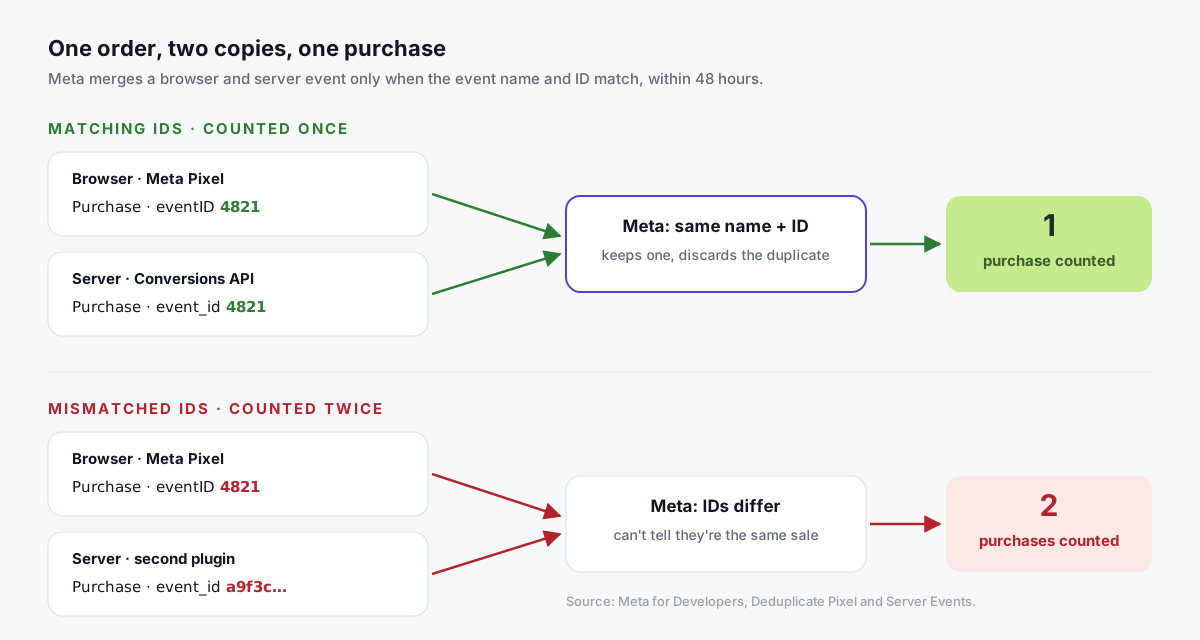
In practice:
| Do | Don't |
|---|---|
Use the WooCommerce order ID as the Purchase event_id on both copies | Generate a random ID on each thank-you page load |
Use identical names: Purchase and Purchase | Mix Purchase with purchase_complete |
| Generate upper-funnel IDs once in the browser and pass them to both copies | Let the server invent its own IDs for AddToCart |
| Keep one integration sending Meta events | Run Meta's plugin and server GTM for the same events |
Tagioo uses the WooCommerce order ID as the Purchase event_id, so the browser copy and the backend copy of the same order always match.
How do you improve Event Match Quality on WooCommerce?
Event Match Quality (EMQ) is a score Meta shows in Events Manager for your server events. It reflects how well the customer information you send can match an event to a Meta account.
Why care? Meta's best practices page says you can use only matched events for ads attribution and ad delivery optimization.
These are the keys that matter, per Meta's customer information parameters reference:
| Key | Hash it? | Normalize first | Where WooCommerce gets it |
|---|---|---|---|
em (email) | SHA-256 | Trim, lowercase | Billing email, logged-in account |
ph (phone) | SHA-256 | Digits only, with country code | Billing phone |
fn, ln (name) | SHA-256 | Lowercase, no punctuation | Billing name |
ct, st, zp, country | SHA-256 | Lowercase; 2-letter state and country codes | Billing address |
external_id | Recommended | Same format on every event | Customer ID |
fbp, fbc | Never | Send as is | Pixel cookies |
client_ip_address, client_user_agent | Never | Send as is | The shopper's request |
Here's the honest reality of a typical store:
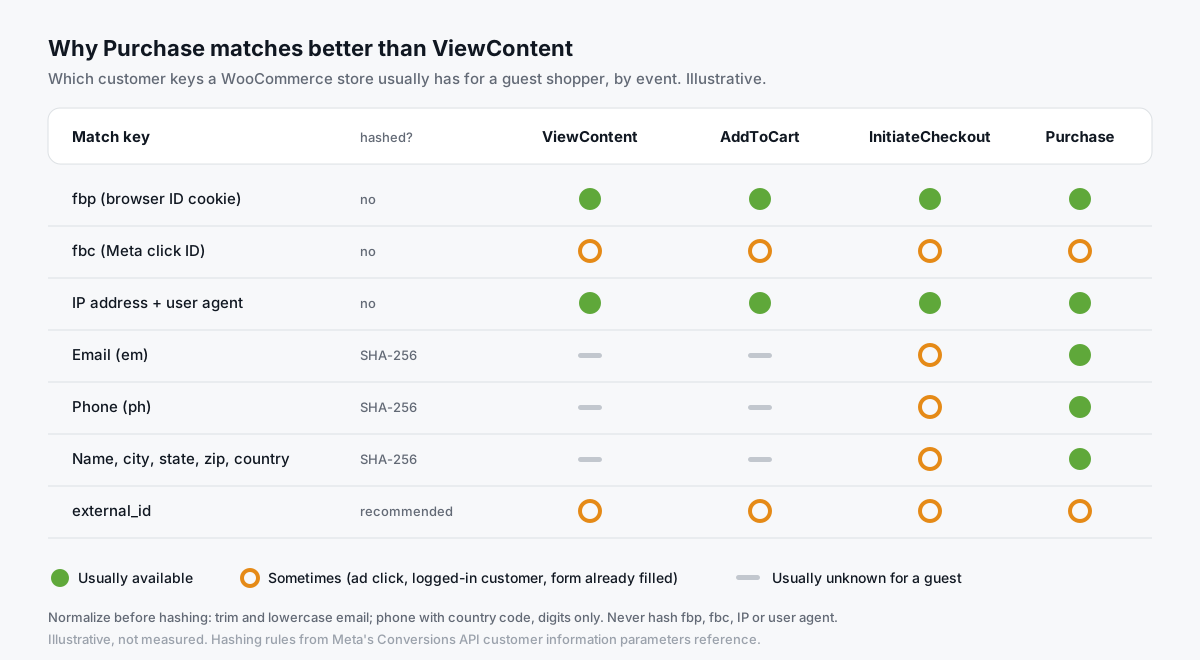
So expect Purchase to score higher than ViewContent. That's normal.
The biggest wins on WooCommerce:
- Send every billing field you have on Purchase, normalized and hashed.
- Capture
fbclidon the landing page. At checkout, the click ID is long gone from the URL. Meta's fbp and fbc guide explains how to buildfbcfrom it and store it as a 90-day HTTP cookie. - Store browser context on the order. The backend copy of a purchase runs later, without the browser, so it needs the
fbp,fbc, IP and user agent from checkout.
The Tagioo plugin does those last two: it captures fbclid into a server-set _fbc cookie, keeps _fbp as a server-set cookie on your domain, and saves fbp, fbc, user agent and IP on the order at checkout.
Meta also has a short explainer on adding high-quality parameters:

What about bank transfers and cash on delivery?
Here's a detail that catches stores out.
Meta's server event reference says event_time can be up to 7 days before you send the event. If any event in a request is older than that, Meta returns an error for the whole request.
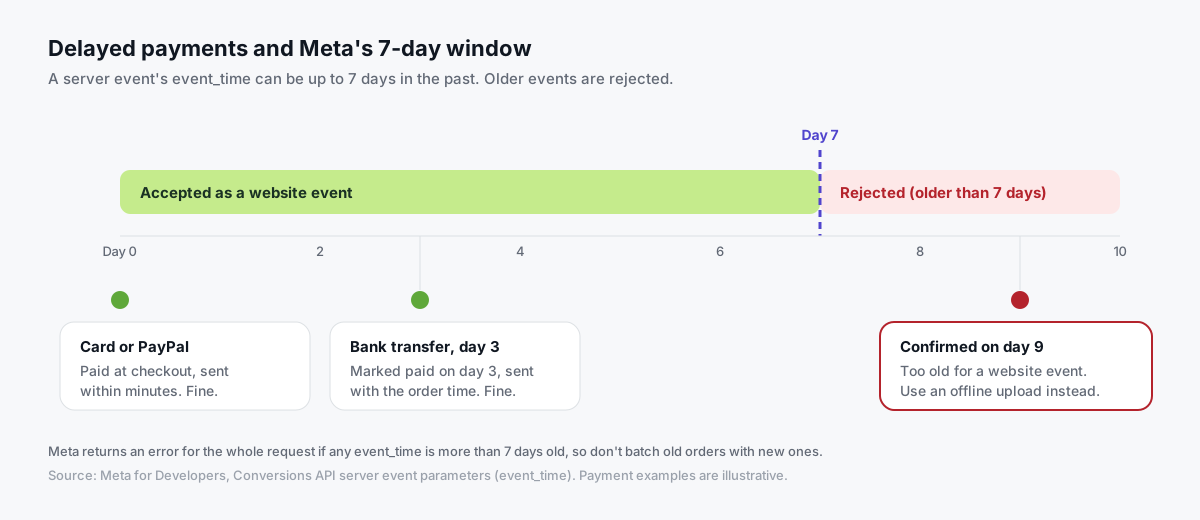
Why does that matter on WooCommerce?
- Card and PayPal orders are sent within minutes. No problem.
- Bank transfers sit On hold until you confirm the payment (WooCommerce's order statuses). If you confirm within a few days, the purchase can still go out with the original order time.
- Payments confirmed after a week are too old to send with the original order time. The Tagioo plugin (version 2.6.0 and later) sends them with the time the payment was confirmed, so Meta accepts them. With other setups, use an offline conversion upload; Tagioo's Pro plan includes offline conversions to Meta.
Also, the event_source_url is required for website events. Make sure server purchases carry the real order-received URL, not your homepage.
How do you verify CAPI in Events Manager?
- Open Test Events. In Events Manager, go to your dataset, then Test Events. For server events, Meta gives you a test code to add to your server tag while previewing. Remove it before you publish.
- Place a test order you can refund or cancel.
- Check both copies. You should see Purchase from the browser and from the server, with Meta showing they were deduplicated.
- Open the server event. Confirm value, currency,
event_idand the customer information keys you expect. - Watch EMQ and Diagnostics over the next days. Fix warnings about missing parameters or mismatched IDs.
- Cross-check in Tagioo. Purchase Inspector shows the order with its transaction ID, and Run tracking test confirms your Meta CAPI credentials work.
7 common Meta CAPI mistakes on WooCommerce
- Two senders: Meta's plugin and server GTM both send Purchase. Fix: one owner.
- Random purchase IDs: a new
event_idon every page load. Fix: use the order ID. - Name mismatch:
Purchasevs a custom event name. Fix: identical names. - Hashing the wrong things: hashed
fbpor IP. Fix: never hash them. - Phone without country code: it won't match. Fix: normalize first.
- Test code left on: live events show only as test events. Fix: remove it before publishing.
- Stale delayed payments: bank transfers sent with an order time older than 7 days get rejected. Fix: send them with the payment-confirmation time (the Tagioo plugin does this), or upload them offline.
If counts still look off after all that, conversion tracking discrepancies explains which differences are normal.
How do you set this up with Tagioo?
Tagioo gives your store a dedicated server GTM container on your own subdomain. The WooCommerce plugin builds the data layer and captures Meta's browser identifiers. The Setup Assistant generates containers that send the full funnel to the Conversions API with event_id deduplication against the Pixel.
The Free plan includes 15,000 events per 30 days, with no card. Server-side purchase recovery is on paid plans, which start at $30 a month with a 3-day free trial. See pricing or how it works.
Sources and further reading
- Meta for Developers: Deduplicate Pixel and server events
- Meta for Developers: Customer information parameters
- Meta for Developers: fbp and fbc parameters
- Meta for Developers: Server event parameters
- Meta for Developers: Conversions API best practices
- Meta for Developers: Using the Conversions API and Conversions API Gateway
- WordPress.org: Meta for WooCommerce and PixelYourSite
- WooCommerce: Order statuses
Related questions
Do I need a developer to set up the Facebook Conversions API on WooCommerce?
Not necessarily. Meta for WooCommerce, PixelYourSite and server GTM with pre-built containers all avoid custom code. Meta's CAPI Gateway needs no code either, but you run it in your own cloud account.
A direct API integration does need a developer.
Can I use Meta for WooCommerce and server GTM together?
Yes, for example Meta for WooCommerce for catalog sync and server GTM for events.
The key is that only one of them sends the Pixel and CAPI events, so you don't end up with two unrelated browser and server pairs for the same purchase.
Why are my purchases counted twice in Meta?
Usually the browser and server copies have different event_id values or different event names, or two integrations are both sending Purchase.
Check one order in Test Events and compare the IDs on each copy.
What is a good Event Match Quality score?
There's no single number to chase. Send every customer parameter you legitimately have, especially hashed email and phone on Purchase plus fbp and fbc, and watch the trend after each change.
Expect upper-funnel events for anonymous visitors to score lower than Purchase.
Does the Conversions API work if a customer declines cookies?
Your consent rules still apply. Server-side delivery changes how events travel, not whether you're allowed to send them.
Configure your consent banner and tags so declined categories don't fire. The Tagioo plugin (2.6.0+) has an optional Cookie consent setting (off by default): a built-in Accept / Reject banner, or support for your existing banner. With it on, the shopper's choice travels with the backend purchase and Tagioo's Meta server tag skips purchases from shoppers who rejected. Decide with legal advice whether you need stricter rules.
Does the Conversions API replace the Meta Pixel?
No. Meta's recommended setup runs both, with matching event_id values, so the server copy fills gaps the browser misses without double counting.
How much does Tagioo cost for Meta CAPI?
The Free plan includes 15,000 events per 30 days with no card. Server-side purchase recovery is on paid plans: $30, $50 and $100 a month, each with a 3-day free trial. See pricing.
See your own events, server-side.
Tagioo hosts your server-side GTM container on your own domain and generates the GA4, Google Ads, Meta and TikTok setup for you. Free for 15,000 events a month, no card needed.
Keep reading
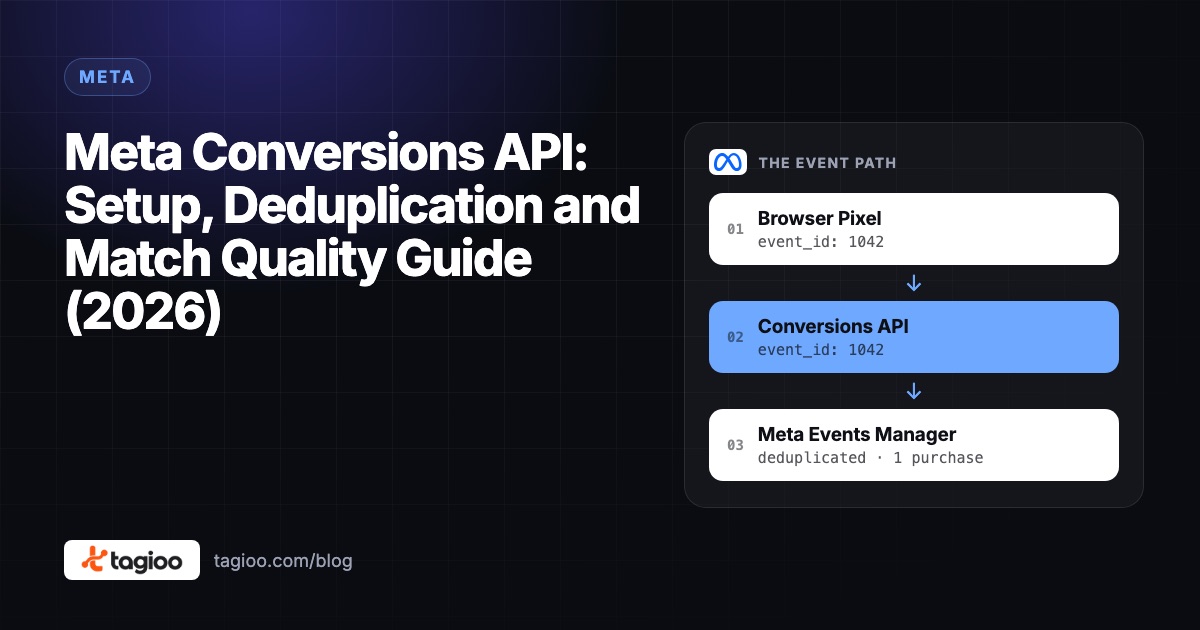
Meta Conversions API: Setup, Deduplication and Match Quality Guide (2026)
How the Meta Conversions API works, the five ways to set it up, and how to get deduplication and match quality right.
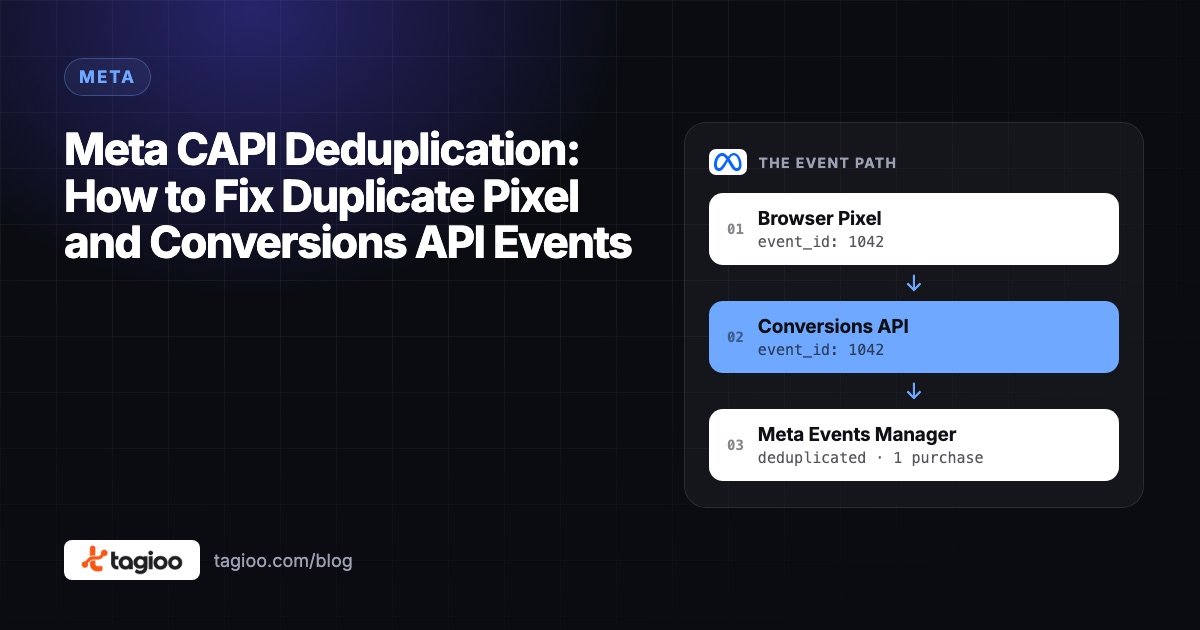
Meta CAPI Deduplication: How to Fix Duplicate Pixel and Conversions API Events
Why Pixel + CAPI can double count purchases, how Meta's event_id matching works, and a 7-step checklist to prove each sale counts once.
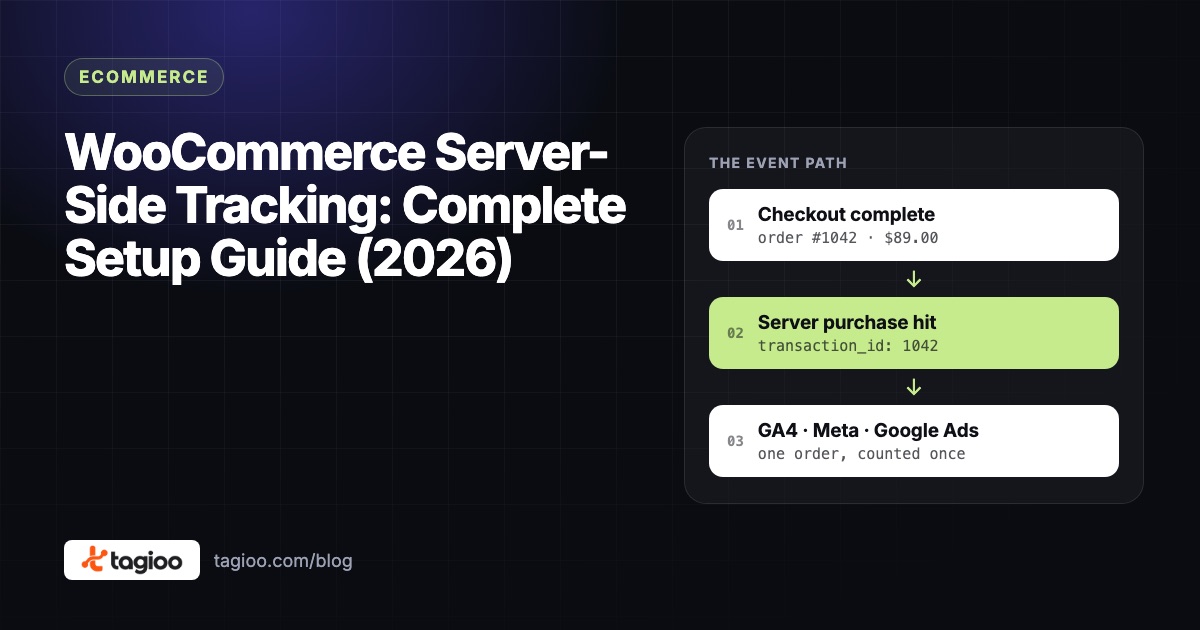
WooCommerce Server-Side Tracking: Complete Setup Guide (2026)
Why WooCommerce stores lose purchases in the browser, what server-side GTM fixes (and what it doesn't), and a tested setup.