
WooCommerce Server-Side Tracking: Complete Setup Guide (2026)
Set up server side tracking for WooCommerce: why purchases go missing, plugin vs manual GTM, a backend purchase hit, deduplication, Meta CAPI, GA4 and testing.
 Tagioo teamUpdated 16 min read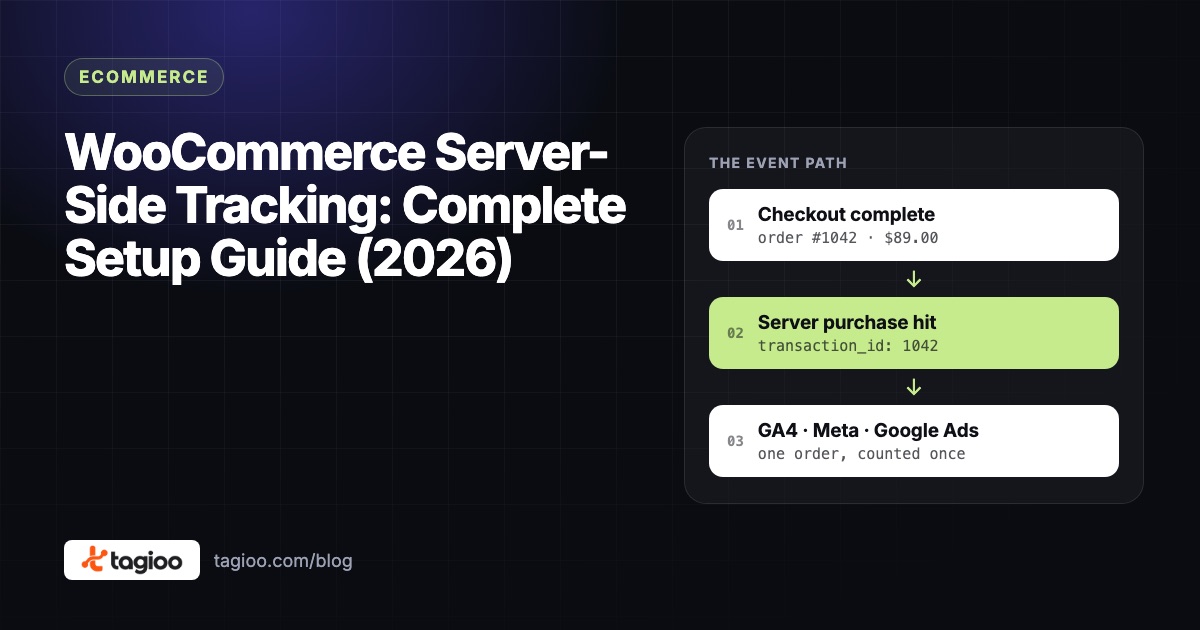
On this page
- What is server-side tracking on WooCommerce, exactly?
- Why do WooCommerce stores lose purchase data?
- Does server-side GTM alone fix missing orders?
- Is server-side tracking worth it for your WooCommerce store?
- What do you need for WooCommerce server-side tracking?
- Plugin vs manual GTM: which route should you pick?
- How do you set up WooCommerce server-side tracking? (8 steps)
- How does purchase deduplication work?
- How do events reach Meta CAPI, GA4, TikTok and Google Ads?
- Does server-side tracking bypass cookie consent?
- How do you test WooCommerce server-side tracking?
- 8 common mistakes (and how to fix them)
- How do you know it worked?
- How do you set this up with Tagioo?
- Sources and further reading
- Related questions
Your WooCommerce dashboard shows 48 orders yesterday. GA4 shows 41. Meta shows 36.
So which number is lying?
Is it an ad blocker? A payment gateway? A caching plugin? Or did half your customers just close the tab the second they saw "Payment successful"?
Ahh, so many questions. Let's untangle them.
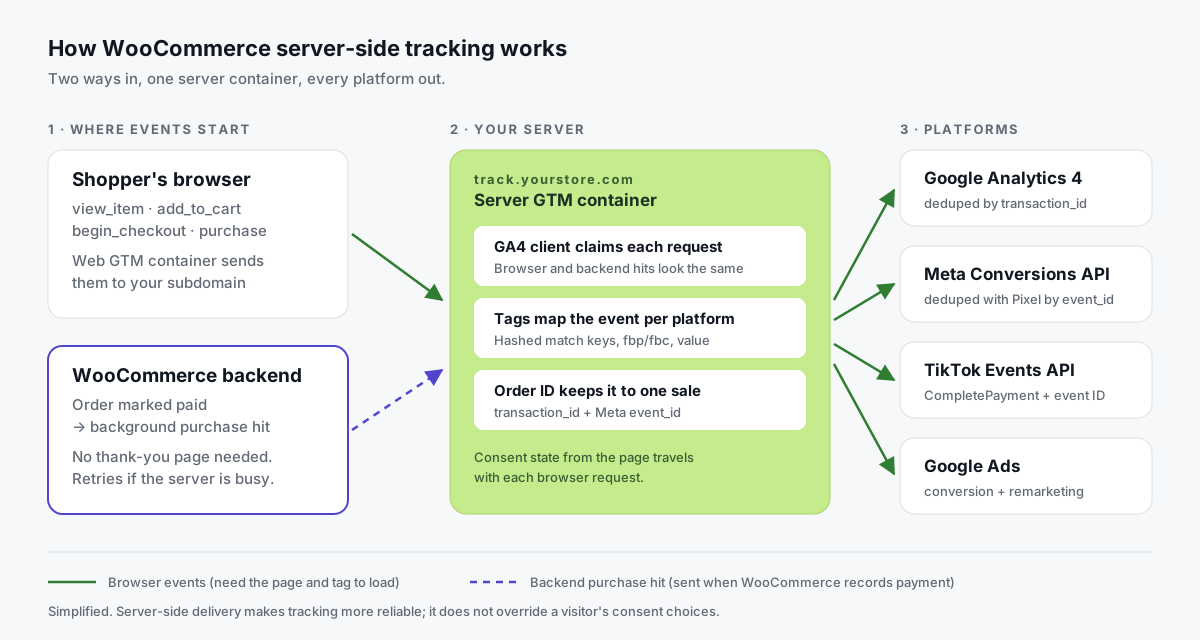
What is server-side tracking for WooCommerce? Server-side tracking for WooCommerce sends your store's events, especially purchases, through a server you control before they reach GA4, Meta, TikTok or Google Ads. Usually that's a server-side Google Tag Manager (sGTM) container on a subdomain like track.yourstore.com, fed by the browser and by your store's backend when an order is paid.
Some of that gap is normal. Not every buyer clicked an ad.
But a lot of it is plain data loss, and on WooCommerce most of it happens on one fragile page: the thank-you page.
In this guide, you'll find out where WooCommerce loses purchases, what a server-side setup needs, which plugin route fits, and how to set it up and test it. We'll also answer questions like "Do I need to remove my existing pixels?" and "Is it worth it for a small store?"
So, why the wait? Let's begin.
What is server-side tracking on WooCommerce, exactly?
Google describes server-side tagging as processing data "on a server you control, rather than in the user's browser." (Google's introduction to server-side tagging)
On a WooCommerce store, that means three things change:
- Where the browser sends data. Instead of firing separate requests to Google, Meta and TikTok, the page sends one stream of events to your own subdomain.
- Who forwards it. A server container receives those events and sends each platform the version it needs, through its server API.
- What else can feed it. Your WordPress backend can send the purchase too, the moment WooCommerce records the payment.
You still need something on the page, because product views and add-to-carts only happen in the browser. Here's the difference at a glance:
| Browser-only (client-side) | Server-side | |
|---|---|---|
| Where tags run | In the shopper's browser | In your server container |
| Requests go to | googletagmanager.com, connect.facebook.net, etc. | Your subdomain, e.g. track.yourstore.com |
| Purchase depends on | The thank-you page loading and the tag firing | Browser or backend, if you add a backend hit |
| Cookies | Mostly set by JavaScript | Can be set by your server, on your domain |
| Data control | Each vendor script collects what it collects | You choose what each platform receives |
| Effort | Low | Medium (one more container to run) |
Why do WooCommerce stores lose purchase data?
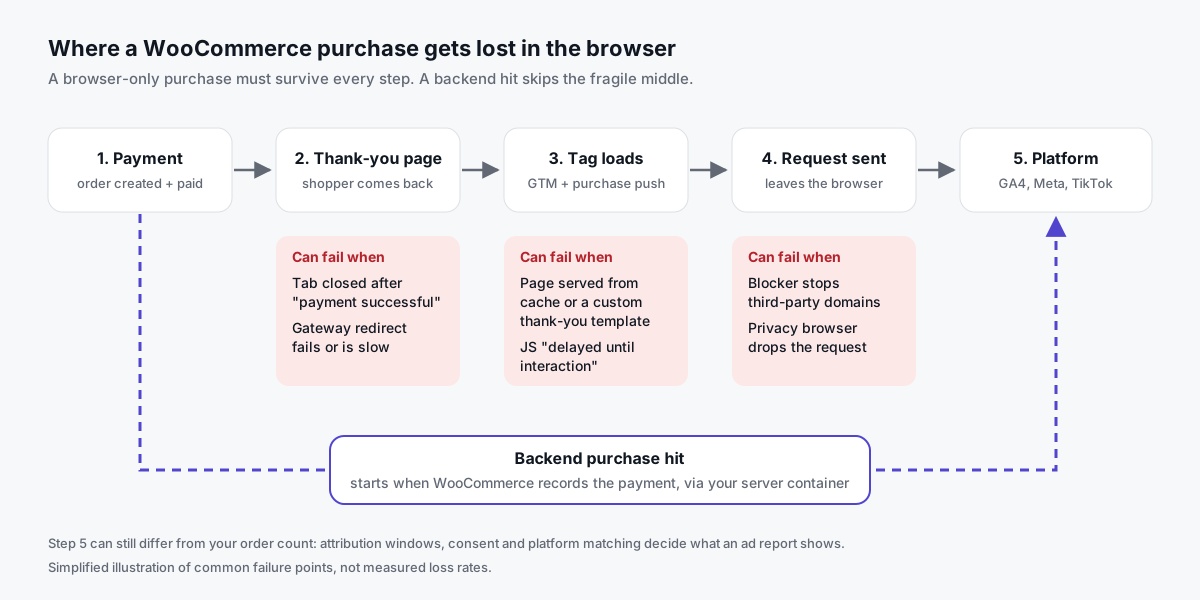
A classic WooCommerce setup fires the purchase tag in the customer's browser on the order-received ("thank-you") page.
Everything depends on that one page loading, the tag loading, and the request leaving the browser. Each step can fail.
The thank-you page never loads
Customers close the tab as soon as the gateway says "Payment successful," or the mobile browser drops the page when they switch apps.
WooCommerce still records the order, because the order lives on your server. The browser tag just never runs.
Payment gateway redirects
Off-site gateways (hosted card pages, PayPal, buy-now-pay-later) send the customer away and back again.
If the return redirect fails or lands on a URL your trigger doesn't expect, there's no purchase event. Shoppers who do return can show up as a new session credited to the payment provider.
Caching and JavaScript optimization
Speed plugins are great for speed and risky for tracking. We see three classic problems:
- Cached pages. A cached thank-you page can show stale or empty order data. WooCommerce's own caching guide says to exclude the cart, checkout and My Account pages from caching.
- Combined or deferred scripts that break the GTM snippet or the inline purchase push.
- "Delay JavaScript until interaction" settings that stop tags firing on pages where the visitor never scrolls or clicks.
Block checkout and custom thank-you pages
Since WooCommerce 8.3 (November 2023), new stores get the Cart and Checkout blocks by default (WooCommerce's blocks status page).
Tracking code that hooks into the classic checkout, or a page builder's custom thank-you template, can silently stop printing the purchase event.
Ad blockers, privacy browsers and short cookies
Extensions and privacy browsers commonly block requests to well-known tracking domains. When the script can't load, nothing downstream fires.
Safari also caps cookies set by JavaScript at 7 days (WebKit's ITP 2.1 post), so a returning visitor can look brand new.
Does server-side GTM alone fix missing orders?
Honestly? Not by itself.
This is the detail most WooCommerce guides skip. A server container only processes requests it receives.
If the browser never sends the purchase, because the thank-you page didn't load, the server container never hears about it. Moving your tags server-side makes the browser path more robust, but it doesn't create events that never fired.
That's why a complete WooCommerce setup has two inputs:
- Browser events for the whole funnel: product views, add to cart, checkout, and the browser copy of the purchase.
- A backend purchase hit that your store sends when WooCommerce marks the order paid, whether or not anyone saw the thank-you page.
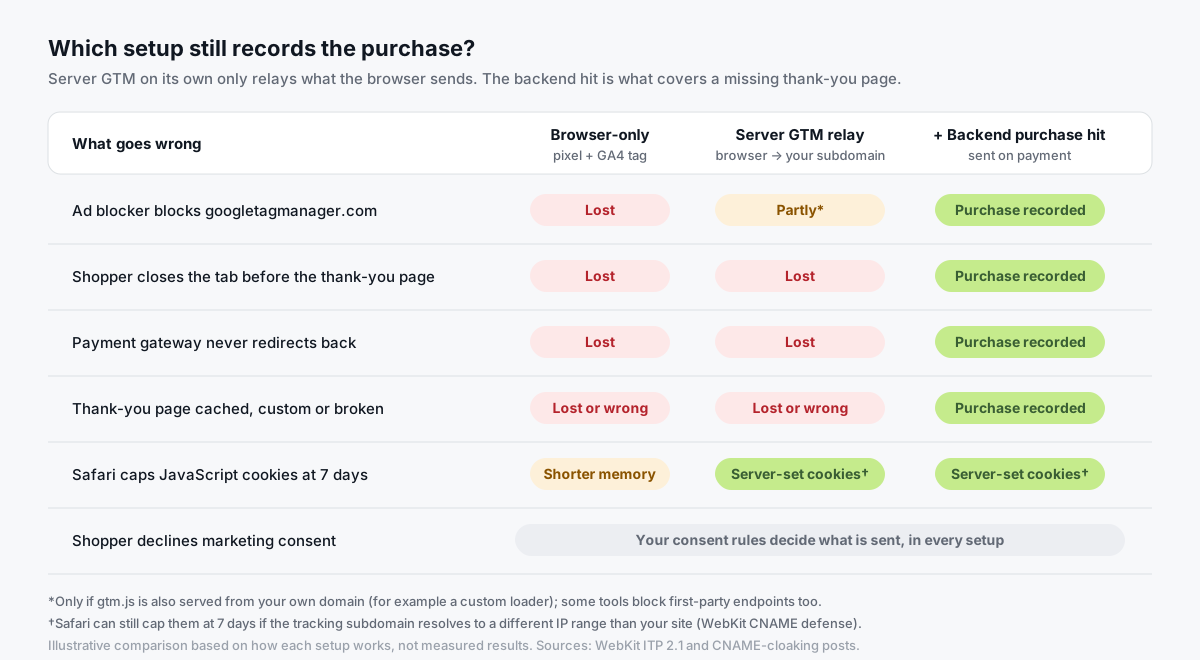
Two copies of every purchase sounds scary. It isn't, as long as both carry the same order ID. We'll get to deduplication below.
Is server-side tracking worth it for your WooCommerce store?
It depends on what you're losing. Here's how we'd think about it.
It's probably worth it if:
- You run paid ads that bid on purchases, so every missing sale weakens what the algorithm learns.
- Paid orders clearly beat GA4 purchases for the same dates, even after you've fixed the basics.
- You use off-site gateways where customers often don't come back.
- You feed more than one platform. One server container serves GA4, Meta, TikTok and Google Ads.
It can wait if you don't run ads yet, your numbers already line up within a few percent, or the basics are broken. A duplicate plugin or a cached checkout will still be broken on a server.
Want to see what your store runs today? The free Website Tracking Checker scans a public site for tags, IDs, consent setup and first-party routing.
What do you need for WooCommerce server-side tracking?
A working setup has five parts:
| Part | What it does | Typical tool |
|---|---|---|
| Data layer | Pushes view_item, add_to_cart, begin_checkout, purchase with value, currency, items and transaction_id | A WooCommerce GTM plugin |
| Web GTM container | Reads the data layer in the browser and sends events to your server | Google Tag Manager |
| Server GTM container | Receives events and forwards them to each platform's API | Self-hosted on Google Cloud, or a managed host |
| Tracking subdomain | track.yourstore.com, pointing at the server container, with SSL | One DNS record |
| Backend purchase hit | Sends the purchase from WordPress when the order is paid | A plugin that supports it |
Google's GA4 ecommerce reference defines the event fields. And don't skip the subdomain: on the default cloud URL, the container runs on a third-party domain and can't set first-party cookies on your store (Google's custom domain guide).
Plugin vs manual GTM: which route should you pick?
You don't have to hand-code any of this. These are the realistic options, with figures from each plugin's WordPress.org listing as of October 2026:
| Route | What you get | Server container? | Backend purchase? | Good fit when |
|---|---|---|---|---|
| GTM4WP (700,000+ installs) | Solid GA4 ecommerce data layer, including block checkout | No, you build it | No | You or your agency are comfortable in GTM |
| PixelYourSite (400,000+ installs) | Meta Pixel with Conversions API, GA4, GTM | No | Pro version: Advanced Purchase Tracking | You want plugin-managed pixels |
| Meta for WooCommerce (400,000+ installs) | Official Meta plugin: Pixel, catalog sync, CAPI | No | Meta only | Meta is your main channel and you need catalog sync |
| Fully manual | Your own PHP hooks and tags | Yes, you build it | If you build it | You have a developer and unusual checkout logic |
| Integrated plugin + managed sGTM (e.g. Tagioo) | Data layer, backend purchase hit and pre-built containers | Yes, hosted | Yes, on paid plans | You want it working without becoming a GTM specialist |
Each has strengths. GTM4WP is the long-standing data layer standard, and PixelYourSite and Meta's plugin are quick if you only care about pixels. What none of them gives you is your own server container feeding every platform from one place.
Whatever you pick, follow one rule: one owner per event. Two plugins pushing purchase is the most common source of duplicate orders we see.
New to server containers? Analytics Mania's tutorial covers how they work:

How do you set up WooCommerce server-side tracking? (8 steps)
Here's the full setup with Tagioo, which hosts a dedicated server GTM container for your store and gives you the WordPress plugin and container files. If you self-host, the same steps apply. You'll just build the containers yourself.
You'll need a Google account with a Web and a Server GTM container.
| Step | Where | What you do |
|---|---|---|
| 1 | Tagioo | Create a container and pick track.yourstore.com |
| 2 | DNS provider | Add one CNAME record; SSL is issued automatically |
| 3 | Setup Assistant | Choose WooCommerce, enter your IDs, generate files |
| 4 | Google Tag Manager | Import web.json and server.json |
| 5 | WordPress | Install and configure the Tagioo plugin |
| 6 | WordPress (optional) | Turn on the Custom Loader |
| 7 | GTM + platforms | Preview, test one order |
| 8 | GTM | Publish both containers |
Steps 1-2: Create your container and add the DNS record
Sign up, add a container and choose a subdomain such as track.yourstore.com. Tagioo shows the CNAME record to add at your DNS provider, and issues SSL automatically once it resolves.
Do this first. DNS changes can take a while to spread.
Step 3: Generate your GTM files
In the Setup Assistant, choose WooCommerce and enter your destination IDs: GA4, Meta Pixel and Conversions API token, TikTok, and Google Ads. It generates a web.json and a server.json.
Step 4: Import both containers
In your Web container, go to Admin → Import Container, choose web.json and merge it into a new workspace. Do the same with server.json in the Server container.
Take a minute to look through the tags so you know what was added.
Step 5: Install the Tagioo for WooCommerce plugin
In WordPress, go to Plugins → Add New → Upload Plugin, upload the zip and activate it.
Enter your GTM container ID, tracking domain, GA4 Measurement ID and API secret, and leave the server-side purchase hit on. Remove GTM4WP or any hand-coded GTM snippet first, so the container doesn't load twice.
The plugin pushes the full GA4 ecommerce funnel, from view_item_list to purchase, on both classic checkout and the Checkout block.
Step 6 (optional): Turn on the Custom Loader
With this on, the plugin serves gtm.js from your tracking domain instead of googletagmanager.com.
Browsers and extensions that block that domain by name (Brave, for example) can still load your tags. Consent rules still apply.
Steps 7-8: Test one order, then publish both containers
Open Preview in both containers and place a controlled test order (the testing section below has the full checklist). Then publish the server container and the web container.
Prefer the reference version? Our WooCommerce docs list every plugin setting.
How does purchase deduplication work?
A server-side setup deliberately sends the same purchase more than once. That's what makes it resilient.
It only works if every platform can tell both copies describe the same order:
| Platform | How it deduplicates | What must match |
|---|---|---|
| GA4 | Purchases with the same transaction ID (Google's help article) | transaction_id |
| Meta | Browser and server events with the same name and ID, within 48 hours (Meta's docs) | event_name + event_id |
| TikTok | Pixel and Events API events with the same event ID | event_id |
| Google Ads | Conversions in the same action with the same transaction ID | transaction_id |
Here's how the Tagioo plugin handles its side:
- Same identity on both copies. Both carry the WooCommerce order number as
transaction_idand the order ID as Meta'sevent_id. - Sent on payment, not on page view. The backend hit is queued when WooCommerce records the payment, or when the order moves to Processing (cash on delivery, or a bank transfer you've confirmed).
- Never blocks checkout. It runs as a background job and retries if the server is briefly unavailable.
- One send per order. A lock stops two overlapping workers from sending the same order twice.
The backend purchase recovery is on paid plans.
Two practical rules for any setup: never generate a random purchase ID per page load, and never let two plugins each send their own purchase.
How do events reach Meta CAPI, GA4, TikTok and Google Ads?
- Meta Conversions API. Hashed customer details (email, phone, name, address), the
fbpandfbcvalues, IP address and user agent. The full funnel (ViewContent, AddToCart, InitiateCheckout, Purchase) goes server-side, withevent_idmatching the browser Pixel. See the Meta CAPI for WooCommerce guide. - GA4. The GA4 client forwards the web container's hits, and the backend purchase arrives in the same format with the same
transaction_id. See GA4 server-side tracking. - TikTok Events API. The same events, mapped to TikTok's names (ViewContent, AddToCart, InitiateCheckout, CompletePayment), with an event ID for deduplication. See TikTok Events API.
- Google Ads. The generated containers include a Conversion Linker, a purchase conversion and dynamic remarketing. See Google Ads server-side tracking.
One detail for Meta: the plugin captures fbclid from the landing URL and stores _fbp and _fbc as server-set cookies on your domain, with a 90-day expiry. That matches Meta's own fbp and fbc guidance.
Does server-side tracking bypass cookie consent?
No. Server-side tracking changes how data travels, not whether you're allowed to collect it.
- Consent starts on the page. Your banner sets the consent state, and the Google tag passes it to the server with each hit (Google's server-side consent docs).
- Server tags respect it. Configure them so declined categories don't fire.
- Consent is a setting in the plugin. The Tagioo plugin (2.6.0+) has a Cookie consent option. It's off by default. Turn on the built-in Tagioo banner (Accept / Reject, wired to Google Consent Mode v2), or let the plugin read your existing banner (CookieYes, Complianz, Cookiebot, OneTrust or the WP Consent API).
- With consent on, backend purchases respect it. The shopper's choice at checkout travels with the backend purchase, and Tagioo's Meta and TikTok server tags skip purchases from shoppers who rejected. Check with your privacy notice and legal advice which option your store needs.
How do you test WooCommerce server-side tracking?
Test with one controlled order before you publish, and again after any checkout, theme or plugin change.
- GTM Preview (web). Browse, add to cart and check out. Each event should appear once, with the right value, currency and items, and
transaction_idshould match the order number. - GTM Preview (server). Each request should be claimed by the GA4 client, and the Meta, GA4 and TikTok tags should fire (Google's debugging guide).
- Meta Test Events. You should see browser and server copies of Purchase, marked as deduplicated.
- GA4 DebugView. Your test events show under Admin → DebugView (Google's DebugView help).
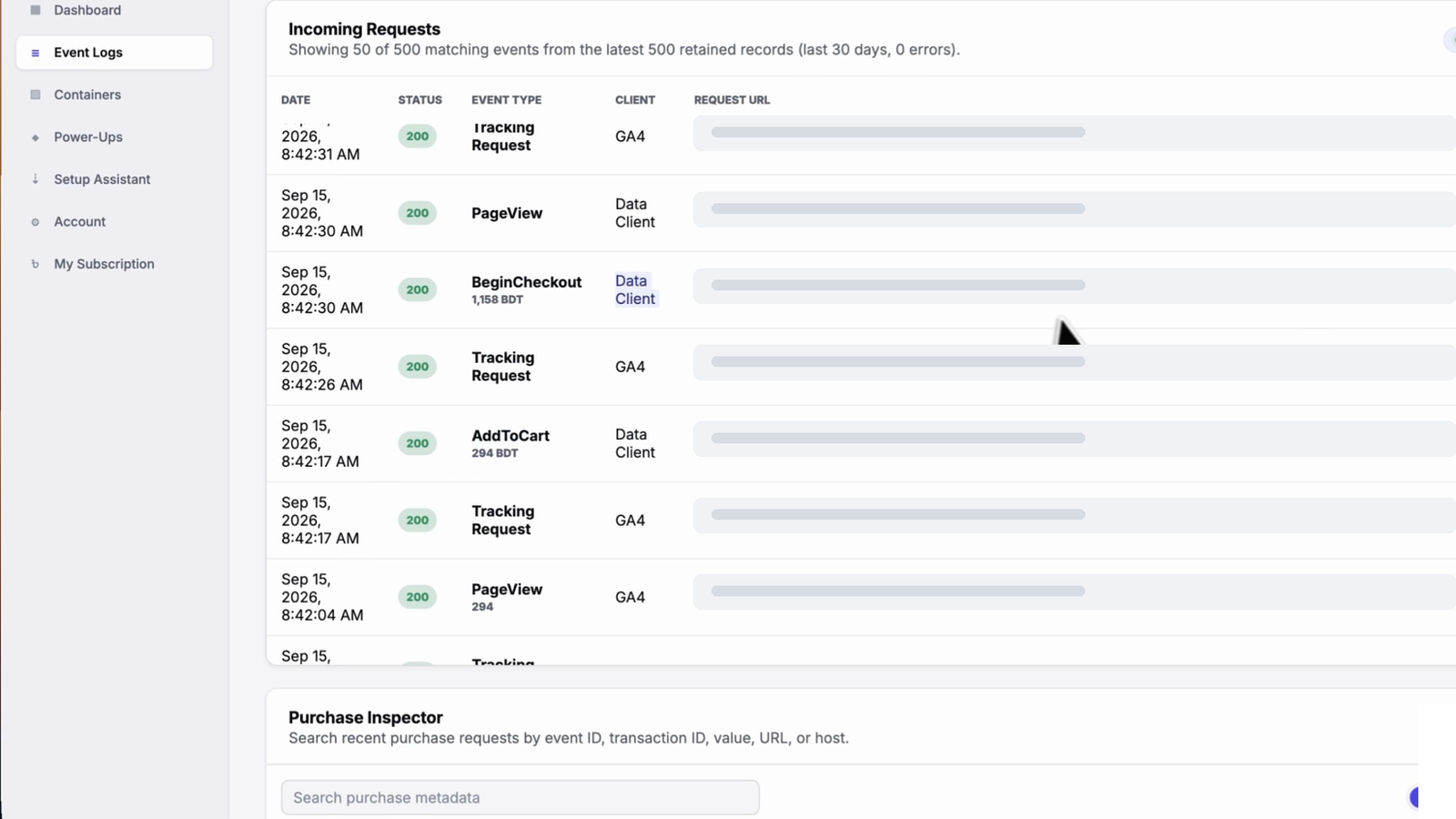
- Tagioo dashboard. Find the order in Event Logs and Purchase Inspector, then use Run tracking test to confirm the GA4 server container is published and your Meta credentials work.
- Reload the thank-you page. A reload must not create a second purchase anywhere.
- Close the tab test. Place a second order and close the tab on the gateway's success screen. The backend hit should still show up in Purchase Inspector.
For a structured way to follow one order end to end, use our WooCommerce purchase tracking checklist.
8 common mistakes (and how to fix them)
- Two senders, such as an old pixel plugin or a Meta Pixel hard-coded in the theme. Fix: one owner per event.
- No backend hit, so purchases still depend on the thank-you page. Fix: add one.
- Default cloud URL instead of your subdomain. Fix: map
track.yourstore.com. - Only one container published. Fix: publish both.
- WP-Cron not running, so background jobs like backend purchases never run. Fix: check it, or use a real cron job (WordPress's cron docs).
- Different values between the browser and backend copies. Fix: one tax and shipping rule.
- Cached or delayed checkout pages. Fix: exclude them.
- Judging too early. Fix: compare 2-4 weeks of data.
Analytics Mania's list of server-side GTM mistakes is worth ten minutes too:

How do you know it worked?
Compare the same number of days before and after: WooCommerce paid orders, GA4 purchases and ad platform conversions.
- Coverage holds or rises. GA4 purchases as a share of paid orders should go up or stay steady, but never above 100%. Above 100% means double counting.
- Values line up with WooCommerce revenue, using the same tax and shipping rule.
- No new duplicates when you spot-check a few order numbers.
Some gap is still normal. Conversion tracking discrepancies explains how to read it.
Tagioo also shows a purchase gap alert on your dashboard when today's tracked purchases drop well below your 7-day average, so a broken checkout doesn't go unnoticed for weeks.
How do you set this up with Tagioo?
Tagioo gives your store a dedicated server GTM container on your own subdomain. The WooCommerce plugin builds the data layer and sends the backend purchase, and the Setup Assistant generates the containers. You import, preview and publish.
The Free plan includes 15,000 events per 30 days, with no card. Paid plans start at $30 a month with a 3-day free trial. See pricing, or read how it works.
Stuck? Email hello@tagioo.com with your store URL.
Sources and further reading
- Google: An introduction to server-side tagging
- Google: Custom domain for your tagging server
- Google: Server-side consent mode
- Google: GA4 ecommerce measurement
- Google Analytics Help: Minimize duplicate key events with transaction IDs
- Meta for Developers: Deduplicate Pixel and server events
- Meta for Developers: fbp and fbc parameters
- WooCommerce: Cart and Checkout blocks status and configuring caching plugins
- WebKit: Intelligent Tracking Prevention 2.1
- Simo Ahava: Server-side tagging in Google Tag Manager
Related questions
Does WooCommerce have server-side tracking built in?
No. WooCommerce has built-in sales reports, but it doesn't send events server-side to GA4, Meta or TikTok. You add that with a plugin, a server GTM container, or both.
Is server-side tracking worth it for a small WooCommerce store?
It can be, if you run paid ads and your platforms clearly report fewer purchases than WooCommerce.
If you don't advertise yet, start with a clean browser setup and a single tracking plugin. Tagioo's Free plan (15,000 events per 30 days) lets you test without a card.
Do I need to remove my existing WooCommerce pixels?
Not always, but you need one owner per event.
If an old plugin and your new setup both send Purchase with different IDs, platforms count the sale twice. The simplest fix is to remove the old pixel plugin and let one setup send both the browser and server copies, with matching IDs.
Will server-side tracking recover every missing WooCommerce order?
No setup can promise that.
A backend purchase hit can record orders whose thank-you page never loaded, and a first-party domain can keep tags loading in more browsers. But consent choices, attribution rules and platform matching still decide what appears in your ad reports.
Can I use GTM4WP with Tagioo?
Yes, if you want to build your own tags: use GTM4WP for the data layer and point your web container at a Tagioo-hosted server container.
If you use the Tagioo plugin, remove GTM4WP, so two plugins aren't pushing the same purchase events.
How much does WooCommerce server-side tracking cost?
With Tagioo, the Free plan includes 15,000 events per 30 days with no card. Paid plans are $30, $50 and $100 a month, each with a 3-day free trial. See pricing for limits.
Self-hosting on Google Cloud costs whatever your cloud usage comes to, plus your time to maintain it.
See your own events, server-side.
Tagioo hosts your server-side GTM container on your own domain and generates the GA4, Google Ads, Meta and TikTok setup for you. Free for 15,000 events a month, no card needed.
Keep reading
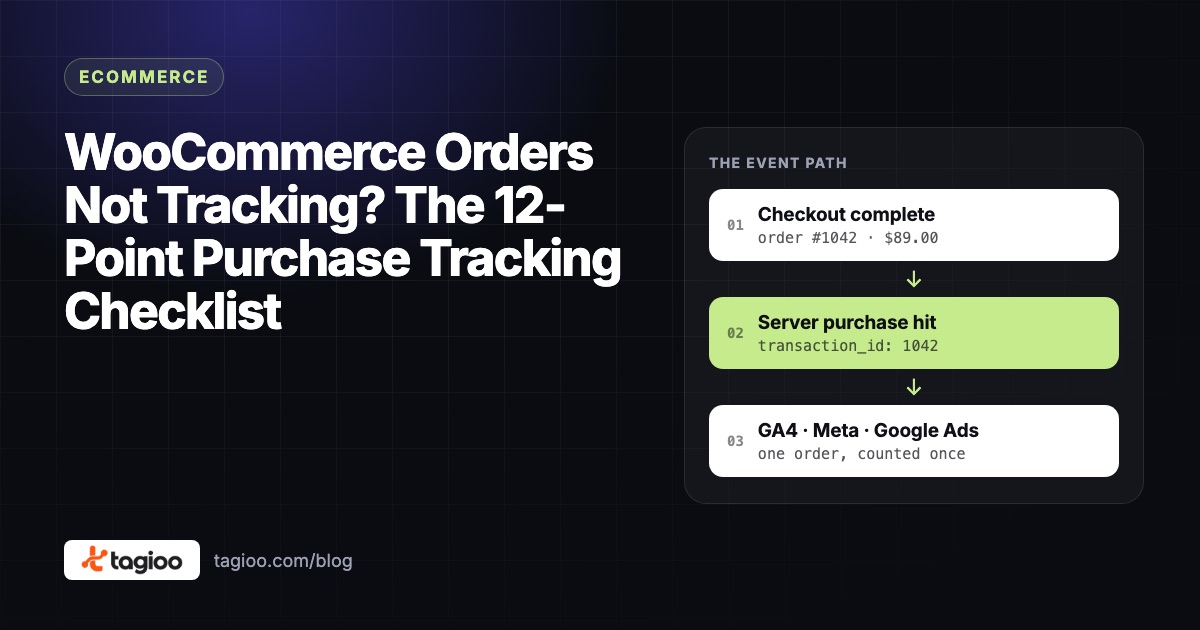
WooCommerce Orders Not Tracking? The 12-Point Purchase Tracking Checklist
Follow one missing order through 12 checks, find the exact step where WooCommerce purchase tracking breaks, and fix it.
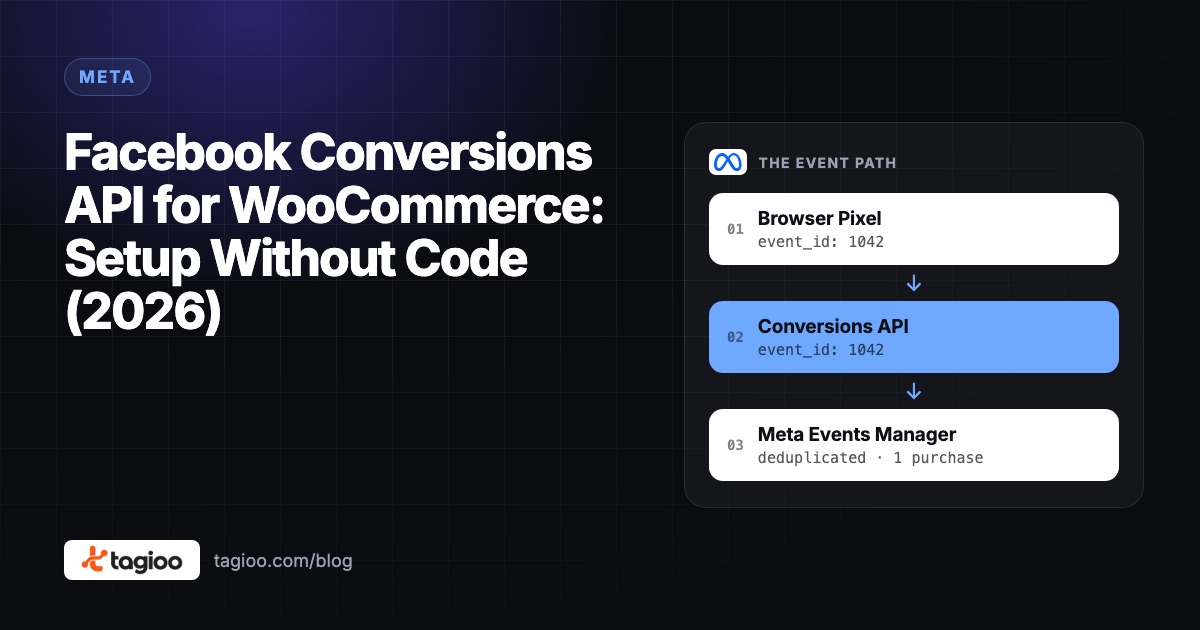
Facebook Conversions API for WooCommerce: Setup Without Code (2026)
Your options for Meta CAPI on WooCommerce, a no-code server GTM setup, and how to check deduplication and match quality.
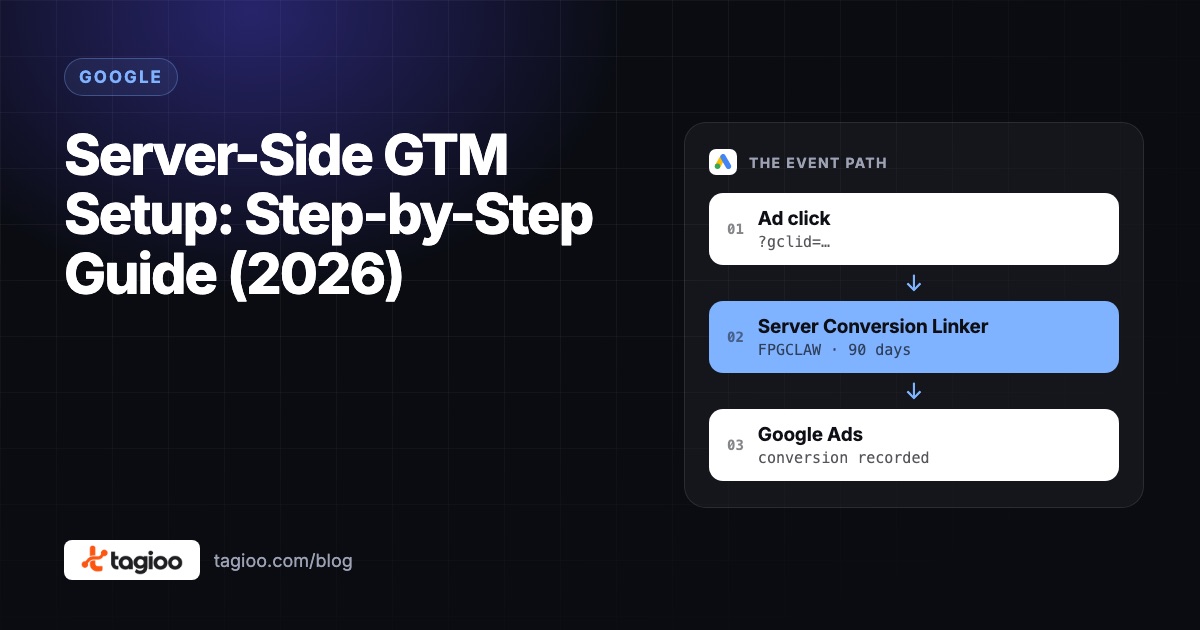
Server-Side GTM Setup: Step-by-Step Guide (2026)
A step-by-step server-side GTM setup, from creating the server container to hosting, DNS, GA4, Meta CAPI, debugging and publishing.