
GA4 Server-Side Tracking: How It Works, Setup and Fixes for Missing Data
GA4 server side tracking guide: how the GA4 client works, sGTM vs Measurement Protocol, 8 setup steps, purchase dedup, and fixes for missing data.
 Tagioo teamUpdated 12 min read
On this page
- How does GA4 work with server-side GTM?
- Why use server-side tracking for GA4? Benefits and drawbacks
- sGTM or the Measurement Protocol: which should you use?
- How do you set up GA4 server-side tracking? (8 steps)
- How do you track ecommerce and purchases server-side?
- Why does server-side GA4 show only the homepage?
- What other problems break server-side GA4 data?
- How do you debug GA4 server-side tracking?
- How do you know it worked?
- How do you set this up with Tagioo?
- Sources and further reading
- Related questions
You finally moved GA4 to a server container. Hits are arriving. Everything looks green.
Then you open the Pages report, and almost every view is your homepage.
Or purchases have doubled overnight. Or "(direct)" traffic just jumped by a third.
So did server-side tracking break GA4? Or did it just expose what was already wrong?
Ahh, so many questions. Let's sort them out.
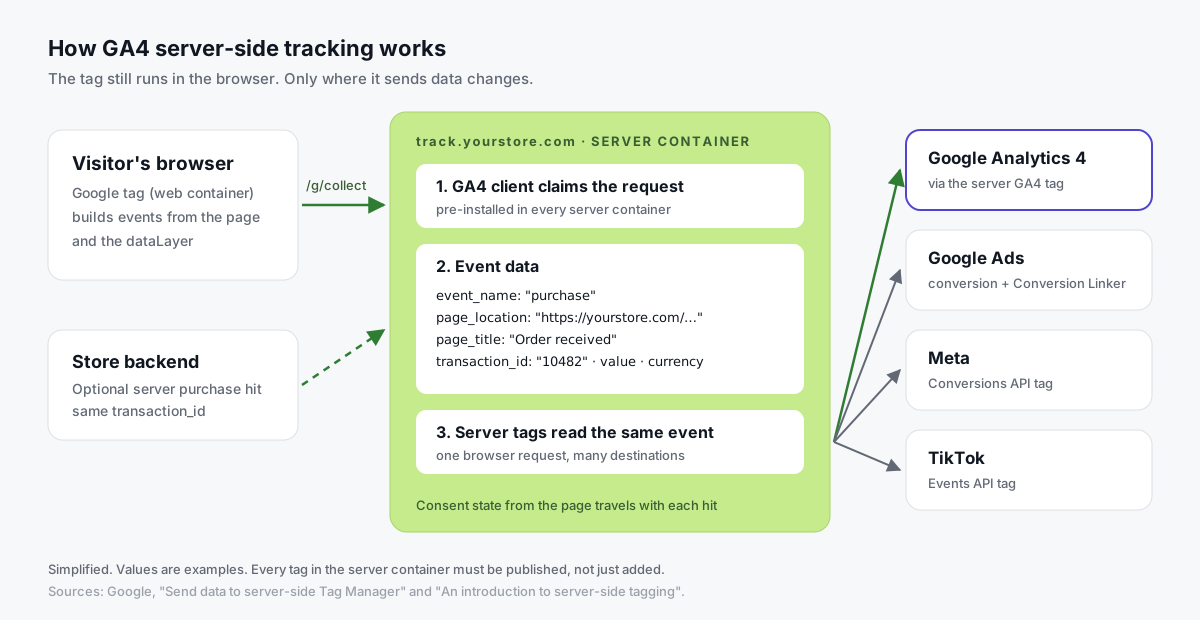
What is GA4 server-side tracking? GA4 server-side tracking sends your Google Analytics 4 events from the browser to a server-side Google Tag Manager container on your own domain, which then forwards them to Google Analytics. The Google tag still runs in the browser. Only the collection endpoint moves, so page context and consent must still come from the page.
Done well, it gives you a first-party endpoint, server-set cookies and one place to route data to GA4, Google Ads, Meta and TikTok.
Done carelessly, it gives you a homepage-only GA4 property and double-counted revenue. We've seen both, including on our own setup.
In this guide, you'll find out how GA4 works with server GTM, how it compares with the Measurement Protocol, how to set it up in 8 steps, and how to fix the issues that make server-side data look wrong. We'll also answer "Is GA4 client-side or server-side?" and "Will server-side tracking increase my numbers?"
So, why the wait? Let's begin.
How does GA4 work with server-side GTM?
There are three pieces:
- The Google tag in your web container. It runs in the visitor's browser and builds GA4 events from the page and the dataLayer, exactly like a normal setup.
- The server container URL. Normally the Google tag sends hits to Google. With a server container URL such as
https://track.yourstore.com, it sends the same/g/collectrequests there instead. Older guides call this the "transport URL." - The GA4 client in your server container. A client is the part of a server container that claims incoming requests. Google's guide to sending data to server-side Tag Manager says the Google Analytics client is pre-installed by default. It parses each request into an event data object.
Then a Google Analytics: GA4 tag in the server container sends that event on to Google Analytics.
Because the server sees the parsed event, other server tags can use it too. One purchase can feed GA4, a Google Ads conversion and the Meta Conversions API from a single browser request.
So is GA4 client-side or server-side? Out of the box, it's client-side: a JavaScript tag in the browser talks directly to Google. Server-side GA4 keeps that tag, but routes its data through a server you control first.
Why use server-side tracking for GA4? Benefits and drawbacks
Google describes server-side tagging as processing data "on a server you control, rather than in the user's browser" (Google's introduction). Here's what that actually buys you, and what it costs:
| Benefit | What it means in practice |
|---|---|
| First-party endpoint | Hits go to your own subdomain, so fewer host-based blocklist rules match. Consent still applies |
| Server-set cookies | The GA4 client can set a server-managed FPID cookie, which isn't subject to Safari's 7-day cap on JavaScript cookies (with caveats) |
| Data control | You see every event first, and can remove or transform fields before they reach a vendor |
| One event, many platforms | The same purchase feeds GA4, Google Ads, Meta and TikTok |
| Fewer browser scripts | Only if you actually remove vendor tags from the page |
| Drawback | What it means in practice |
|---|---|
| Hosting cost | Google's Cloud Run guide estimates about $45 a month per server and recommends at least two instances |
| More moving parts | Two containers to publish, a DNS record, and one more thing to monitor |
| Not a fix for bad tagging | Wrong triggers or missing parameters break server-side data just the same |
| Doesn't replace the browser tag | Page views and engagement still come from the page |
That "Server-set cookies" row has a catch for Safari. If your tracking subdomain points at a third party's servers, Safari can cap server-set cookies at 7 days too. Our first-party tracking guide explains when.
sGTM or the Measurement Protocol: which should you use?
People mix these up all the time. They do different jobs.
The GA4 Measurement Protocol lets your server send events straight to Google Analytics over HTTP, with an API secret. Google says its intent is "to augment automatic collection," and that you must use tagging (gtag, Tag Manager or Firebase) to use it (Measurement Protocol docs).
Google also warns that sending events only through the Measurement Protocol may give you just partial reporting. To tie an event to a session's device and geo data, you need to send a session_id within 24 hours of the session starting.
| Server-side GTM | Measurement Protocol | |
|---|---|---|
| What sends the data | The browser tag, routed through your server | Your backend, directly to Google |
| Page views, sessions, engagement | Yes, from the browser | Not on its own |
| Good for | Your whole GA4 setup | Refunds, offline sales, subscription renewals, CRM events |
| Needs | A server container and subdomain | An API secret and the visitor's client_id |
| Feeds other platforms | Yes | GA4 only |
Our view? Use server-side GTM for everyday tracking. Add the Measurement Protocol only for events that genuinely happen off your website.
How do you set up GA4 server-side tracking? (8 steps)
Here's the whole setup at a glance:
| Step | Where | What you do |
|---|---|---|
| 1 | Tag Manager | Create a server container |
| 2 | Hosting | Deploy a tagging server |
| 3 | DNS | Map track.yourstore.com and wait for SSL |
| 4 | Server container | Check the GA4 client |
| 5 | Server container | Add a GA4 tag |
| 6 | Web container | Point the Google tag at your server |
| 7 | Both | Preview |
| 8 | Both | Publish |
Step 1: Create a server container
In Tag Manager, create a new container and choose Server as the target platform.
Step 2: Deploy a tagging server
Host it yourself on Google Cloud or another environment, or use a managed host. Google recommends upgrading to production mode before you send real traffic.
Step 3: Map a first-party subdomain
Point a hostname such as track.yourstore.com at the tagging server, and wait for SSL. Google's custom domain guide says the default provider domain runs in a third-party context and can only set JavaScript cookies. So don't skip this.
Step 4: Check the GA4 client
In the server container, open Clients and confirm the Google Analytics: GA4 client exists. Most setups don't need to change it.
Want gtag.js served from your own domain too? Google's send-data guide explains how to enable it in the client for your measurement IDs.
Step 5: Add a GA4 tag in the server container
Create a Google Analytics: GA4 tag, triggered when the GA4 client claimed the request. By default, it inherits the measurement ID and parameters from the incoming event.
Step 6: Point the web container at the server
In your web container's Google tag, set server_container_url to https://track.yourstore.com.
While you're there, set page_location and page_title explicitly. More on why in a minute.
Step 7: Preview both containers
Start server container preview first, then web container preview on your site. Confirm requests arrive, the GA4 client claims them, and the GA4 tag fires.
Step 8: Publish both containers
This is the classic mistake: the web container is published, the server one isn't. Hits arrive and nothing is forwarded.
Prefer to watch first? Analytics Mania's full tutorial covers a first server-side setup, including GA4 and a custom domain:

How do you track ecommerce and purchases server-side?
GA4's ecommerce measurement guide defines the standard events: view_item, add_to_cart, begin_checkout, purchase and more.
Server-side tagging doesn't change the schema. What reaches your server container is exactly what your dataLayer pushed.
For purchase, these fields matter most:
transaction_id. Use your order number, the same one in your store's backend.valueandcurrency. The order total as a number, plus an ISO currency code. A missing currency is a common reason revenue shows as zero.items. Item ID, name, price and quantity, so product reports work.
How does GA4 deduplicate purchases?
Google says GA4 deduplicates purchases with the same transaction ID from the same user.
Know the limits:
- Web streams only. App streams aren't covered.
- Never send an empty string. An empty
transaction_idmakes GA4 treat all those purchases as duplicates of each other. - Don't reuse IDs across different customers.
This matters the moment you add a backend purchase hit. If the thank-you page and your backend both send the same order, both must carry the same transaction_id. Then GA4 counts one order, not two.
Why does server-side GA4 show only the homepage?
This is the lesson we learned the hard way.
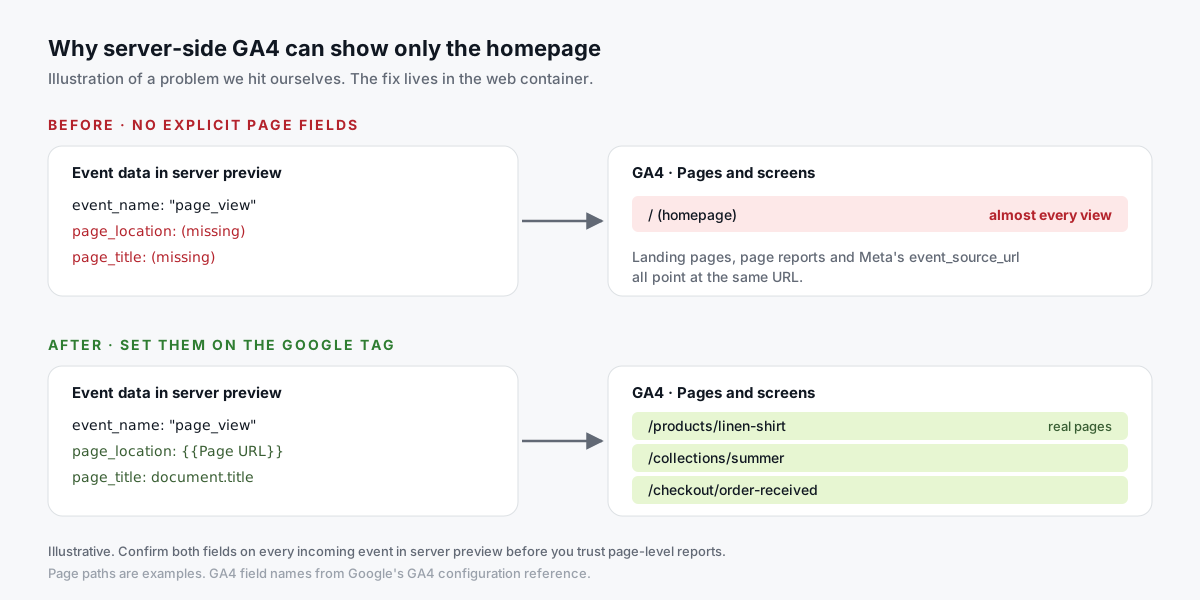
If GA4 events reach the server container without an explicit page_location, the server-side data can be attributed to the wrong page. In our case, it defaulted to the site's homepage.
Page reports collapse into one URL. Landing page analysis breaks. And any Meta event built from the same data gets the wrong event_source_url.
The fix takes two minutes:
- In the web container, add
page_location={{Page URL}}to your Google tag's configuration parameters. - Add
page_titleusing a JavaScript variable that returnsdocument.title. - In server preview, open Event Data and confirm every incoming event carries both.
Do this before you trust any page-level report.
What other problems break server-side GA4 data?
Here's what we see most often, and where to look first:
| Symptom | Likely cause | Fix |
|---|---|---|
| Hits arrive, nothing in GA4 | Server container not published, or GA4 tag trigger doesn't match | Publish; check the tag fires on the GA4 client |
| Everything drops when testing | Analytics consent not granted in your test session | Accept consent first, then test |
| Revenue is zero | Missing currency, or value sent as a string like "$49" | Send a number and an ISO code |
| Purchases doubled | Two containers, a plugin's own GA4 tag, or thank-you page reloads | Remove duplicates; dedup on transaction_id |
| "(direct)" or "(not set)" jumped | Referrer or campaign parameters not reaching the server | Compare event data in server preview |
| Users jumped, sessions didn't | Client IDs being reset, e.g. a cookie change | Check the _ga / FPID cookie stays stable across visits |
About that consent row: it's not a bug. If a visitor declines analytics consent, the Google tag sends limited or no data, and that's correct.
Just make sure the consent state reaches the server container, so server tags behave the same way (Google's server-side consent mode docs).
How do you debug GA4 server-side tracking?
Use the layers in order. The first one that looks wrong is where the problem lives:
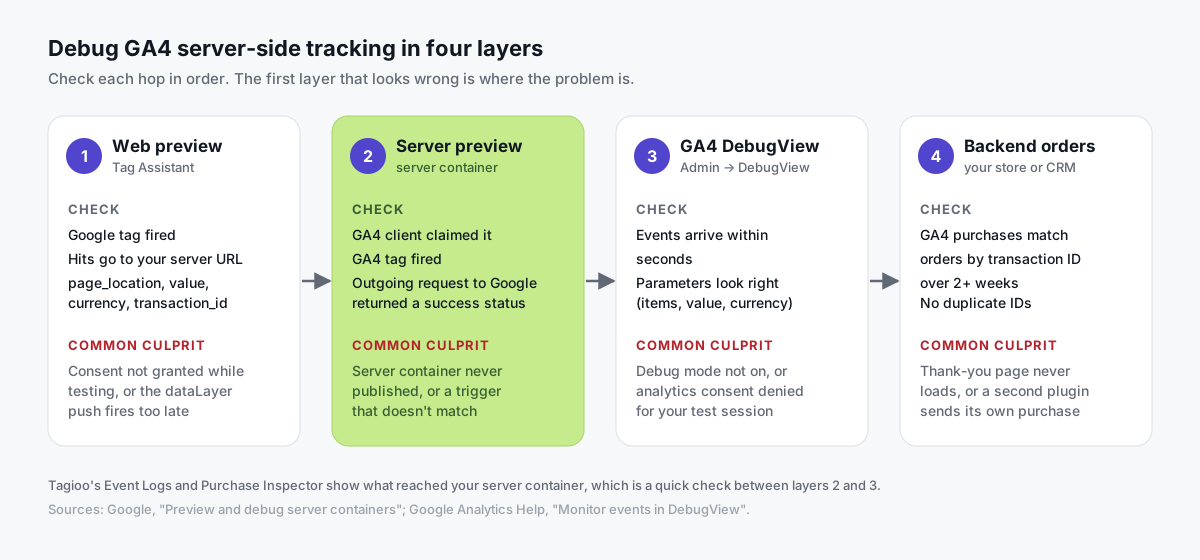
- Web preview (Tag Assistant). Confirms the Google tag fires with the right parameters and sends to your server container URL.
- Server preview. Google's debugging guide explains the panels. Request shows which client claimed the hit and the outgoing requests with status codes. Tags shows what fired. Event Data is where you check
page_location,page_titleandtransaction_id. - GA4 DebugView. Google's DebugView help explains how to turn on debug mode with Tag Assistant or the
debug_modeparameter. Events appear in Admin → DebugView within seconds, but not if analytics consent is denied. - Backend orders. After two weeks, match GA4 purchases to orders by transaction ID.
Leon Korteweg's tutorial is a good, shorter walkthrough of the GA4 part, including preview:

How do you know it worked?
After a week or two of server-side data, compare with the previous comparable period:
| Check | Healthy | Warning sign |
|---|---|---|
| Sessions and users | Same range as before | Users jump while sessions stay flat |
| Traffic sources | Similar mix | "(direct)" or "(not set)" suddenly rises |
| Landing pages | Many URLs | One URL dominates |
| Purchases vs orders | Match rate equal or better | Lower, or above 100% |
| Engagement time | Similar | Collapses |
Remember, you're not chasing 100%. Visitors who declined consent should be missing.
You want a consistent, honest signal. See conversion tracking discrepancies for how to compare your numbers properly.
How do you set this up with Tagioo?
Tagioo gives each customer a dedicated, isolated sGTM container on your own tracking subdomain, with preview and debug mode, DNS guidance and automatic SSL.
The Setup Assistant generates ready-to-import Web and Server container files with GA4 already configured, including explicit page_location and page_title. You import, preview and publish.
Then two checks save a lot of guessing:
- Run tracking test. It checks that your GA4 server container is published and your Meta CAPI credentials work.
- Event Logs and Purchase Inspector. They show what actually reached your server, with order details for purchases.
On WooCommerce, the Tagioo plugin also fires a server-side purchase hit, deduplicated on transaction_id, so purchases are recorded even when the thank-you page tag never fires.
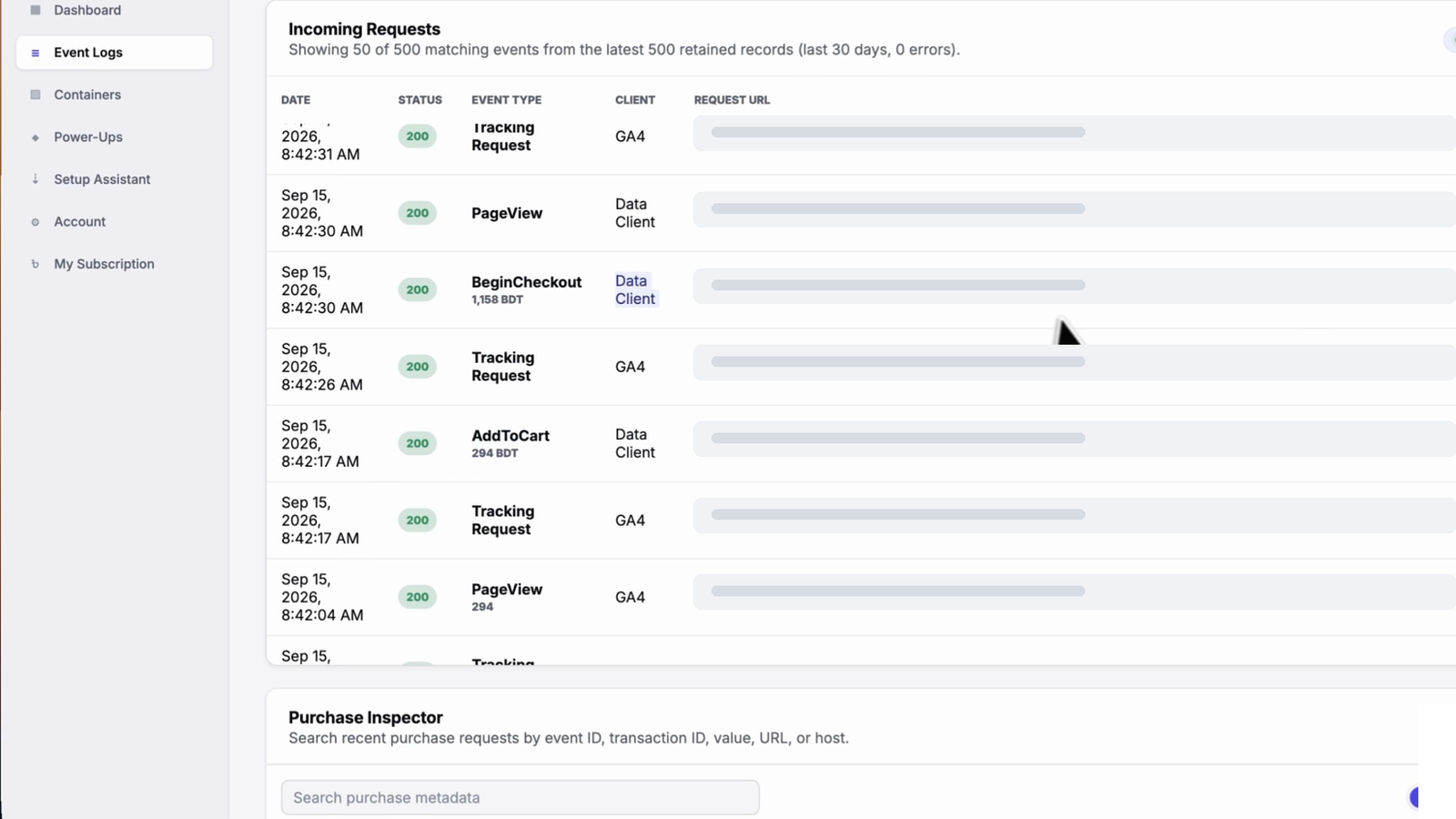
The free plan includes 15,000 events per 30 days, no card needed. Paid plans start at $30 a month. See pricing or how it works.
Sources and further reading
- Google: An introduction to server-side tagging
- Google: Send data to server-side Tag Manager
- Google: Custom domain configuration
- Google: Cloud Run setup guide
- Google: Preview and debug server containers
- Google: Server-side consent mode
- Google: GA4 ecommerce measurement
- Google: GA4 Measurement Protocol
- Google Analytics Help: Minimize duplicate key events with transaction IDs
- Google Analytics Help: Monitor events in DebugView
- Simo Ahava: Prevent sGTM from setting the FPID cookie
Related questions
Is GA4 client-side or server-side?
By default, GA4 is client-side: a JavaScript tag in the browser sends data straight to Google. With server-side GTM, that same tag sends data to a server container on your domain first, which then forwards it to GA4.
Do I still need the GA4 tag in the browser?
Yes, in the standard setup. The browser Google tag collects page context, engagement and interactions, then sends them to your server container.
A backend purchase hit or the Measurement Protocol can add events, but they can't replace page views or engagement data.
Will GA4 server-side tracking increase my numbers?
It may recover some events that would otherwise be lost, for example in browsers that block Google's hosts, especially if you also serve the loader from your domain.
It can't create events that didn't happen, and it won't capture visitors who declined consent. Compare backend orders with GA4 purchases before and after.
Does server-side GA4 help with ad blockers?
Partly. Hits to your own subdomain are less likely to match host-based filter rules. But if the gtm.js loader is still blocked, no tags run at all, and some tools block first-party paths too. More in our ad blocker guide.
Why do my server-side GA4 events all show the homepage?
The events probably reach the server container without an explicit page_location. Set it to {{Page URL}}, set page_title to the document title, and confirm both arrive in server preview.
Is GA4 server-side tracking GDPR compliant?
Server-side tracking is a way of moving data, not a legal basis for collecting it. The same consent rules apply as for a browser tag.
It can help compliance, because you control what each vendor receives. But you still need consent where the law requires it. This isn't legal advice.
How much does it cost to run GA4 server-side?
Self-hosting on Google Cloud Run costs about $45 a month per server, by Google's estimate, and Google recommends at least two instances.
Tagioo's free plan includes 15,000 events per 30 days, and paid plans start at $30 a month. See pricing and our breakdown of server-side tagging cost.
See your own events, server-side.
Tagioo hosts your server-side GTM container on your own domain and generates the GA4, Google Ads, Meta and TikTok setup for you. Free for 15,000 events a month, no card needed.
Keep reading
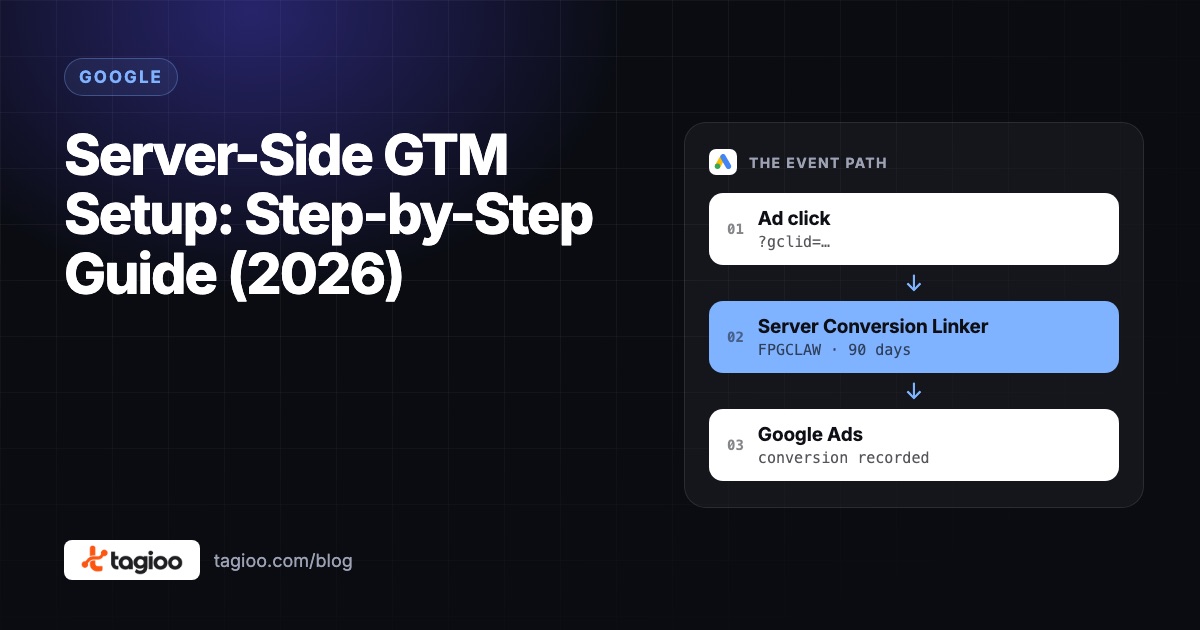
Server-Side GTM Setup: Step-by-Step Guide (2026)
A step-by-step server-side GTM setup, from creating the server container to hosting, DNS, GA4, Meta CAPI, debugging and publishing.
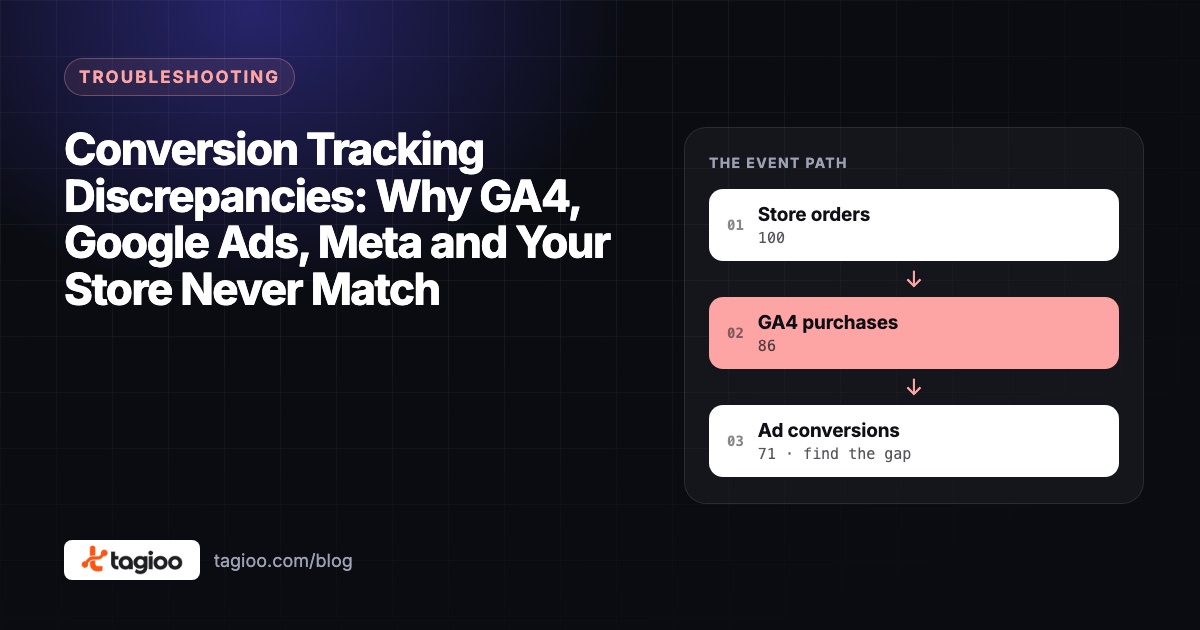
Conversion Tracking Discrepancies: Why GA4, Google Ads, Meta and Your Store Never Match
Not every reporting gap is a broken tag. How to tell normal attribution differences from missing or duplicate conversions.
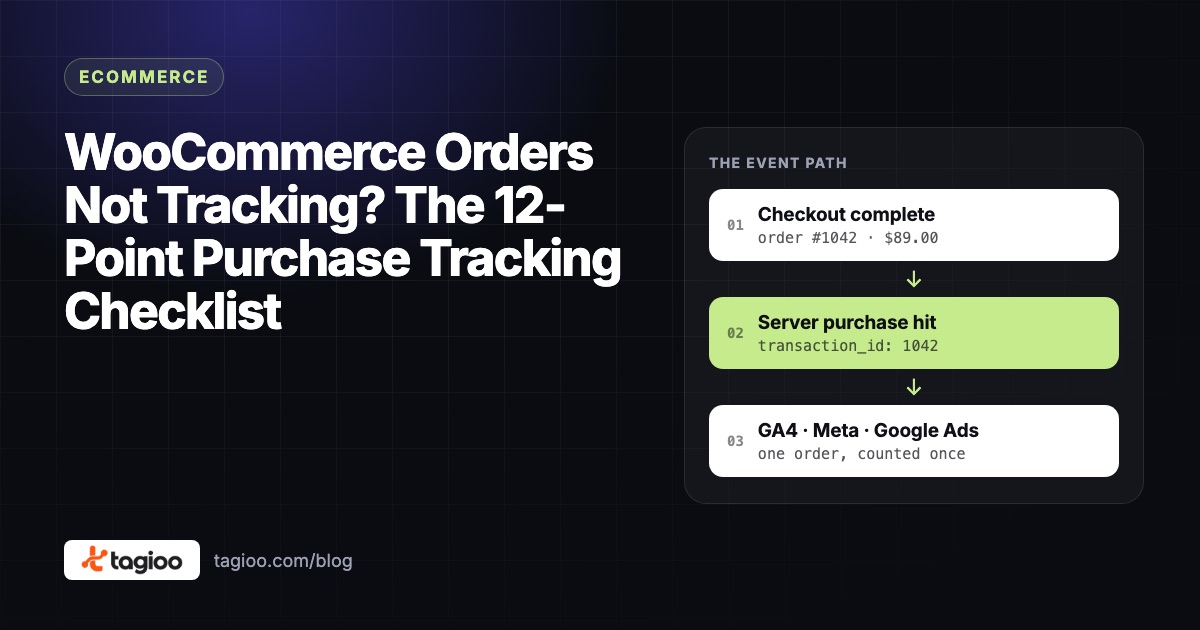
WooCommerce Orders Not Tracking? The 12-Point Purchase Tracking Checklist
Follow one missing order through 12 checks, find the exact step where WooCommerce purchase tracking breaks, and fix it.