
Server-Side GTM Setup: Step-by-Step Guide (2026)
Server-side GTM setup in 8 steps: create the server container, host it, add a tracking subdomain, connect GA4, Meta CAPI and TikTok, then preview and publish.
 Tagioo teamUpdated 13 min read
On this page
- What's the difference between a web container and a server container?
- Where can you host a server-side GTM container?
- What do you need before you start?
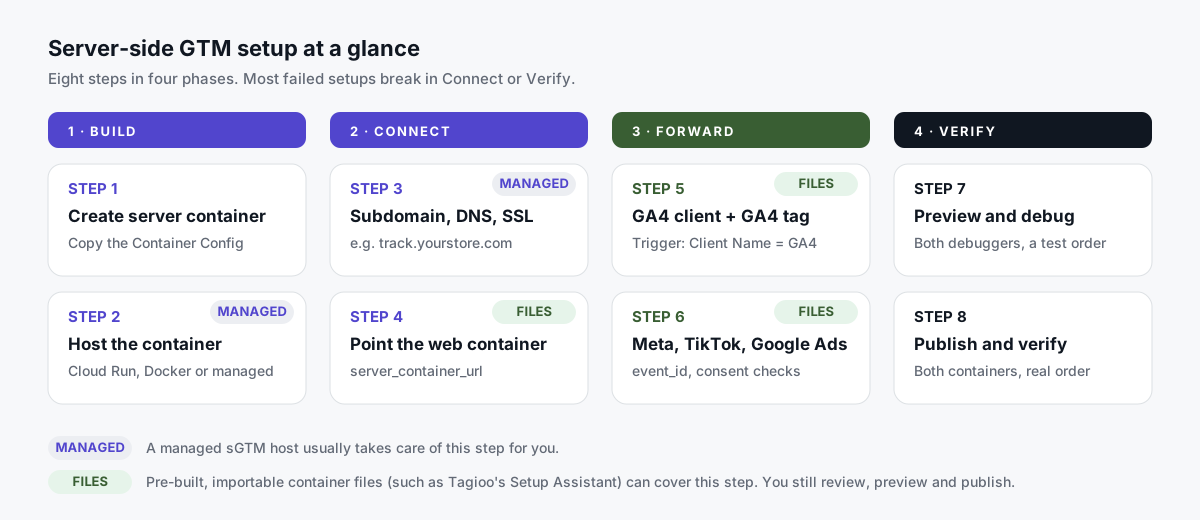
- How do you set up server-side GTM? (8 steps)
- What should you add after the basic setup?
- 8 common mistakes (and how to avoid them)
- Sources and further reading
- Related questions
You've read that server-side GTM can fix your missing conversions. You open Google Tag Manager, click Create Container, pick Server…
And then GTM asks you to "provision a tagging server."
Wait, what server? Who pays for it? And why does every guide mention DNS?
Don't worry. It's less scary than it looks, and we'll go one step at a time.
What is a server-side GTM setup? A server-side GTM (sGTM) setup adds a second Google Tag Manager container that runs on a server instead of in the browser. You create the server container, host it, give it a first-party subdomain like track.yourstore.com, point your web container's Google tag at it, add server tags for GA4, Meta, TikTok and Google Ads, then preview and publish.
Most failed setups don't break on anything clever. They break on one small detail: a DNS record, a missing page URL, or a web container that was never published.
In this guide, you'll find the full 8-step setup, the hosting options, the settings that trip people up, and answers to questions like "Is server-side GTM free?" and "Do I still need the web container?"
New to the concept? Read what server-side tracking is first. Otherwise, why the wait? Let's begin.
What's the difference between a web container and a server container?
Server-side GTM uses two containers that work as a pair.
| Web container | Server container | |
|---|---|---|
| Runs in | The visitor's browser | A tagging server you host |
| Job | Notice events on the page and send them | Receive events and forward them to platforms |
| Building blocks | Tags, triggers, variables, data layer | Clients, tags, triggers, variables |
| Typical tags | Google tag (with server container URL), consent tool | GA4, Meta Conversions API, TikTok Events API, Google Ads |
| Published from | Your web workspace | Your server workspace |
The client is the new piece for most people.
Google calls clients "adapters between the software running on a user's device and your server container" (Google's introduction to server-side tagging). A client receives an incoming request, recognizes its format, and turns it into event data that tags can use. The GA4 client comes built into every server container.
Here's how the two fit together:
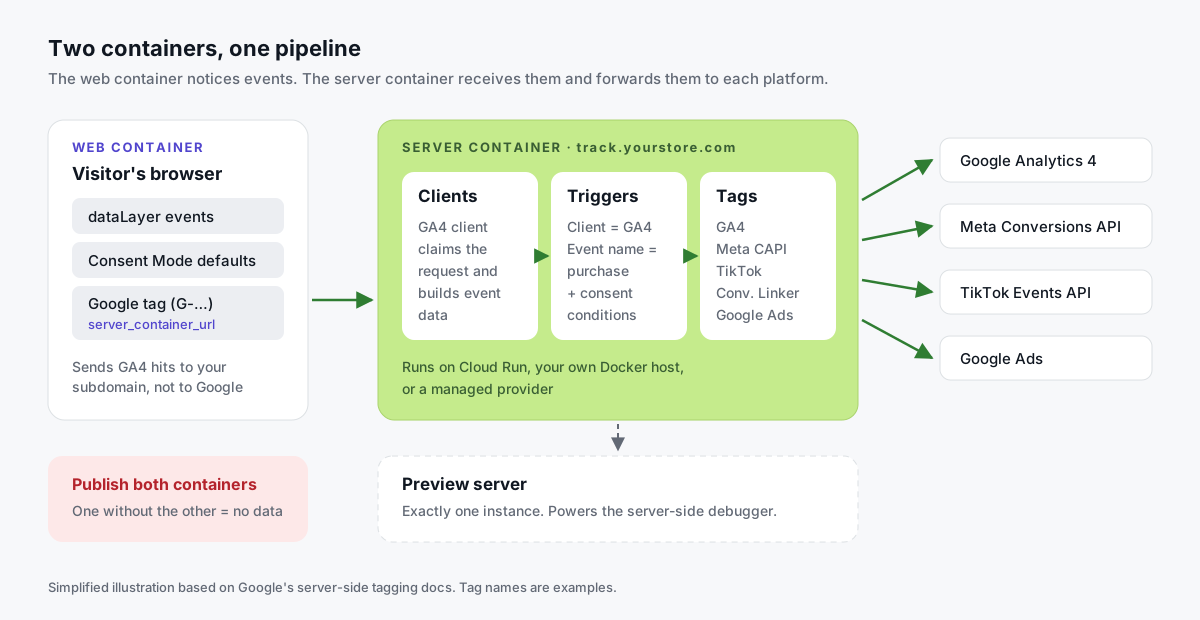
One thing to remember: a server container with nothing sending to it does nothing. And a web container pointing to an unpublished server container sends data into a void.
Where can you host a server-side GTM container?
A server container is just configuration. It needs a running server to execute it.
You have three broad choices:
| Hosting option | What you manage | Typical cost driver | Best for |
|---|---|---|---|
| Google Cloud Run (self-hosted) | Cloud project, scaling, logging, updates, domain | Always-on instances (Google estimates ~$45/server/month) | Teams comfortable with Google Cloud |
| Your own Docker host (self-hosted) | Servers, preview server, health checks, image updates | Your infrastructure | Teams with existing DevOps |
| Managed sGTM hosting | Your GTM containers and DNS record only | Plan price by events or requests | Stores and agencies that want the result, not the servers |
Google Cloud Run is Google's default path. When you create a server container, GTM can provision a tagging server on Cloud Run for you, or you can follow the Cloud Run setup guide. Google still documents an App Engine option, but labels the Cloud Run guide as recommended.
Your own infrastructure works because the tagging server is a Docker image. Google's manual setup guide covers the image, the separate preview server, environment variables and the /healthy health check.
Managed hosting providers, such as Tagioo, Stape, TAGGRS and Addingwell, run the tagging server for you. You still own your GTM containers. The provider handles servers, scaling, SSL and updates.
Each provider has its own pricing model, templates and support. Established players like Stape also publish a lot of helpful documentation. Tagioo focuses on generating ready-to-import containers for ecommerce stores.
What do you need before you start?
Grab these first. It saves a lot of back-and-forth later:
- Admin access to Google Tag Manager, with a web container already on your site.
- A GA4 property and its measurement ID (
G-XXXXXXX). - DNS access for your domain, to add one record.
- Platform credentials for anything you'll connect: Meta Pixel ID and a Conversions API access token, TikTok Pixel code and token, Google Ads conversion ID and label.
- A test plan. One product you can buy (and refund), so you can test a real purchase end to end.
- A baseline. Two to four weeks of store orders next to GA4 and ad platform numbers, so you can tell later whether anything improved.
How do you set up server-side GTM? (8 steps)
Step 1: Create a server container
- Open Google Tag Manager and go to your account.
- Click Create Container. Name it something clear, like "yourstore.com – Server".
- Choose Server as the target platform.
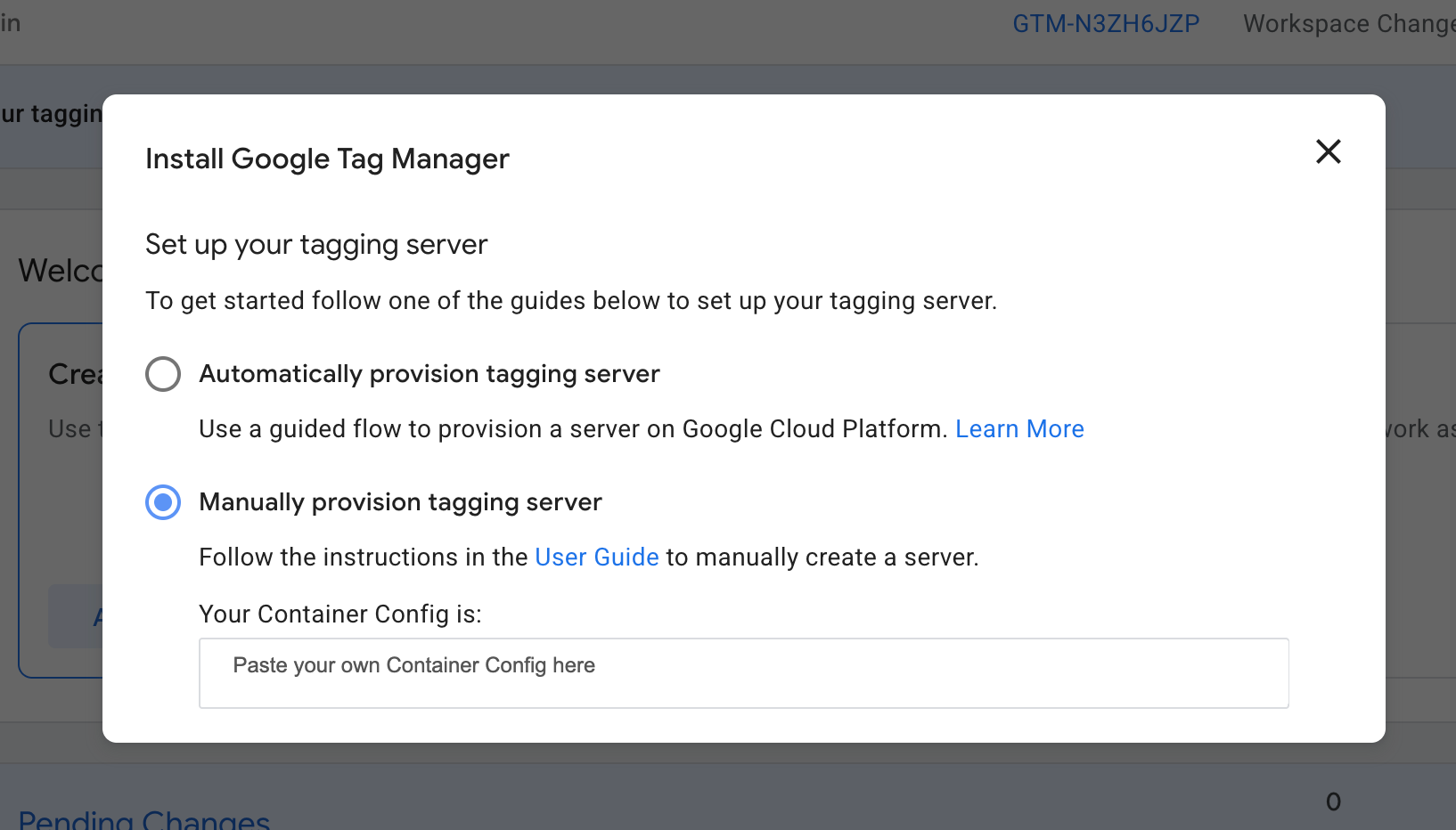
- Pick a provisioning option. GTM offers Automatically provision tagging server (Cloud Run) or Manually provision tagging server. For a managed host or your own Docker setup, choose manual and copy the Container Config string.
Keep the container ID and config string somewhere safe. The config string tells the tagging server which container to load.
Step 2: Host the server container
On Cloud Run: with automatic provisioning, GTM creates a Google Cloud project and deploys the tagging server. Then open Cloud Run and adjust it for production.
Google's guide recommends "a minimum of 2 instances to reduce the risk of data loss in case of a server outage." It also notes that request logging can get expensive at high volume, so review your logging settings early.
On your own Docker host: run Google's tagging server image with the CONTAINER_CONFIG variable, plus exactly one preview server. The manual setup guide lists every variable.
On a managed host: paste the Container Config into the provider's dashboard. The provider starts the tagging server and the preview server for you.
Either way, you should end up with a working server URL (at first often a default cloud URL ending in run.app) and a preview server.
Prefer to watch first? Analytics Mania walks through a complete setup here:

Step 3: Add a custom tracking subdomain, DNS and SSL
Please don't send production traffic to a default cloud URL.
Google's custom domain guide compares three options. On the default domain, the server "can only set Javascript cookies." A subdomain or same-origin setup gets "full access to security and durability benefits."
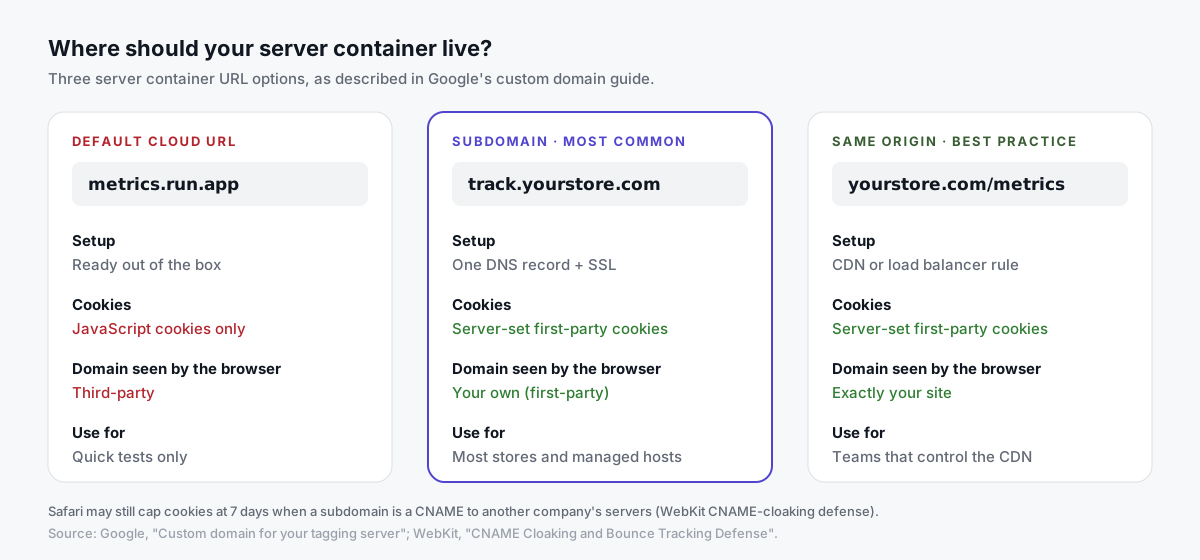
To set up a subdomain:
- Pick a neutral name, like
track,dataormetricsplus your domain. - Add the DNS record your host gives you (usually a CNAME, or A/AAAA records) at your DNS provider.
- Wait for DNS to resolve. This can take minutes, sometimes a few hours.
- Issue an SSL certificate. Managed hosts usually do this automatically once DNS resolves. On Cloud Run, use domain mapping or a load balancer with a managed certificate.
- Check it's alive. Open
https://track.yourstore.com/healthy. A tagging server normally answers with a simple OK. - Tell GTM about it. In the server container, go to Admin → Container Settings and add the subdomain as the Server container URL.
Using Cloudflare? Check whether the record should be proxied or DNS only. Your host's instructions will say which.
One honest caveat: Safari can cap server-set cookies at 7 days when your subdomain is a CNAME pointing to another company's servers (WebKit's CNAME cloaking defense). A same-origin setup avoids this, but it needs control over your CDN or load balancer.
Step 4: Point your web container at the server
Now tell the browser to send events to your subdomain instead of straight to Google.
- Open your Google tag in the web container (the one with your
G-measurement ID). - Add
server_container_urlas a configuration parameter, with the valuehttps://track.yourstore.com. You can set it on the tag, or in a shared Google tag configuration settings variable. - Keep the trigger early, like Initialization – All Pages, or your consent-aware equivalent.
- Check your GA4 event tags use this Google tag, so they inherit the server URL.
Google's send data to server-side Tag Manager page covers this. If your site uses a strict Content Security Policy, it also lists the img-src, connect-src and frame-src entries you'll need for the server URL.
Send the page context explicitly. Add page_location (set to {{Page URL}}) and page_title (from document.title) to your Google tag or event tags.
Without them, the server side can record the wrong page, often your homepage. That corrupts GA4 page reports and the event_source_url sent to Meta.
Step 5: Set up the GA4 client and GA4 tag
- Check Clients. In the server container, the GA4 client should already exist. Leave it on.
- Create a tag. Go to Tags → New → Google Analytics: GA4.
- Leave the measurement ID empty to inherit it from the incoming event, or enter your
G-ID. - Add a trigger: Custom, firing when Client Name equals GA4.
- Save.
That one tag forwards every GA4 event, from page views to purchases, from your server to Google Analytics. For ecommerce details, see our GA4 server-side tracking guide.
Step 6: Add Meta CAPI, TikTok and Google Ads tags
The same incoming GA4 events can feed other platforms. No second request from the browser is needed.
Here's the usual event mapping:
| GA4 event | Meta event | Google Ads |
|---|---|---|
page_view | PageView | Remarketing (optional) |
view_item | ViewContent | Dynamic remarketing (optional) |
add_to_cart | AddToCart | — |
begin_checkout | InitiateCheckout | — |
purchase | Purchase | Conversion Tracking tag |
TikTok uses similar standard event names. Check the exact names in its tag template before you map them.
Meta Conversions API:
- Add a Meta CAPI tag template from the Community Template Gallery, or your provider's template.
- Enter your Pixel ID and a Conversions API access token from Events Manager.
- Map events as in the table above.
- Send hashed match keys where you have them and consent allows: email, phone, plus
fbpandfbc. - Set an
event_idthat matches the browser Pixel'seventID. Meta's deduplication guide requires the same event name and ID on both. For purchases, the order ID is a common choice.
More in our Meta Conversions API guide and deduplication checklist.
TikTok Events API: add TikTok's server tag template, enter your Pixel code and access token, and map the same GA4 events to TikTok's standard events. See our TikTok Events API guide.
Google Ads: add a Conversion Linker tag and a Google Ads Conversion Tracking tag that fires on purchase, with your conversion ID and label. Our Google Ads server-side tracking guide covers the details.
Make every non-Google tag consent-aware. Google's server tags read the consent state passed by the Google tag (Google's server-side consent docs). Meta and TikTok tags need your own trigger conditions, so they don't fire when advertising consent was denied.
Step 7: Preview and debug
Test before you publish. Google's preview and debug guide explains the server debugger.
- Open Preview in the server container. A debugger tab opens.
- Open Preview in the web container and enter your site URL.
- Walk the funnel. View a product, add to cart, start checkout and place a test order.
- Check each incoming request in the server debugger:
| Debugger tab | What to check | Red flag |
|---|---|---|
| Request | Which client claimed it; outgoing requests and their response codes | No client claimed it, or a vendor returns 4xx |
| Tags | Which tags fired and whether they succeeded | Purchase tag didn't fire, or fired twice |
| Event Data | page_location, value, currency, transaction_id, user data | Homepage URL on a product event, value 0, missing order ID |
| Console | Template errors and logs | Repeated errors from one tag |
Finally, check Meta Test Events. Confirm server events arrive and are deduplicated against the browser Pixel.
A 2xx response from each vendor is the minimum. Also check that the value, currency and order ID match the order you just placed.
Step 8: Publish and verify
- Publish the server container.
- Publish the web container. Both need to be live.
- Place a real order (or a real-then-refunded one).
- Check each platform: GA4 Realtime for the purchase, Meta Events Manager for a server
Purchase, and TikTok Events Manager if you use it. - Watch for a few weeks. Compare platform totals against your store's orders and your baseline. Expect differences from attribution, but look for large, consistent gaps.
In Tagioo, the dashboard shows real-time event counts and Event Logs, and the Run tracking test button checks that your GA4 server container is published and your Meta CAPI credentials work.
What should you add after the basic setup?
Once data flows, a few extras are worth a look:
- Serve Google's scripts first-party. Some browsers and extensions block
googletagmanager.comitself. Google's tag gateway or a host's custom loader can serve the tag from your own domain. - A backend purchase source. A server-side purchase hit from your store's backend can record orders whose thank-you page never loaded. Dedupe on
transaction_id. - Data redaction. Strip IP addresses or query parameters a vendor doesn't need.
- Monitoring. Someone should notice when events stop arriving, a token expires, or a theme update breaks the purchase event.
- Updates. Self-hosters should update the tagging server image. Google says it's "periodically updated for security fixes and new features."
Analytics Mania has a nice roundup of these extras:

8 common mistakes (and how to avoid them)
- Default cloud URL in production: the server can only use JavaScript cookies. Fix: use a subdomain or same origin.
- Missing
page_location: server-side GA4 hits land on the wrong page. Fix: passpage_locationandpage_titlefrom the web container. - Only one container published: the web container is live, the server isn't, or the other way round. Fix: publish both.
- Mixed domains: the web tag points to
track.yourstore.com, but the server's Container Settings still list the cloud URL. Fix: use one subdomain everywhere. - Double counting: browser Pixel and server CAPI send purchases without a shared
event_id. Fix: match event name and ID. - Request logging left on: on Cloud Run, default logging can add real cost at high volume. Fix: review logging after launch.
- Ignoring consent: server tags fire on every event regardless of consent state. Fix: consent-aware triggers.
- Testing only page views: everything looks fine until the first real purchase. Fix: test a full order, end to end.
Numbers still don't match after launch? Read why conversion tracking numbers don't match.
Sources and further reading
- Google: An introduction to server-side tagging
- Google: Cloud Run setup guide
- Google: Manual setup guide
- Google: Custom domain for your tagging server
- Google: Send data to server-side Tag Manager
- Google: Preview and debug server containers
- Google: Server-side consent mode
- Google: Google tag gateway for advertisers
- Meta: Deduplicate Pixel and server events
- WebKit: CNAME cloaking and bounce tracking defense
- Simo Ahava: Server-side tagging in Google Tag Manager
Related questions
Is server-side GTM free?
The GTM software is free, but the server isn't. You pay for hosting: a Google Cloud bill for Cloud Run, your own infrastructure, or a managed provider plan.
Some managed providers have free tiers for low traffic. Tagioo's Free plan includes 15,000 events per 30 days, no card needed. See pricing.
What's the difference between GTM and server-side GTM?
Regular GTM runs a container in the visitor's browser and fires tags from there. Server-side GTM adds a second container on a server you control.
The browser sends events to that server, and the server container forwards them to each platform. Most setups use both.
Do I still need the web GTM container?
Yes, in most setups. The web container notices events in the browser and sends them to your server.
Some stores add a backend source too, such as the Tagioo for WooCommerce plugin's server-side purchase hit.
Can I host server-side GTM without Google Cloud?
Yes. The tagging server is a Docker image, so it runs on any host that runs Docker, following Google's manual setup guide. Or a managed provider can host it for you.
What is the server container URL?
It's the address your tagging server answers on, ideally a subdomain like https://track.yourstore.com. You add it in the server container's Container Settings, and as server_container_url on the Google tag in your web container.
Does server-side GTM bypass ad blockers?
Not completely, and that shouldn't be the goal. Requests to your own subdomain are less likely to be caught by domain blocklists, so some events that would be dropped can get through.
Some tools block first-party endpoints too, and consent choices always apply. More in our ad blocker guide.
How long does a server-side GTM setup take?
A self-hosted setup typically takes several hours to a few days, depending on your Google Cloud experience, DNS access and how many platforms you connect.
With managed hosting and pre-built container files, the infrastructure part is much faster. Leave time for testing either way. To try the managed route, create a free Tagioo account.
Can I use server-side GTM with Shopify or WooCommerce?
Yes. On WooCommerce, a plugin can inject GTM and push a GA4 ecommerce data layer. On Shopify, a Custom Pixel sends events to your tracking domain.
See our WooCommerce and Shopify guides.
See your own events, server-side.
Tagioo hosts your server-side GTM container on your own domain and generates the GA4, Google Ads, Meta and TikTok setup for you. Free for 15,000 events a month, no card needed.
Keep reading
What Is Server-Side Tracking? How It Works, Benefits & Setup (2026)
How server-side tracking works, how it compares to browser tags, what it can and can't fix, and how to decide if you need it.
Server-Side Tracking Cost: How Much Does Server-Side GTM Cost in 2026?
What server-side GTM really costs: Cloud Run self-hosting, managed plans compared, hidden costs and a simple way to estimate volume.
GA4 Server-Side Tracking: How It Works, Setup and Fixes for Missing Data
Set up GA4 through a server GTM container, track purchases with transaction_id, and fix the issues that make server-side data look wrong.